
For schools · Set up your school
Send your welcome packet to everyone
After you import your roster, send your welcome packet to the families you already have. Each family gets one email with their own sign-up link: they sign your waiver, add a card and create their login in one go.
Jump to a part
Step by step
The same steps as the video, with what to look for on each screen. The orange box shows where to look.
Where it lives
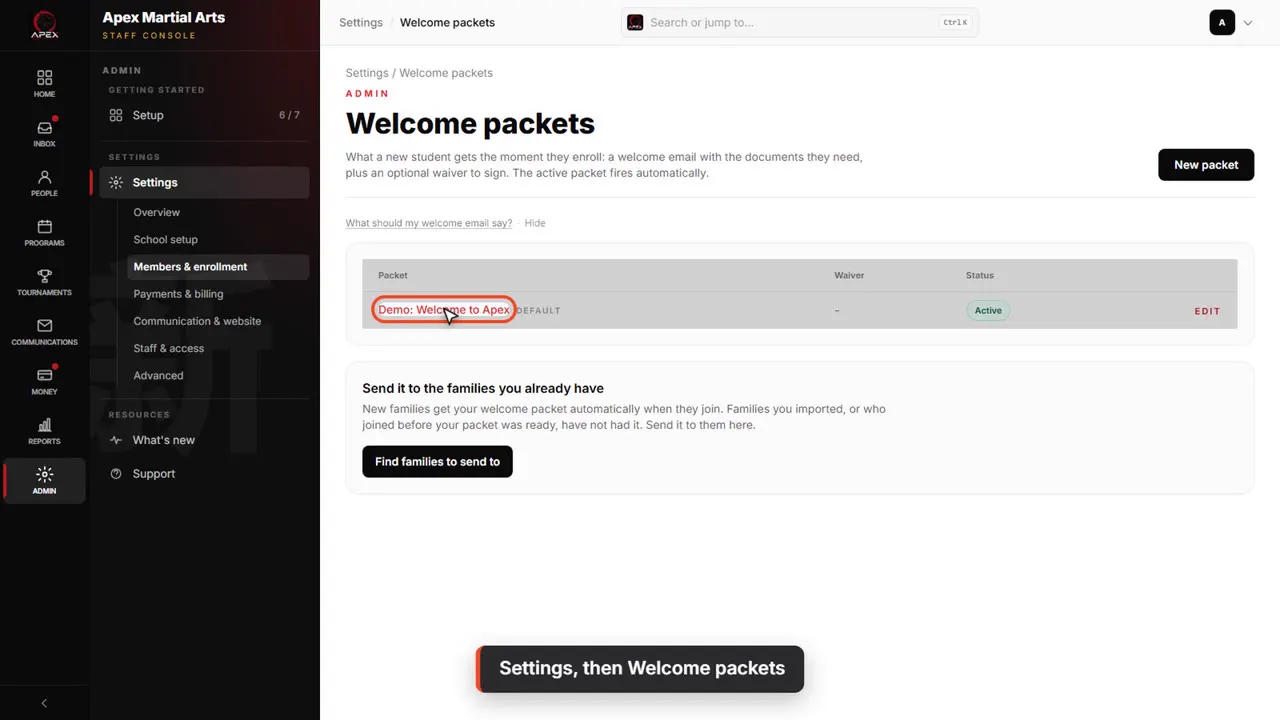
Settings, then Welcome packets
Families who join from now on get your welcome packet automatically. For the families you already have, open Admin, Settings, then Welcome packets.
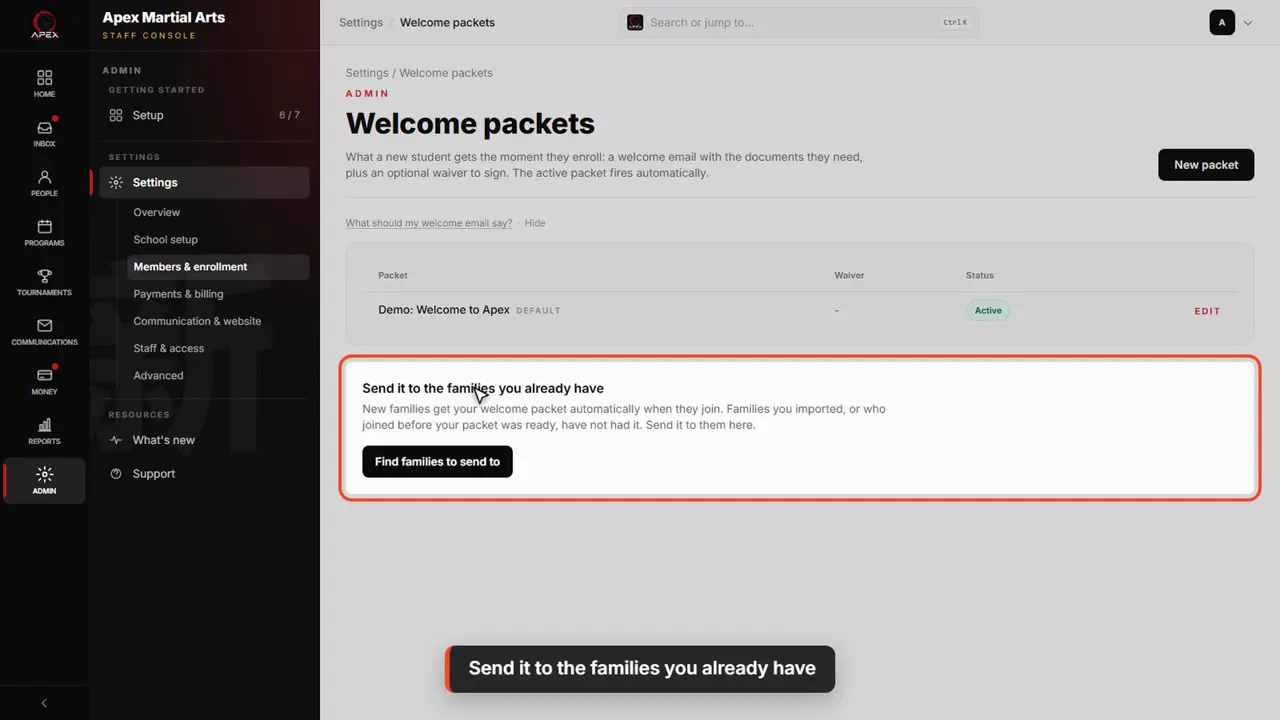
Send it to the families you already have
Under your packets, find Send it to the families you already have. It shows once a packet is Active and your default.
Find the families
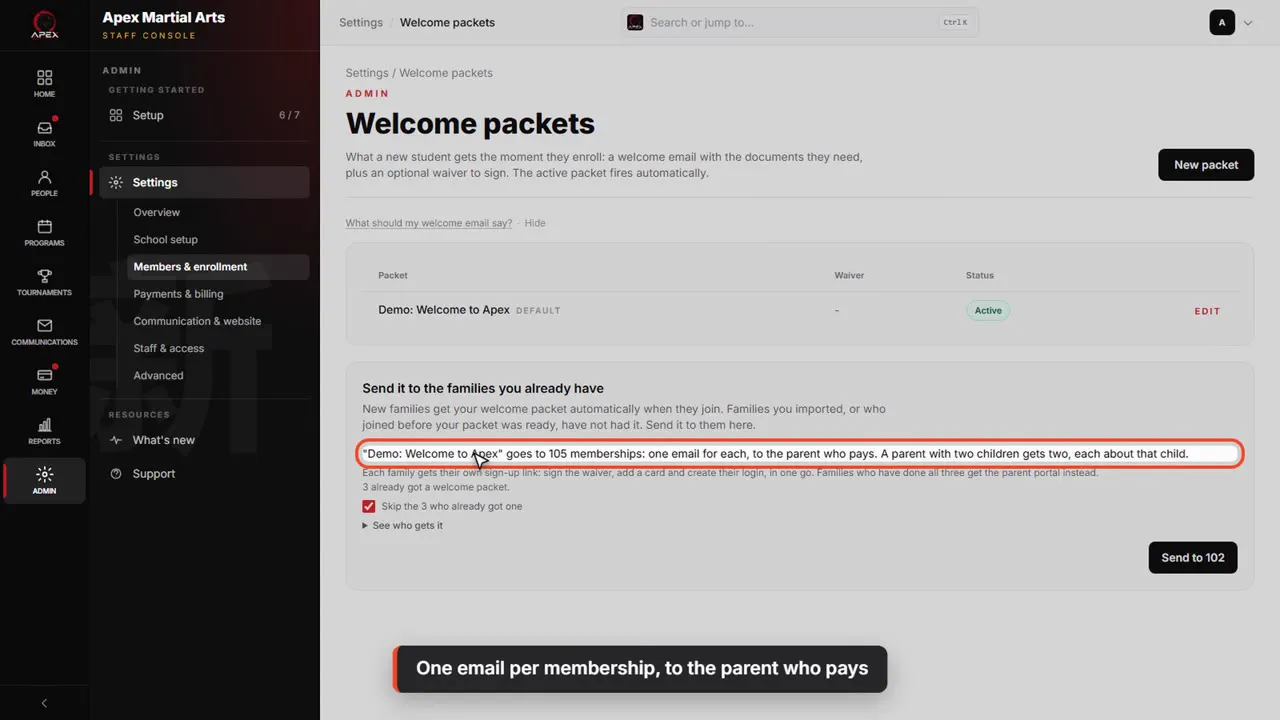
One email per membership, to the parent who pays
Click Find families to send to. QuickKicks lists every current membership. Each one gets its own email, to the parent who pays.
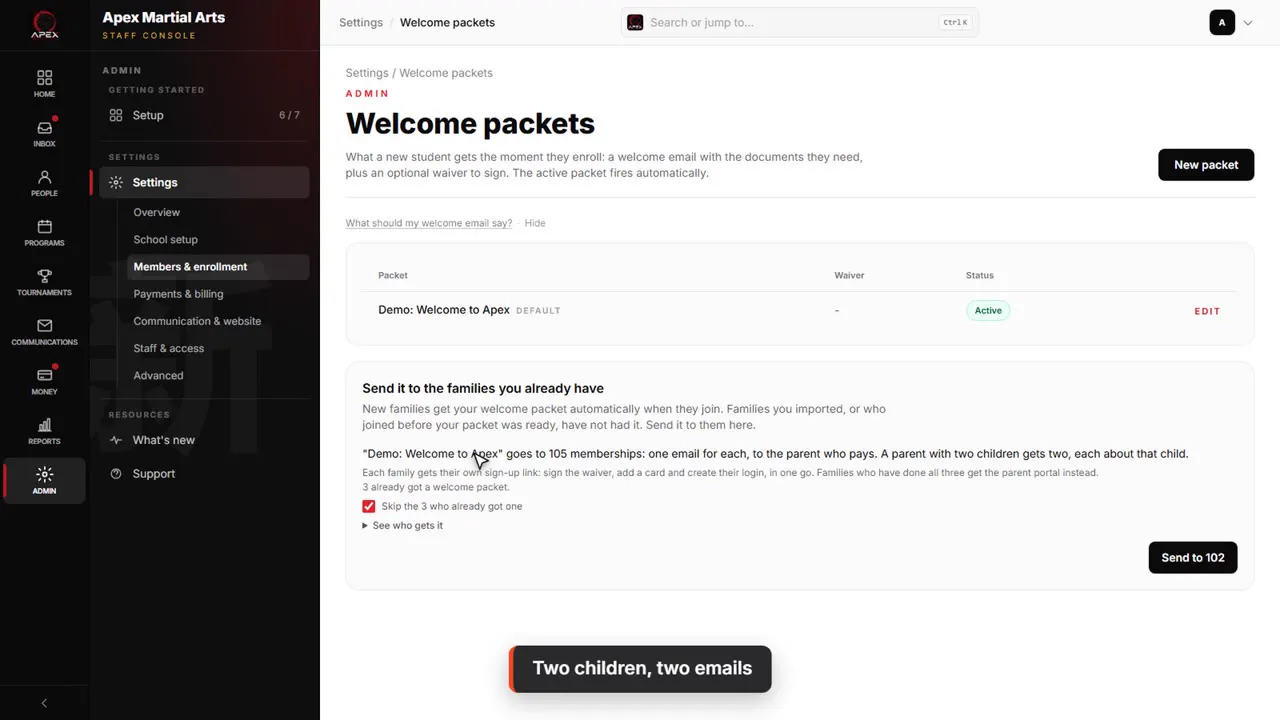
Two children, two emails
A parent with two children gets two, each about that child, so names and tuition are right.
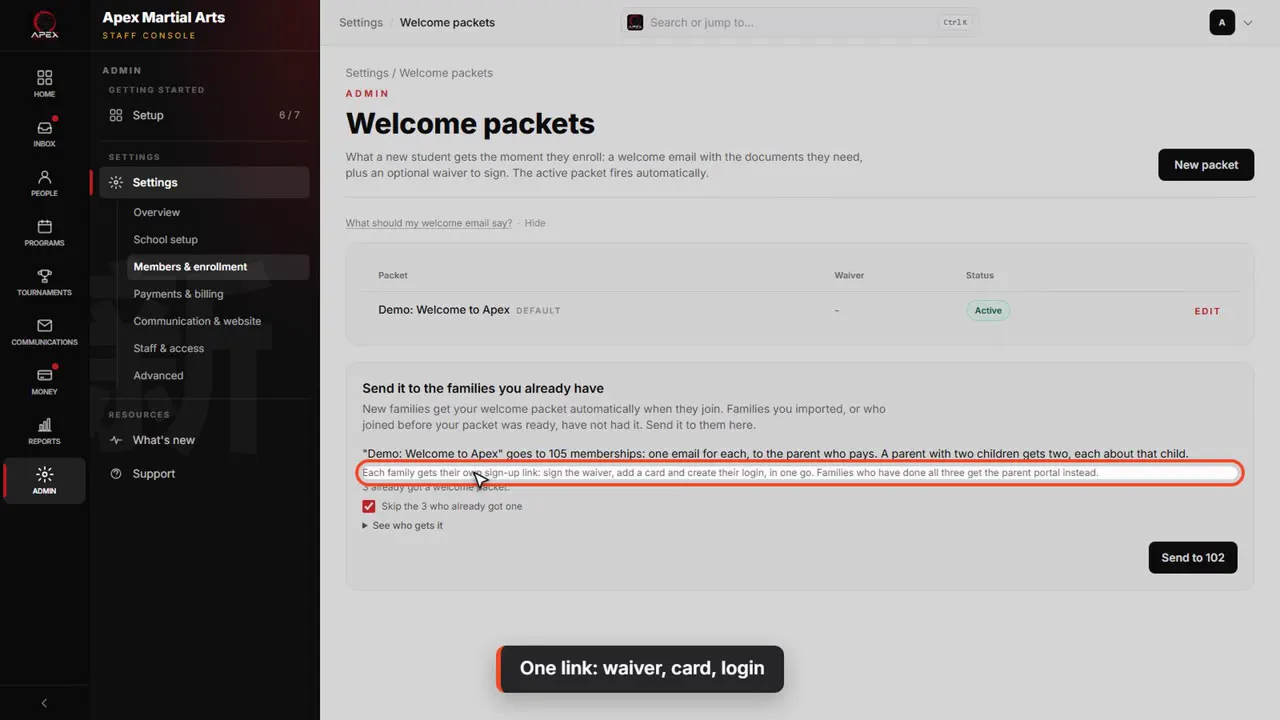
One link: waiver, card, login
The Finish your sign-up button is each family’s own link. They sign your waiver, add a card, and create their login, all in one go.
Check who gets it
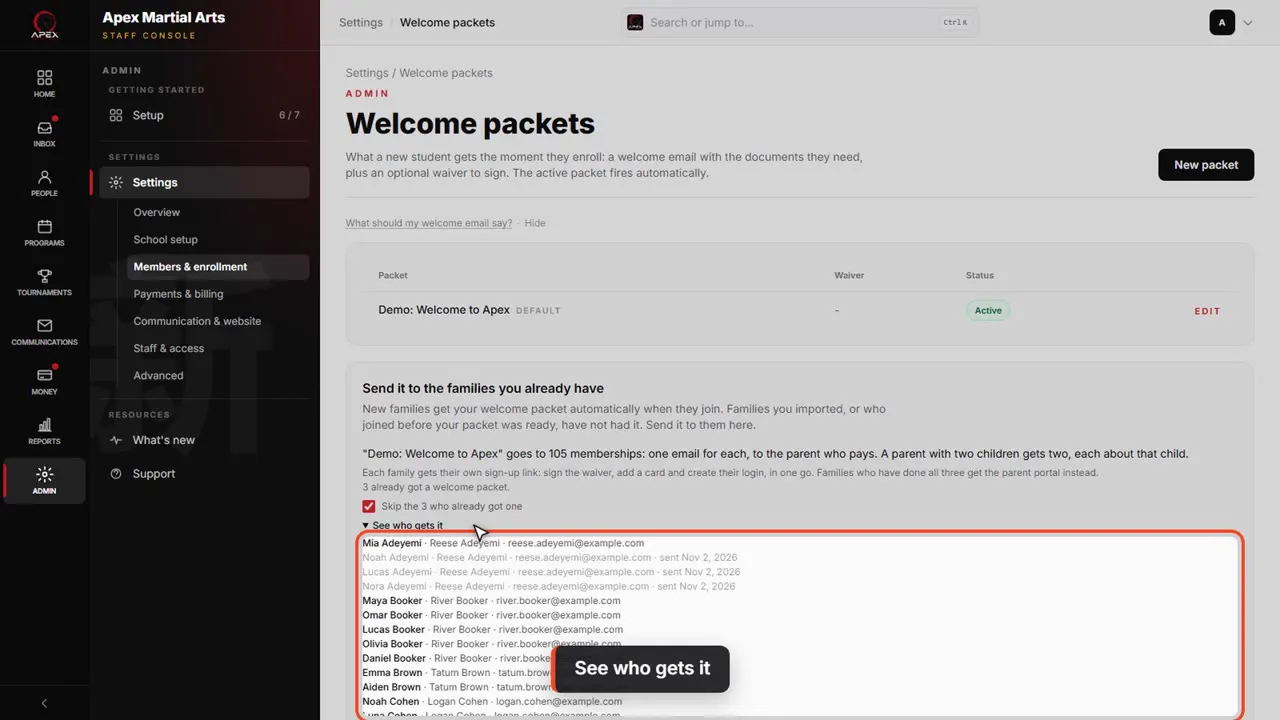
See who gets it
Open See who gets it to check the list. Anyone with no email on file is skipped.
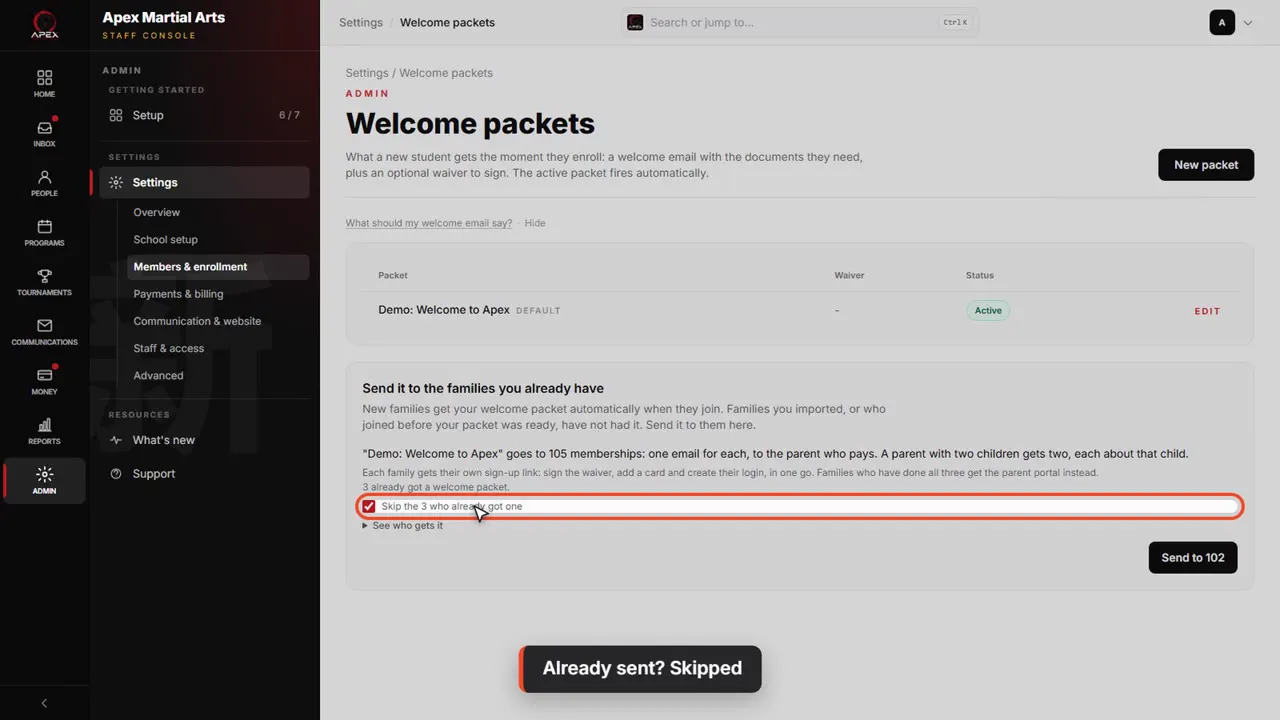
Already sent? Skipped
Families who already got a welcome packet are skipped, so nobody gets it twice. Untick the box only if you want to send it again.
Send it
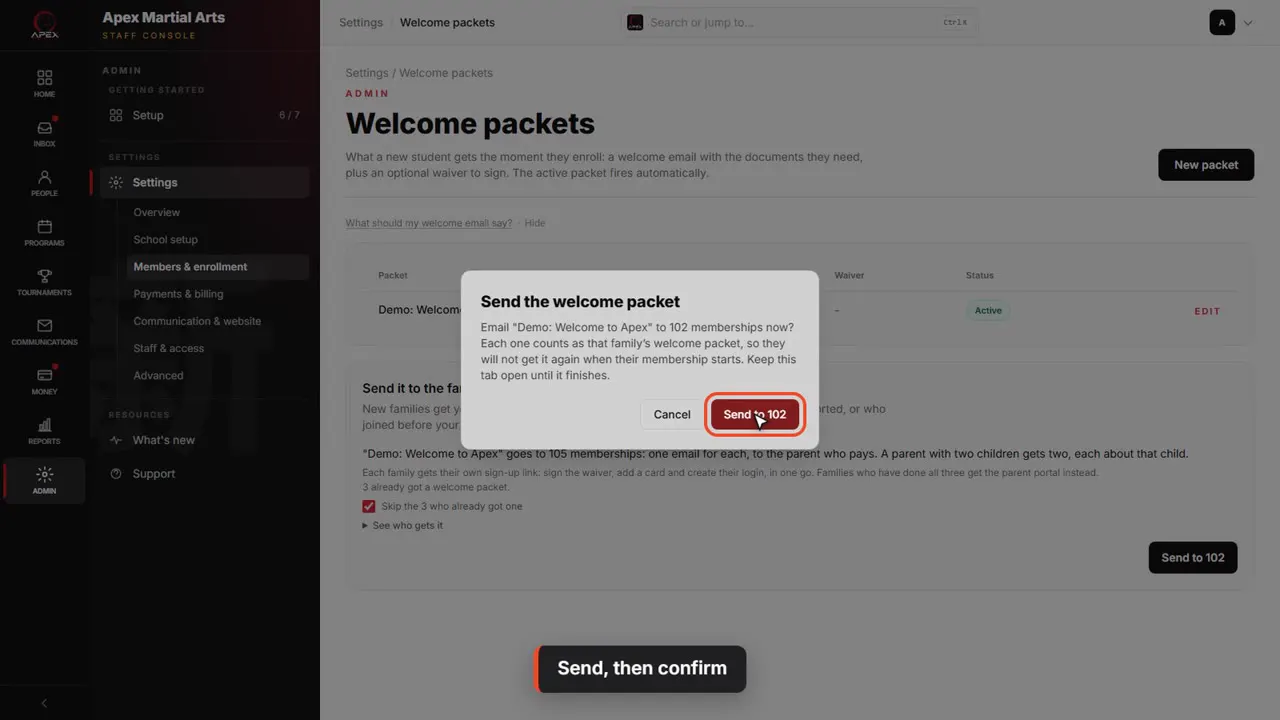
Send, then confirm
Click Send, read the check, and confirm. It counts as each family’s welcome packet, so they will not get it again when their membership starts.
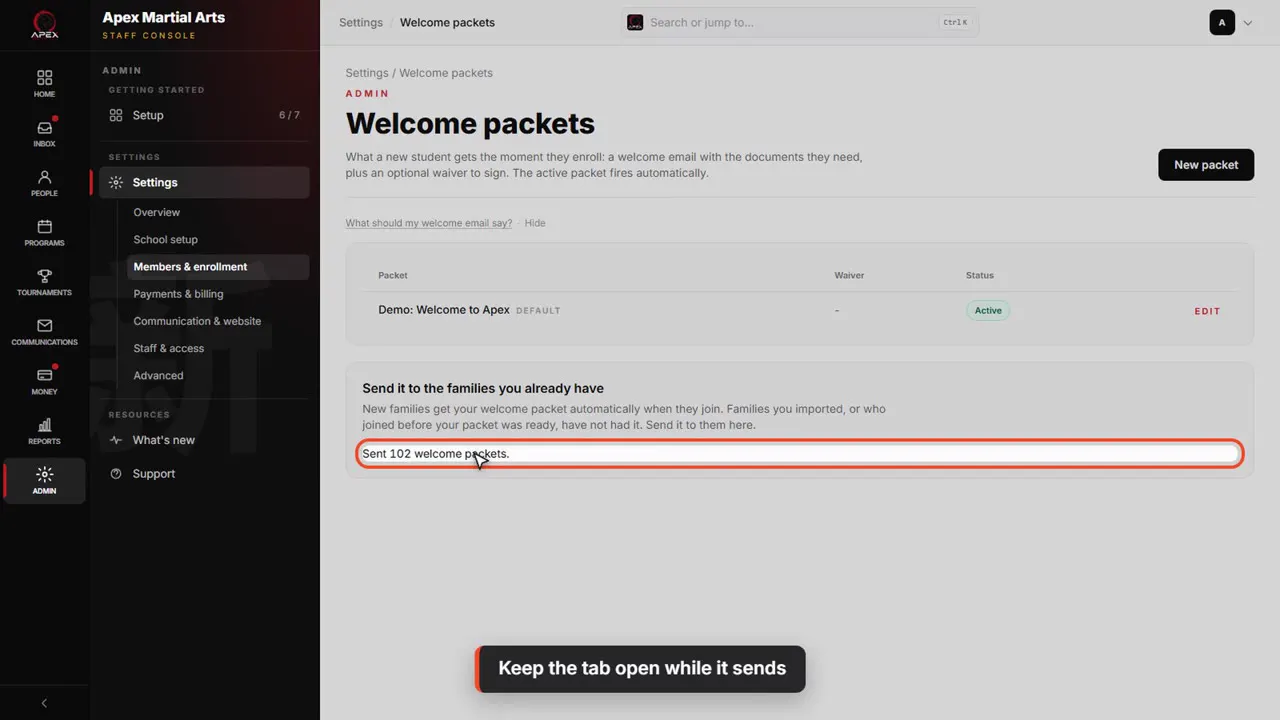
Keep the tab open while it sends
Keep the tab open while it sends. When it finishes, it tells you how many went, and lists any it could not send, with a Retry.
Just a few families
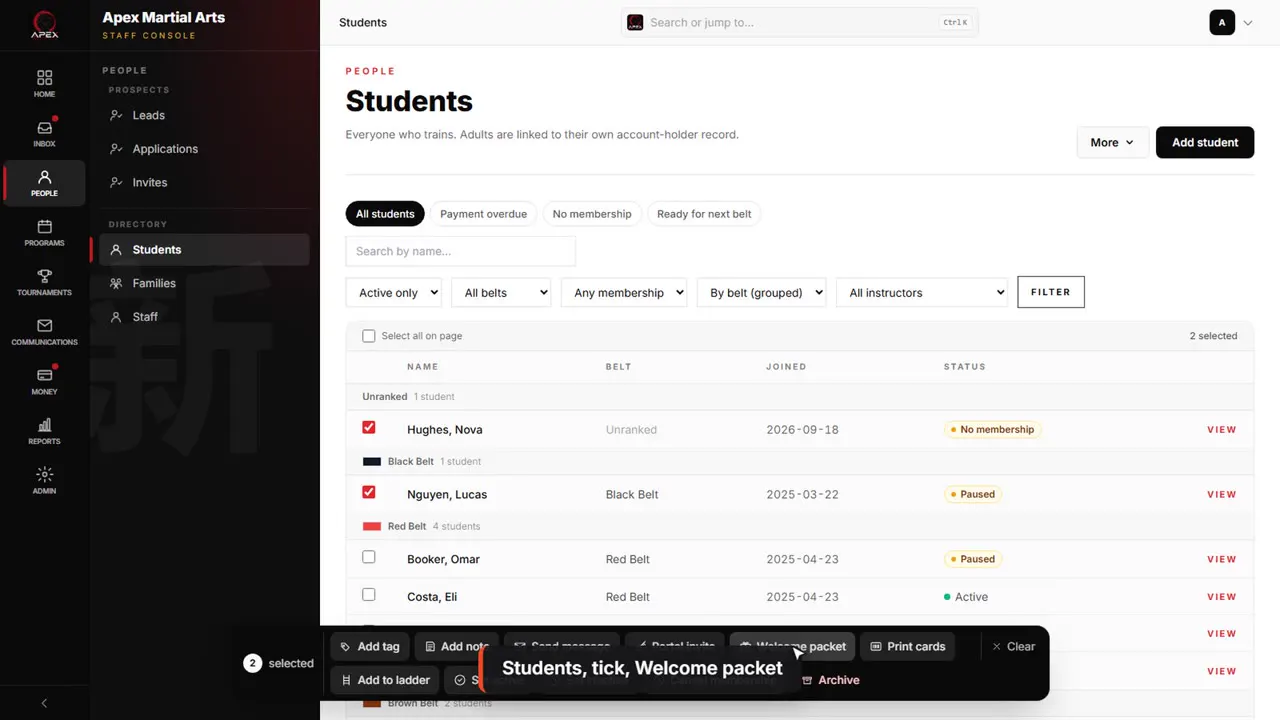
Students, tick, Welcome packet
To send it to just a few families, open Students, tick them, and choose Welcome packet in the bar at the bottom.
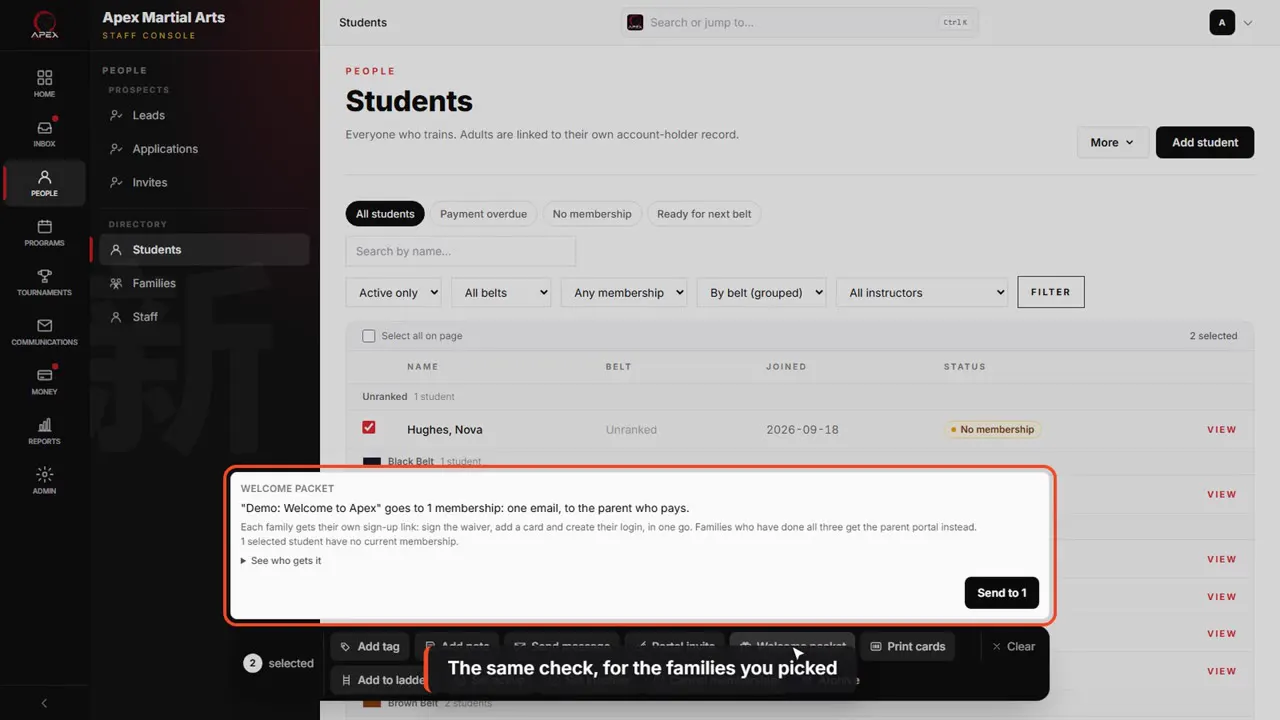
The same check, for the families you picked
You get the same check and the same Send button, for just the families you picked.
Shown with a demo school. Your screens show your own school, and may look a little different.
Read the whole video as text
In this video you'll send your welcome packet to the families you already have, like a roster you just imported.
Families who join from now on get your welcome packet automatically. For the families you already have, open Admin, Settings, then Welcome packets.
Under your packets, find Send it to the families you already have. It shows once a packet is Active and your default.
Click Find families to send to. QuickKicks lists every current membership. Each one gets its own email, to the parent who pays.
A parent with two children gets two, each about that child, so names and tuition are right.
The Finish your sign-up button is each family’s own link. They sign your waiver, add a card, and create their login, all in one go.
Open See who gets it to check the list. Anyone with no email on file is skipped.
Families who already got a welcome packet are skipped, so nobody gets it twice. Untick the box only if you want to send it again.
Click Send, read the check, and confirm. It counts as each family’s welcome packet, so they will not get it again when their membership starts.
Keep the tab open while it sends. When it finishes, it tells you how many went, and lists any it could not send, with a Retry.
To send it to just a few families, open Students, tick them, and choose Welcome packet in the bar at the bottom.
You get the same check and the same Send button, for just the families you picked.
That's it. Every family has your welcome packet, and nobody gets it twice.
Up next · Run your day
Add a new family
Add a student and the parent who pays in one form, set who to call in an emergency, and find the family page.
Watch next: Add a new familyBefore this: Build your welcome packet
Stuck?
In QuickKicks, open Admin, then Support (or Help, in the simpler menu), and send us a message. Or email hello@quickkicks.app.