
For schools · Run your day
Add a new family
Add a student and the parent who pays in one form, set who to call in an emergency, and find the family page.
Jump to a part
Step by step
The same steps as the video, with what to look for on each screen. The orange box shows where to look.
The student and who pays
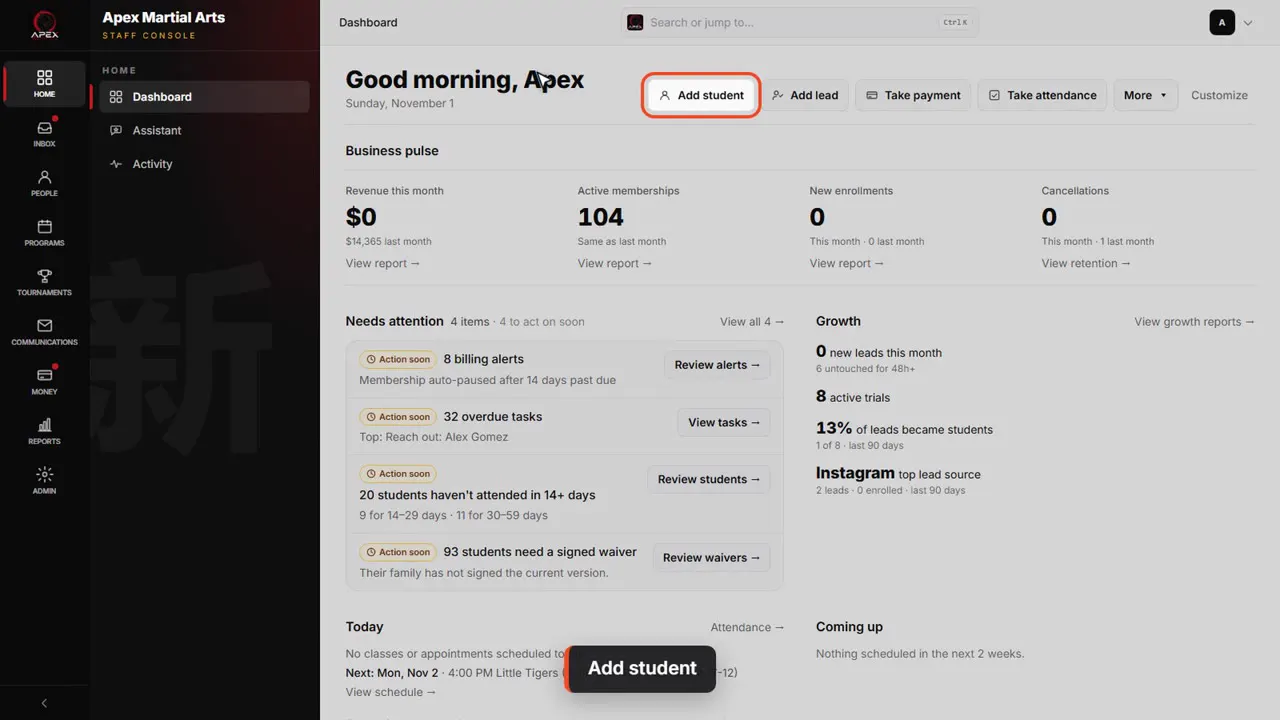
Add student
Start on the dashboard and click Add student. The Students page has the same button.
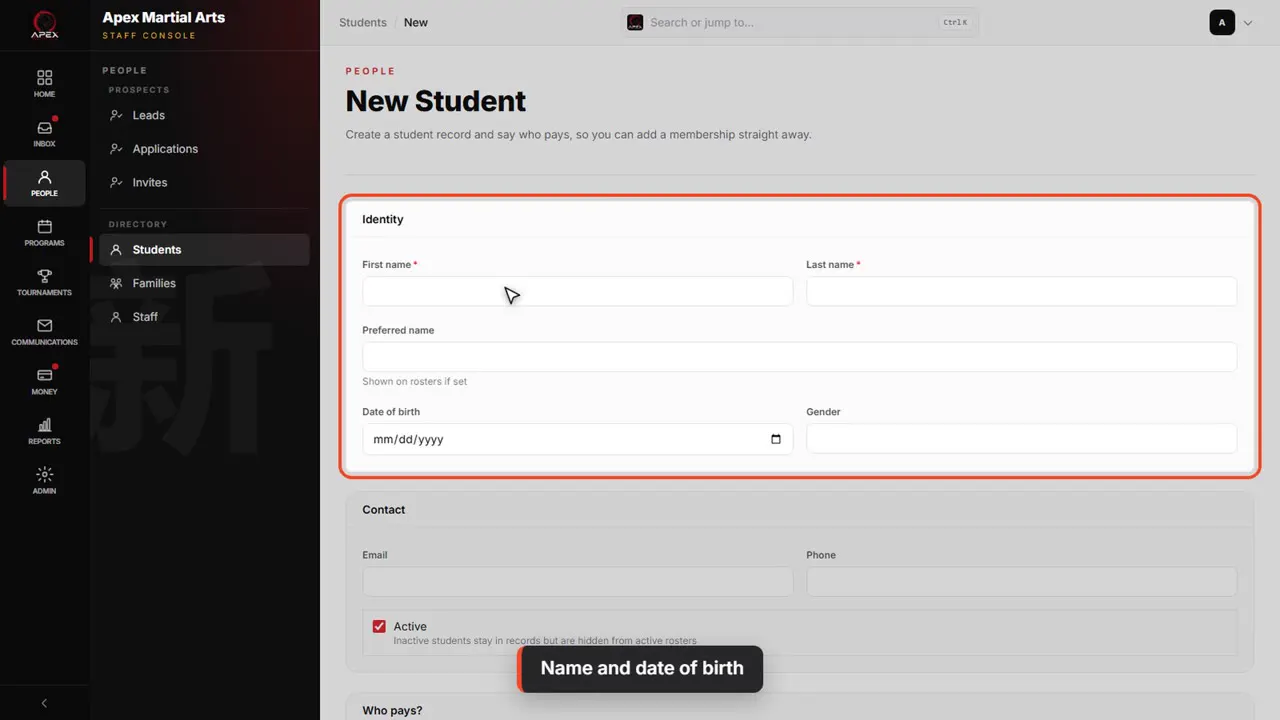
Name and date of birth
Type the student's first and last name and their date of birth. The birthday is used for age-based classes and programs.
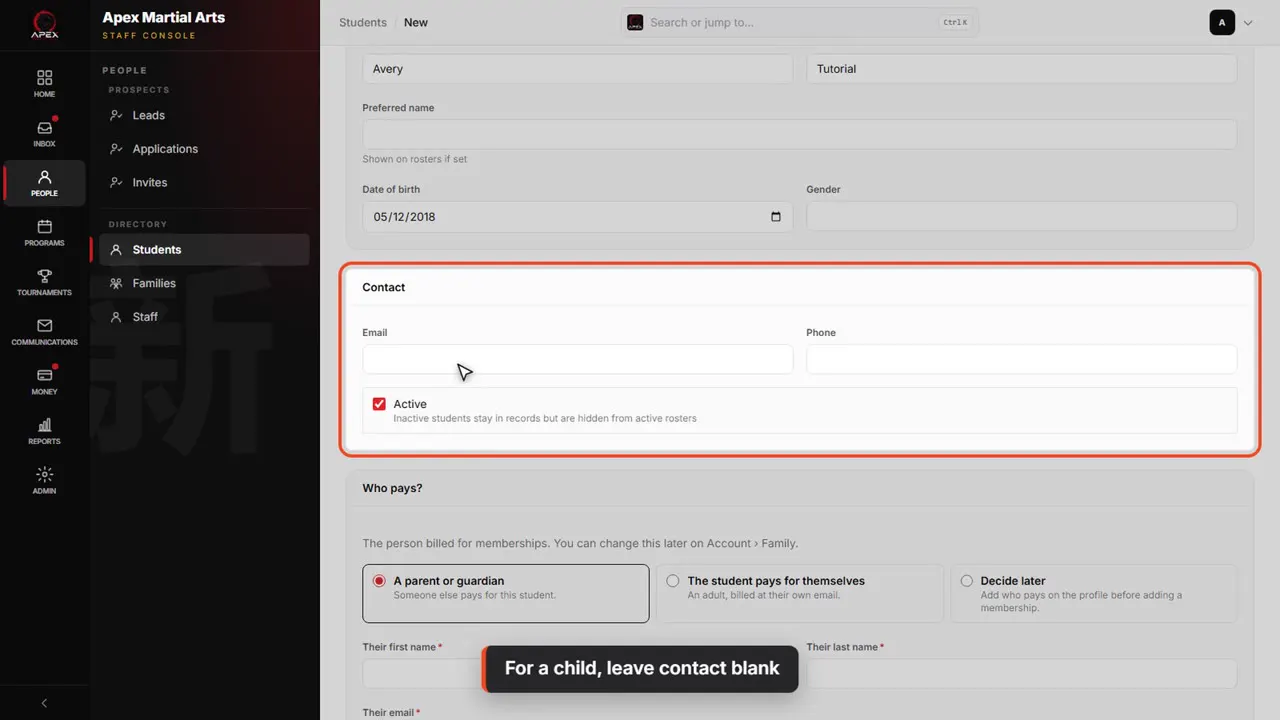
For a child, leave contact blank
Email and phone here are the student's own. For a child, leave them blank: the parent goes in Who pays, just below.
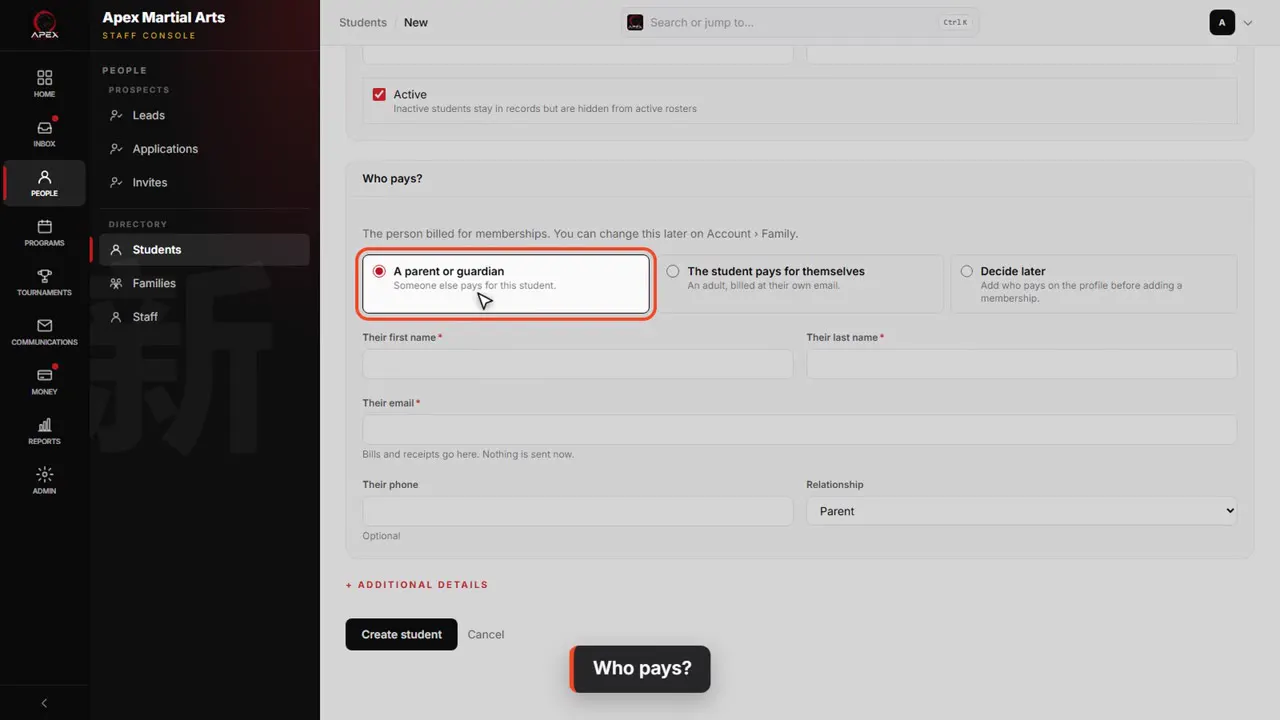
Who pays?
Who pays? is the person billed for memberships. Avery is a child, so A parent or guardian is already picked.
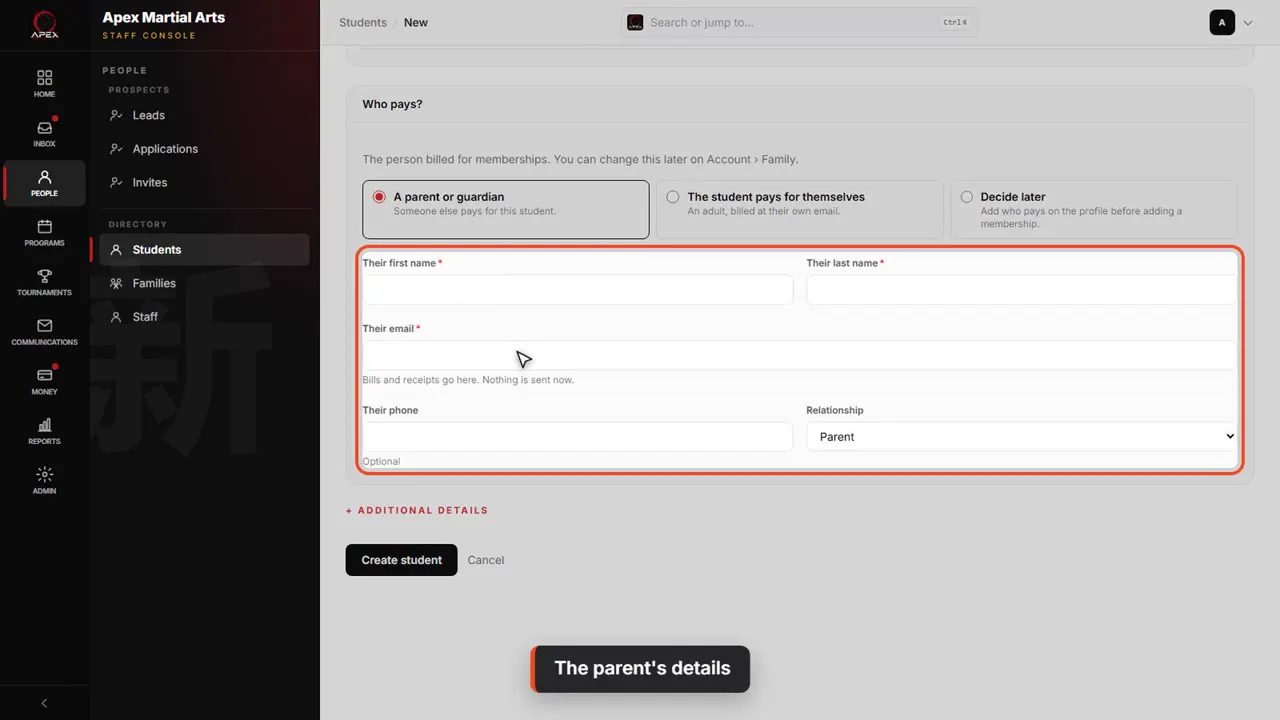
The parent's details
Type the parent's name, email and phone. The email is where bills and receipts go, and nothing is sent now.
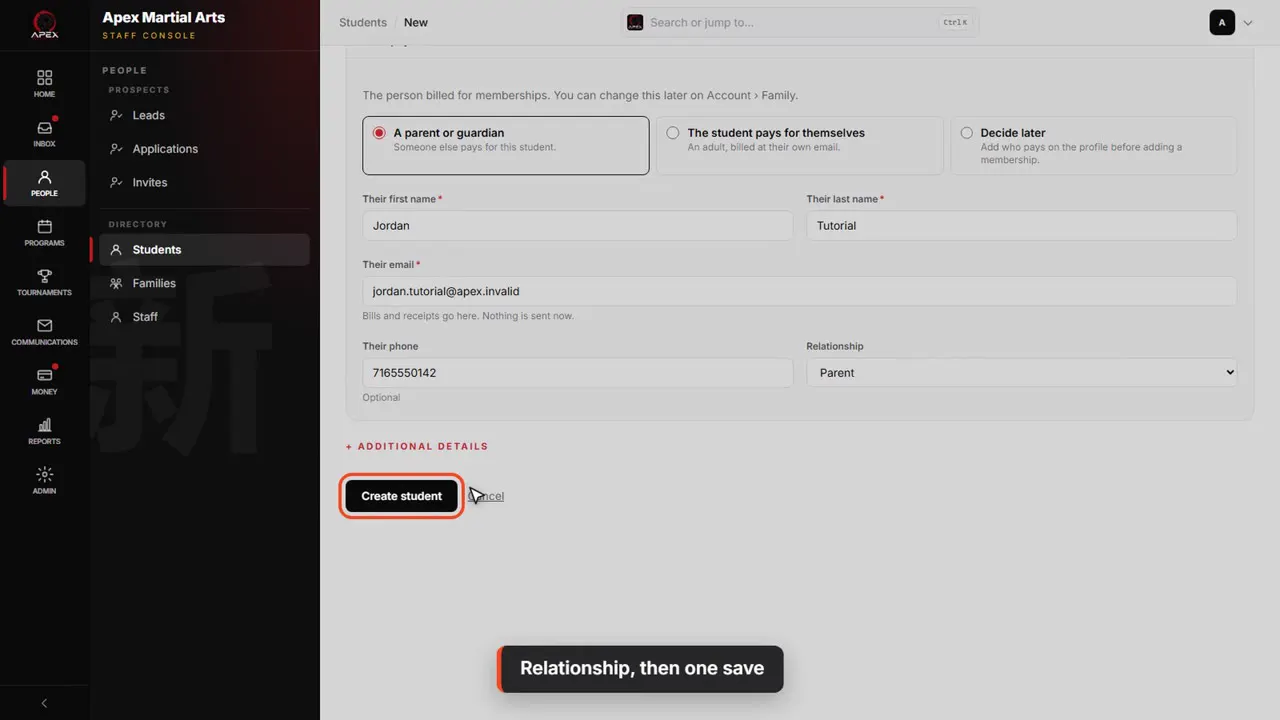
Relationship, then one save
Relationship is Parent. Then click Create student: the student, the parent and the link are saved together.
The family tab
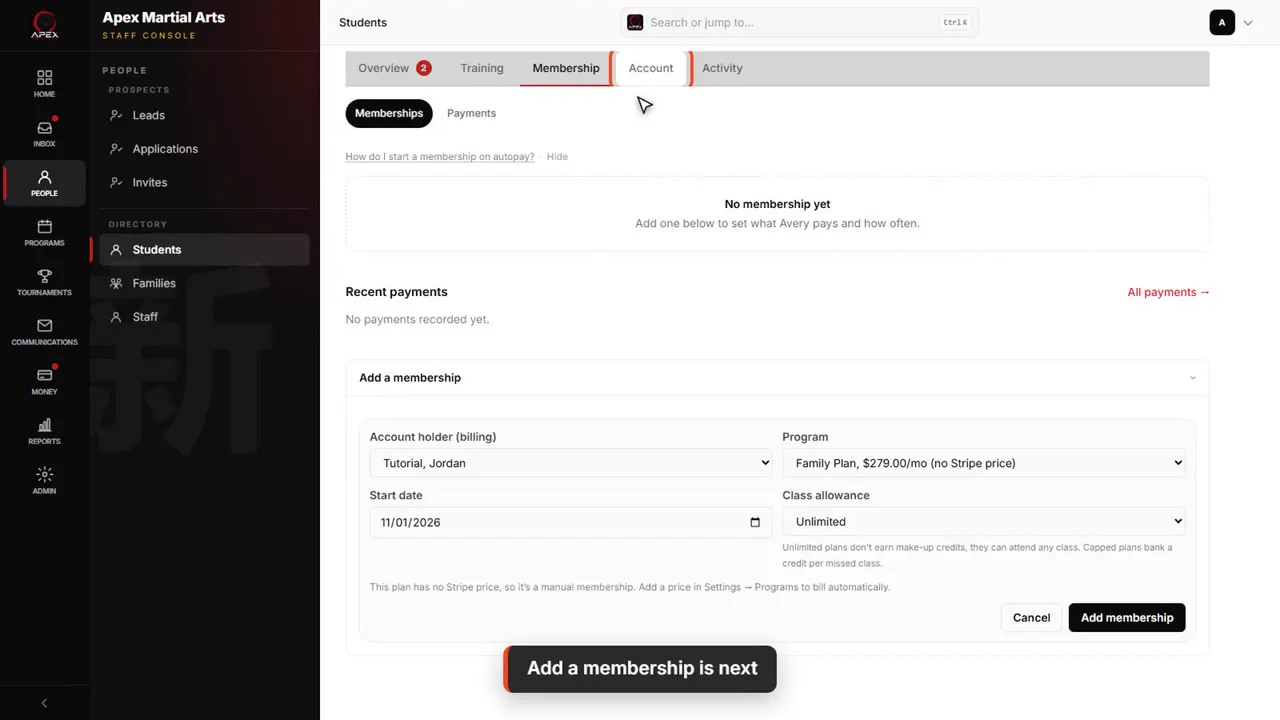
Add a membership is next
With someone paying, the profile opens on Add a membership, the next step: the next video covers it. First, the rest of the family: click Account.
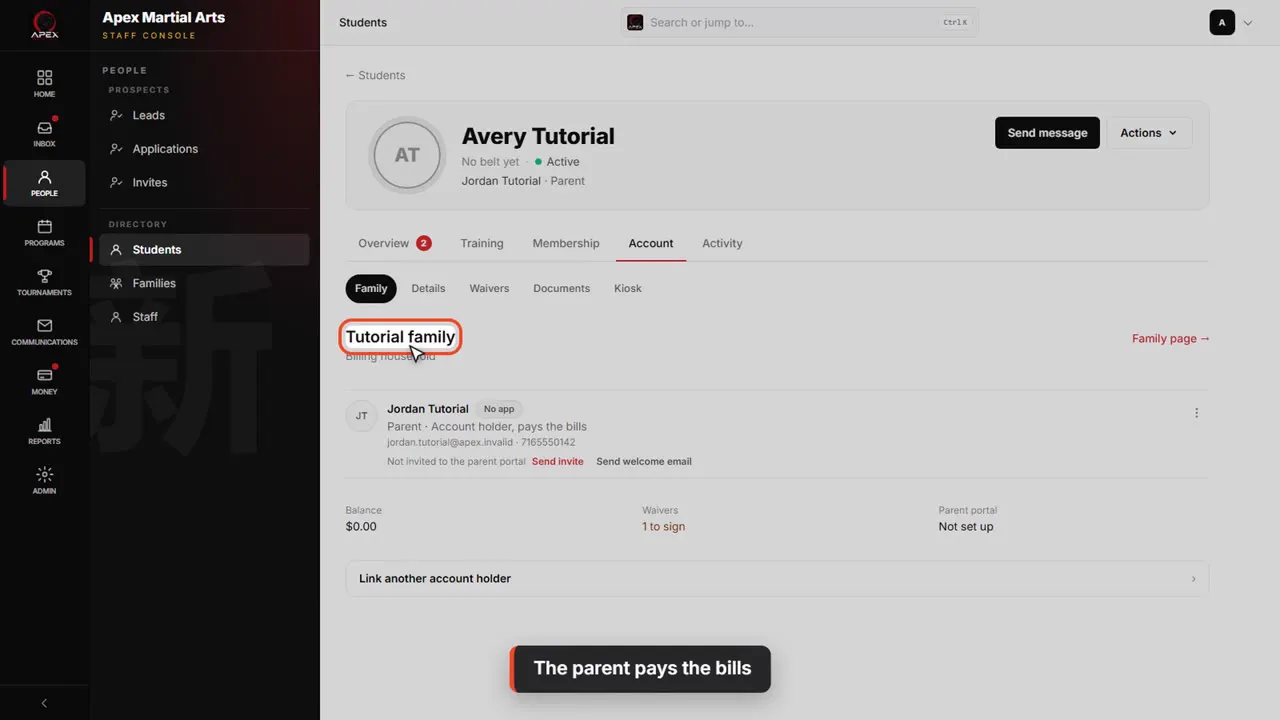
The parent pays the bills
Account opens on Family. Jordan is the account holder: the adult you bill and contact. The family is named after them.
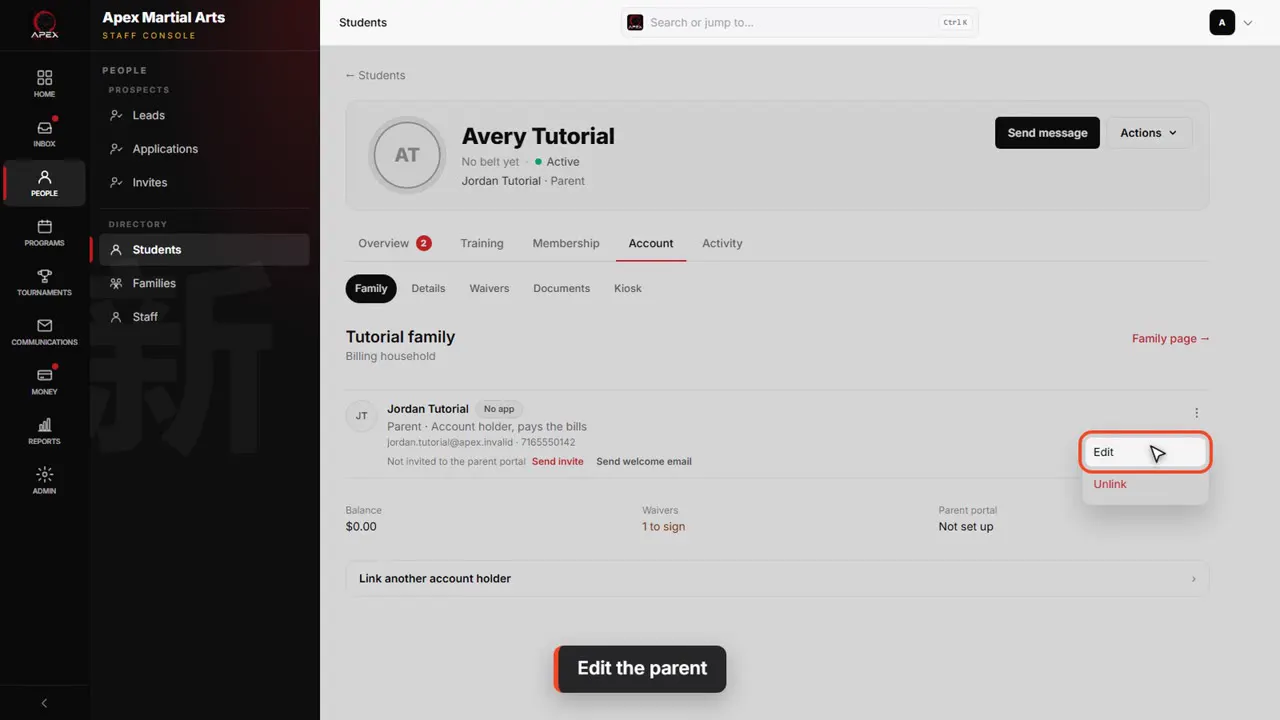
Edit the parent
To have staff call Jordan first, open the menu on their row and click Edit.
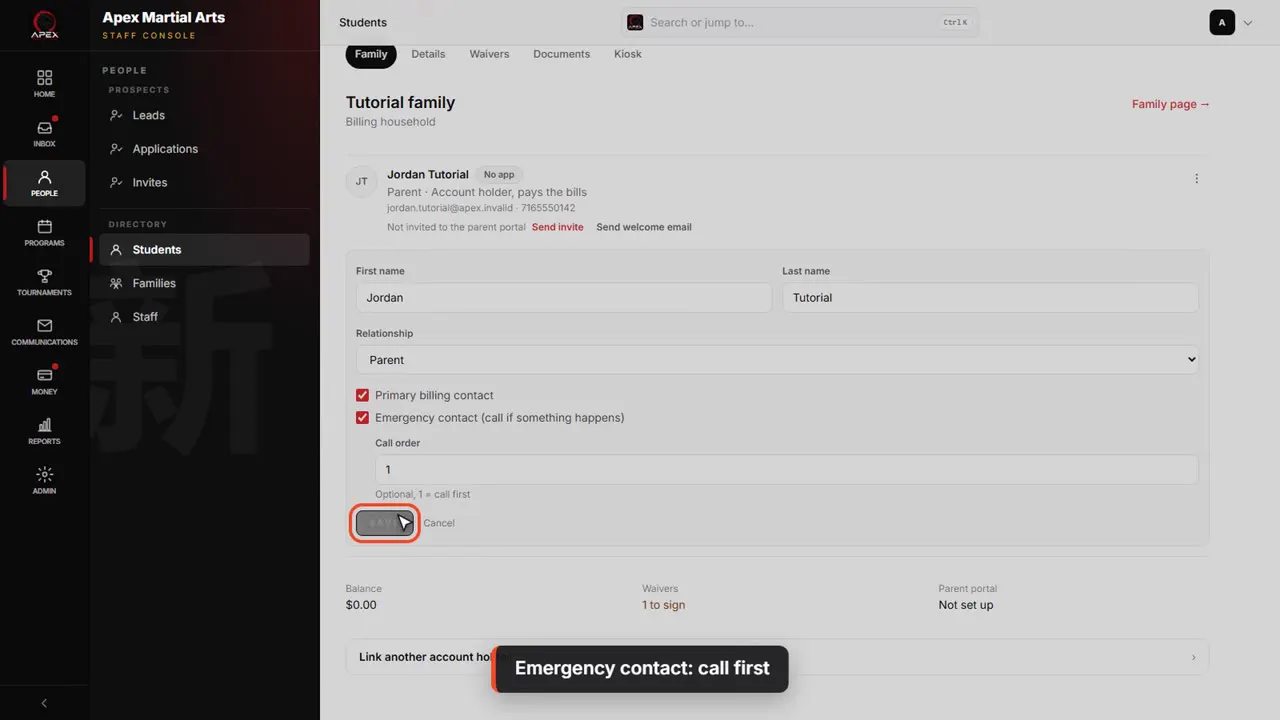
Emergency contact: call first
Tick Emergency contact, so staff know to call this parent. Type one in Call order, so they're called first, and click Save.
A second emergency contact
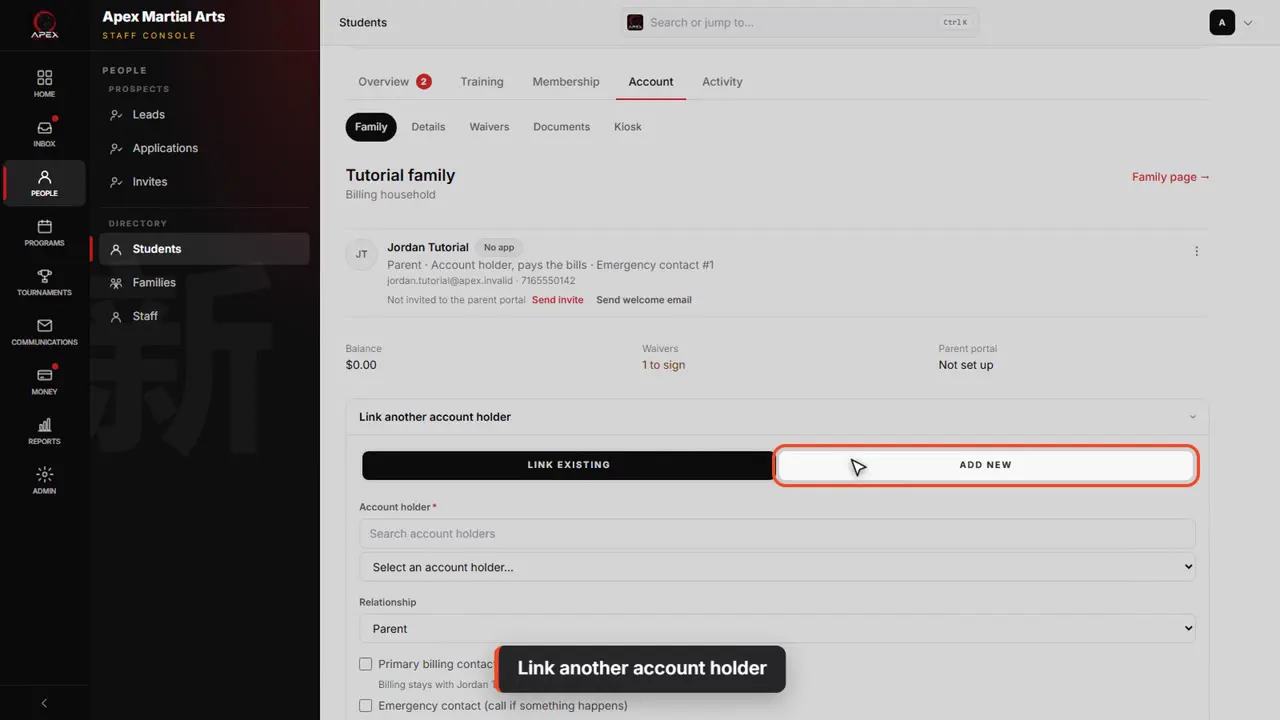
Link another account holder
To add a grandparent or another adult to call, click Link another account holder, then Add new.
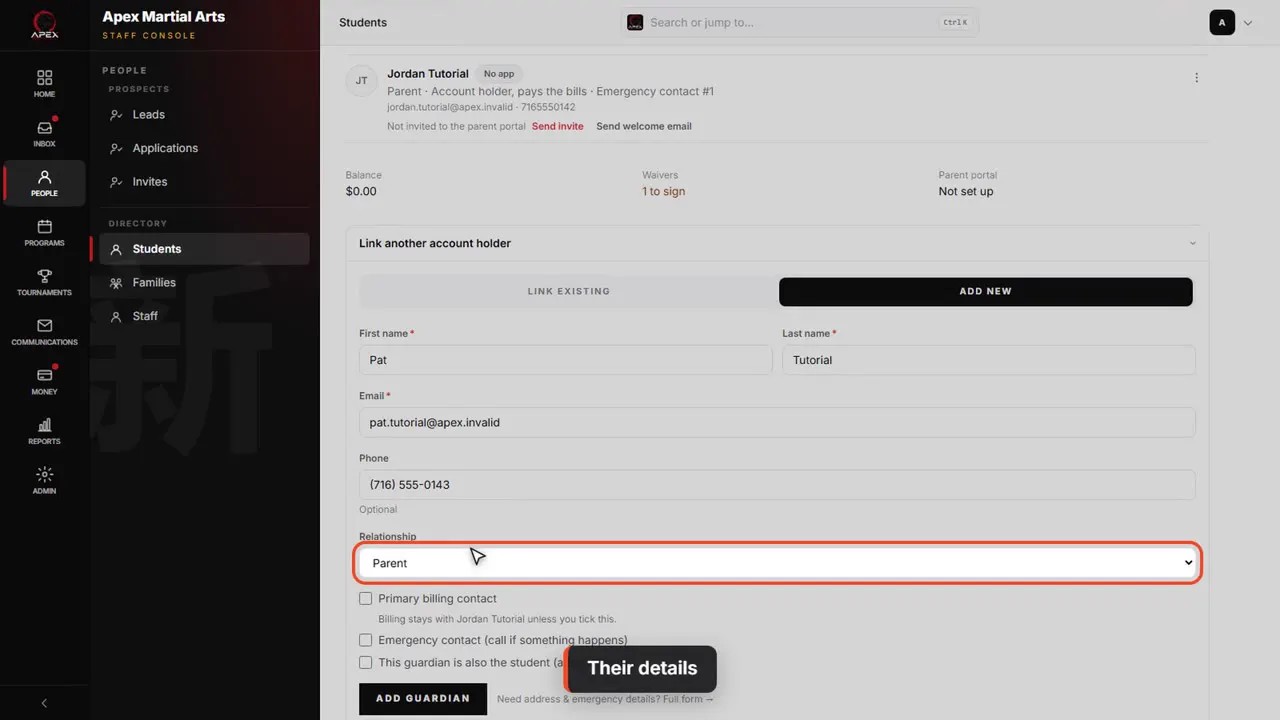
Their details
Type their name, email and phone. The email is how they would sign in to the parent portal, if you invite them. Then choose Grandparent as the relationship.
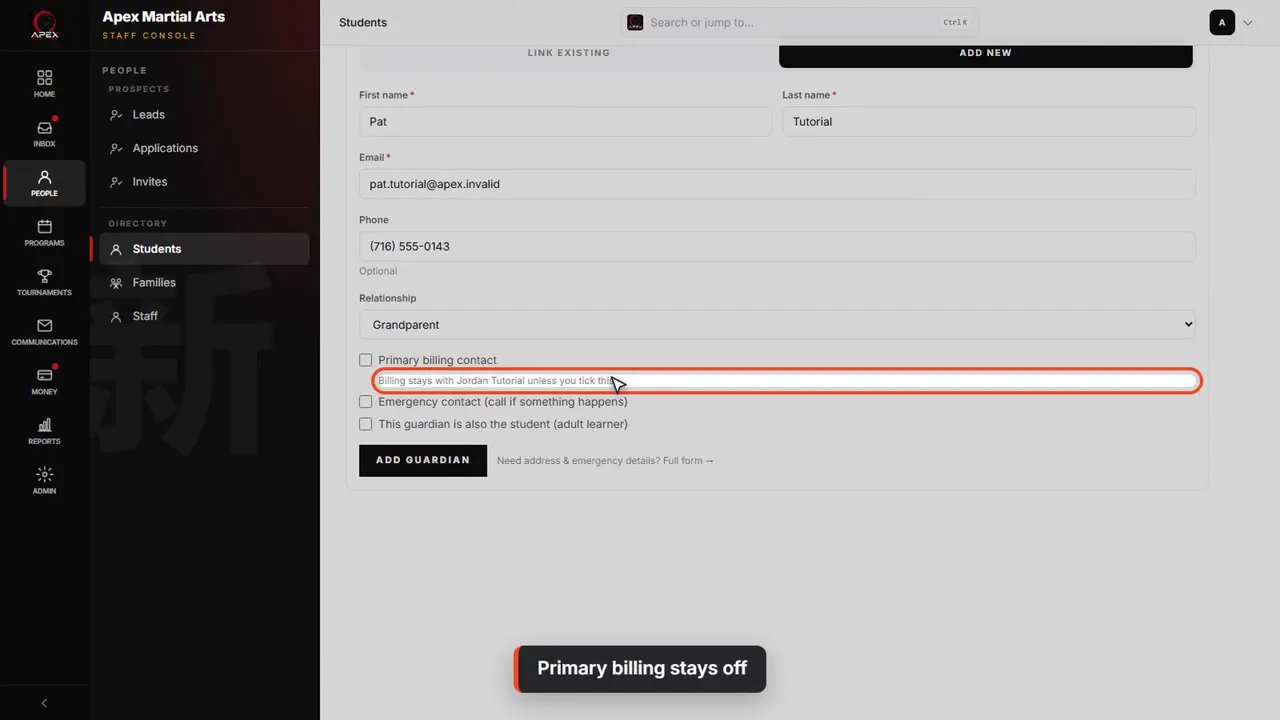
Primary billing stays off
Primary billing contact starts unticked, because Jordan already pays: the line under it says billing stays with Jordan.
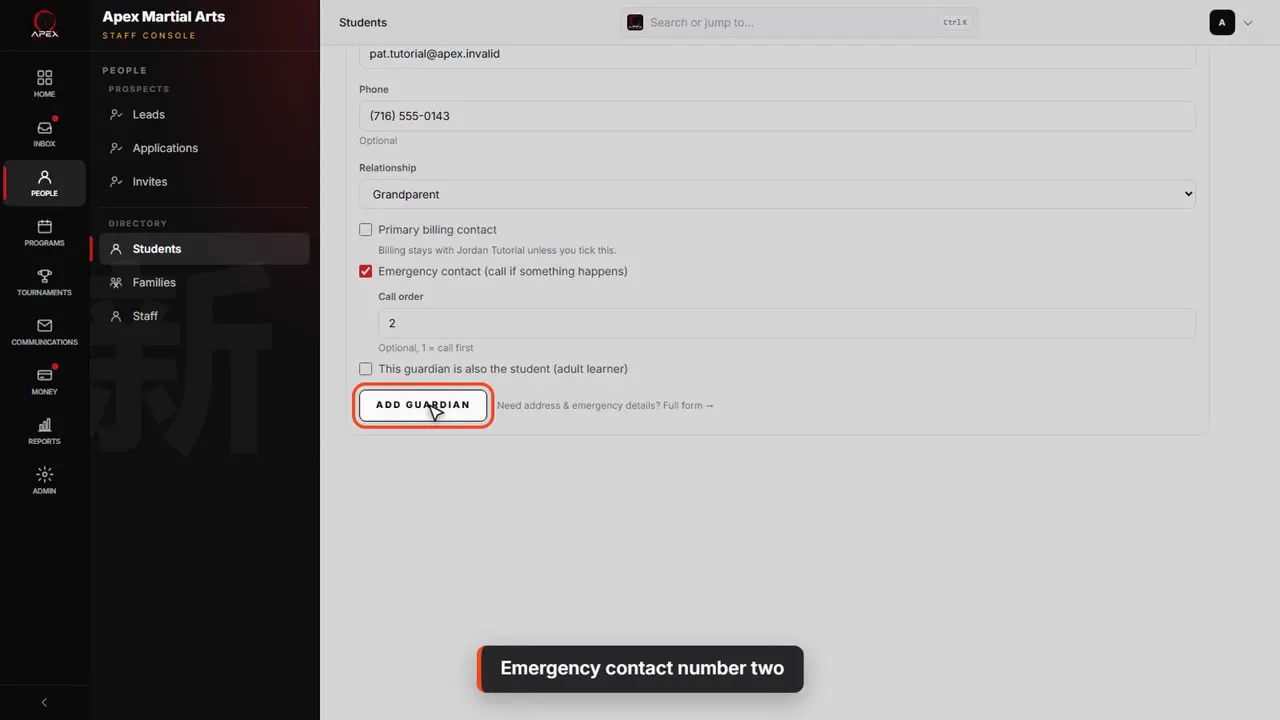
Emergency contact number two
Tick Emergency contact: they're someone to call if something happens. Type two in Call order, so staff call them after Jordan, then click Add guardian.
The parent portal invite
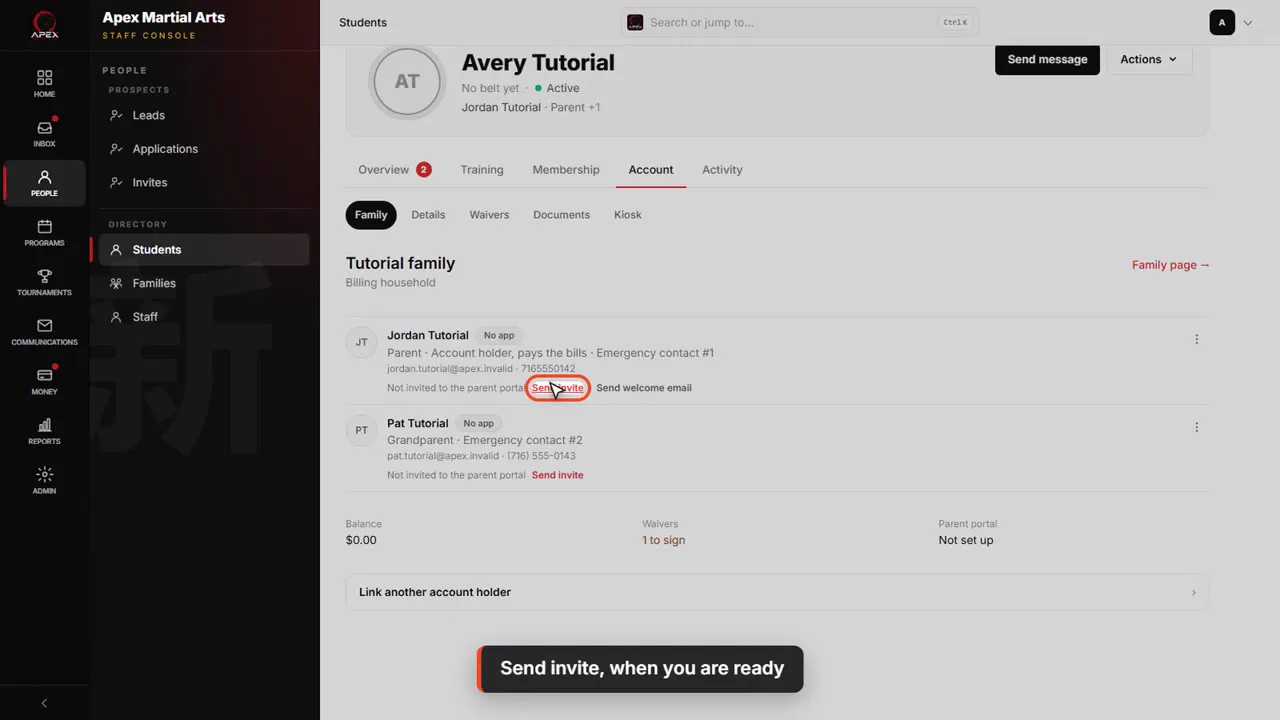
Send invite, when you are ready
Each adult with an email can be invited to the parent portal. Send invite emails them a link to set up their login. Nothing goes out until you click it.
The family page
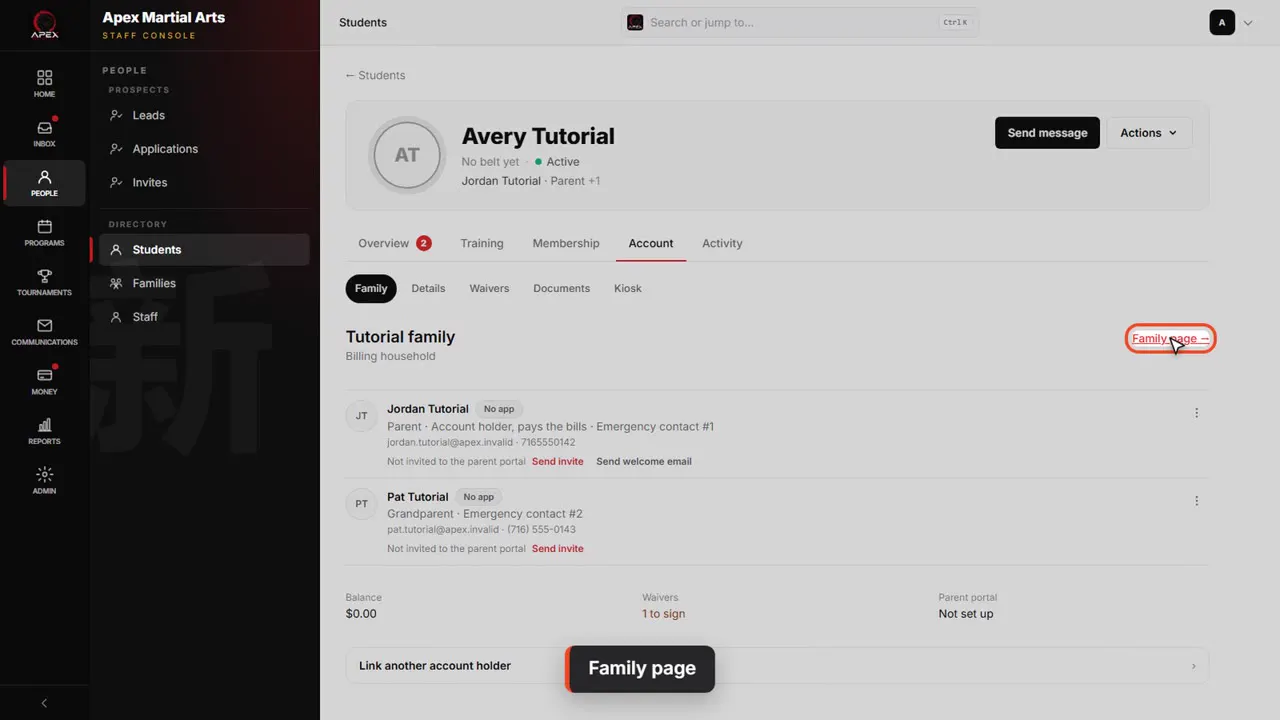
Family page
Click Family page to see the whole household in one place.
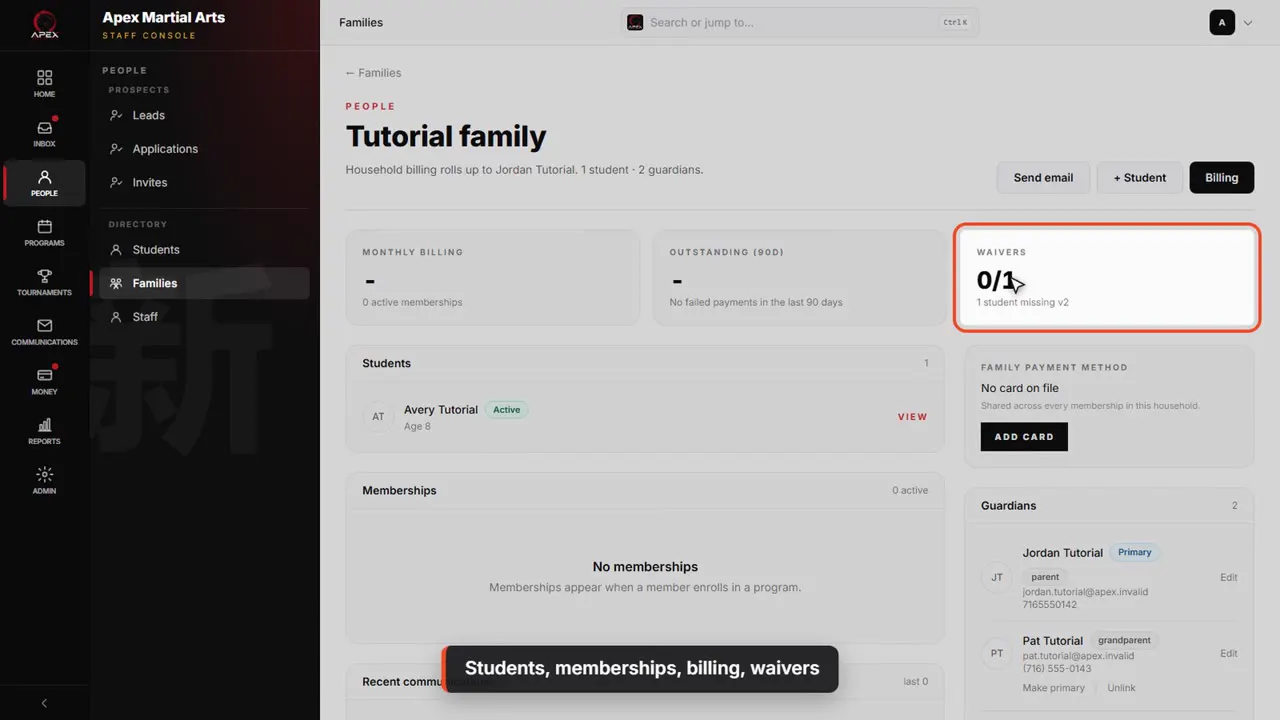
Students, memberships, billing, waivers
It shows every student in the family, their memberships, what the family is billed each month, and their waivers.
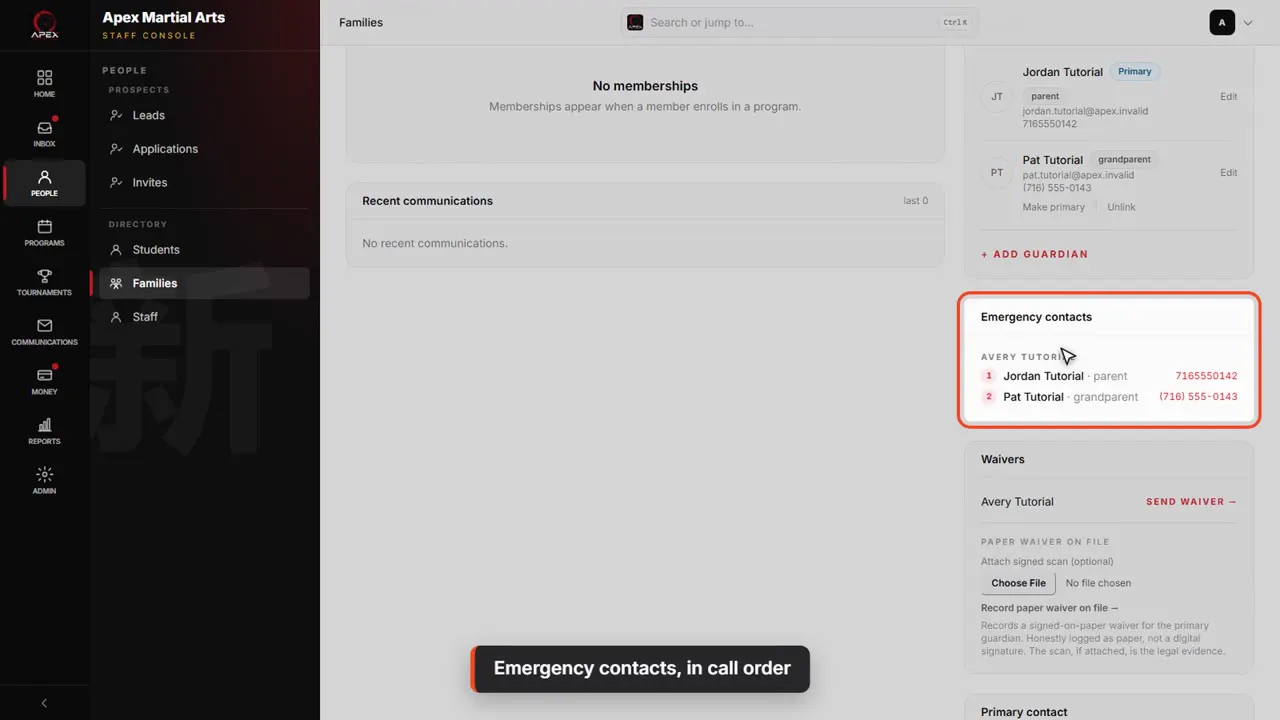
Emergency contacts, in call order
Emergency contacts are listed for each student, in call order, with their phone numbers.
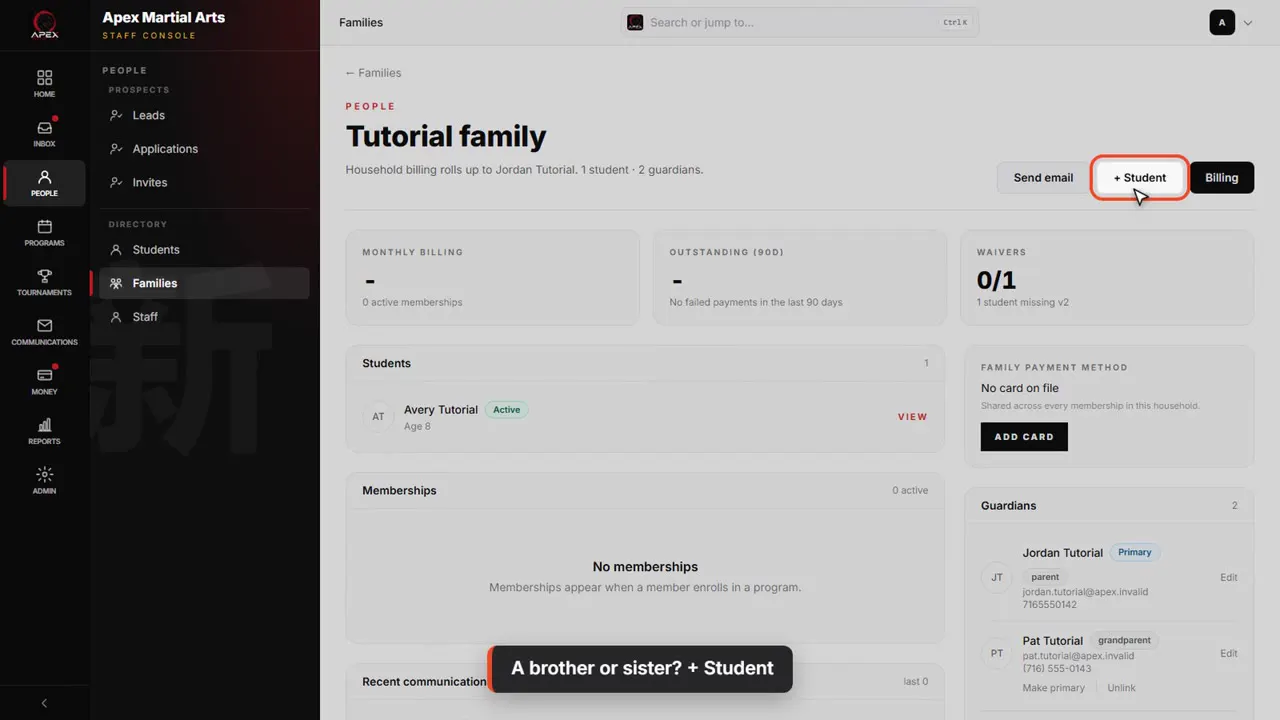
A brother or sister? + Student
For a brother or sister, click plus Student. New Student opens with this family already paying, so it's one save again.
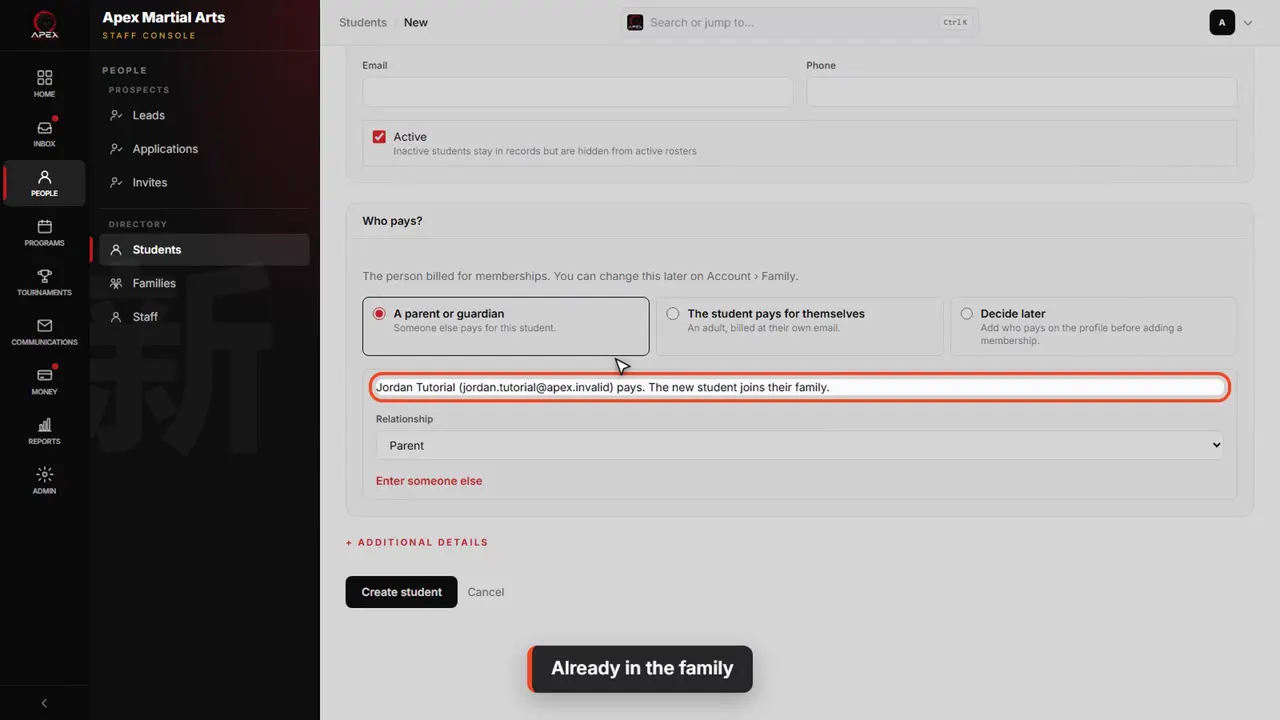
Already in the family
Who pays? already names the parent, and the new student joins their family. We'll leave this one unsaved.
Shown with a demo school. Your screens show your own school, and may look a little different.
Read the whole video as text
In this video you'll add a new family: the student and the parent who pays, in one save, then who to call in an emergency, and the family page that brings it together.
Start on the dashboard and click Add student. The Students page has the same button.
Type the student's first and last name and their date of birth. The birthday is used for age-based classes and programs.
Email and phone here are the student's own. For a child, leave them blank: the parent goes in Who pays, just below.
Who pays? is the person billed for memberships. Avery is a child, so A parent or guardian is already picked.
Type the parent's name, email and phone. The email is where bills and receipts go, and nothing is sent now.
Relationship is Parent. Then click Create student: the student, the parent and the link are saved together.
With someone paying, the profile opens on Add a membership, the next step: the next video covers it. First, the rest of the family: click Account.
Account opens on Family. Jordan is the account holder: the adult you bill and contact. The family is named after them.
To have staff call Jordan first, open the menu on their row and click Edit.
Tick Emergency contact, so staff know to call this parent. Type one in Call order, so they're called first, and click Save.
To add a grandparent or another adult to call, click Link another account holder, then Add new.
Type their name, email and phone. The email is how they would sign in to the parent portal, if you invite them. Then choose Grandparent as the relationship.
Primary billing contact starts unticked, because Jordan already pays: the line under it says billing stays with Jordan.
Tick Emergency contact: they're someone to call if something happens. Type two in Call order, so staff call them after Jordan, then click Add guardian.
Each adult with an email can be invited to the parent portal. Send invite emails them a link to set up their login. Nothing goes out until you click it.
Click Family page to see the whole household in one place.
It shows every student in the family, their memberships, what the family is billed each month, and their waivers.
Emergency contacts are listed for each student, in call order, with their phone numbers.
For a brother or sister, click plus Student. New Student opens with this family already paying, so it's one save again.
Who pays? already names the parent, and the new student joins their family. We'll leave this one unsaved.
That's a new family. Next, we'll give them a membership.
Up next · Run your day
Track progress on the mat
Mark techniques from Mat view during class, check one student’s progress, and see who is ready to test.
Watch next: Track progress on the matBefore this: Get paid
Stuck?
In QuickKicks, open Admin, then Support (or Help, in the simpler menu), and send us a message. Or email hello@quickkicks.app.