
For schools · Set up your school
Set your programs and prices
See what families pay for each program, how starter bundles and price changes work, and where family discounts and coupons live.
Jump to a part
Step by step
The same steps as the video, with what to look for on each screen. The orange box shows where to look.
Where programs live
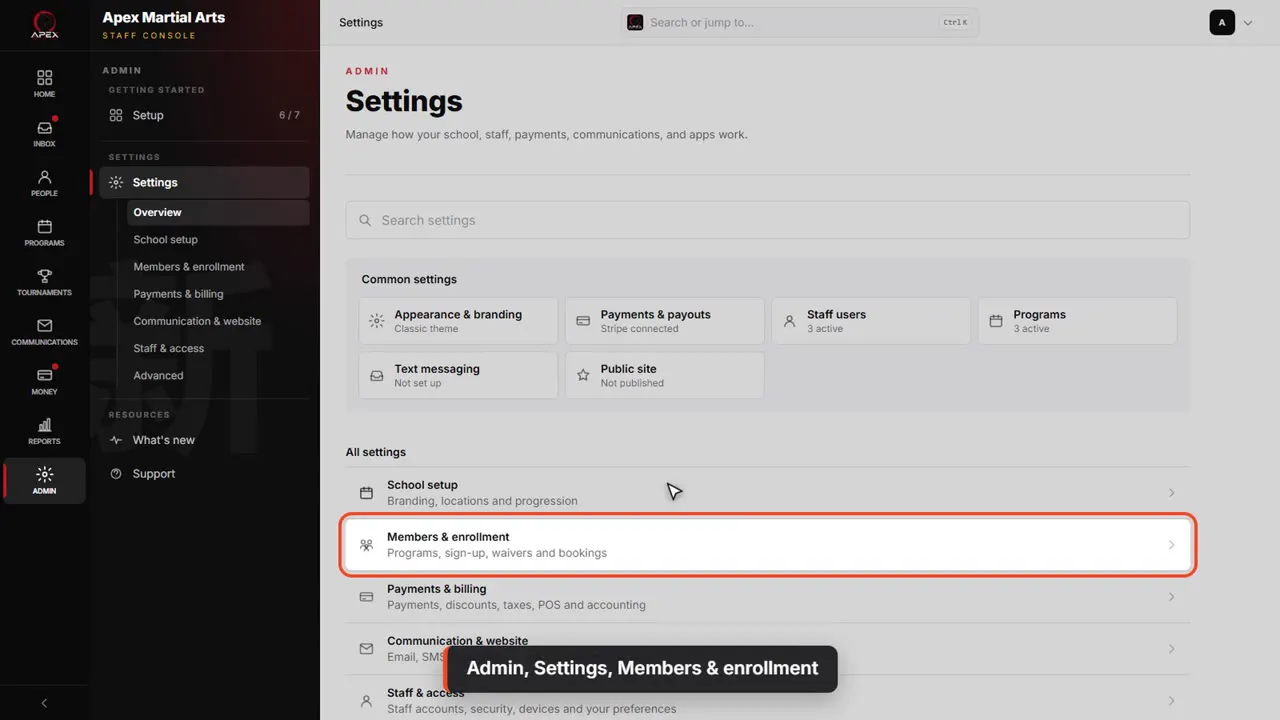
Admin, Settings, Members & enrollment
A program is what a family pays for: monthly tuition, or a one-time starter package. Click Admin, then Settings, then Members and enrollment.
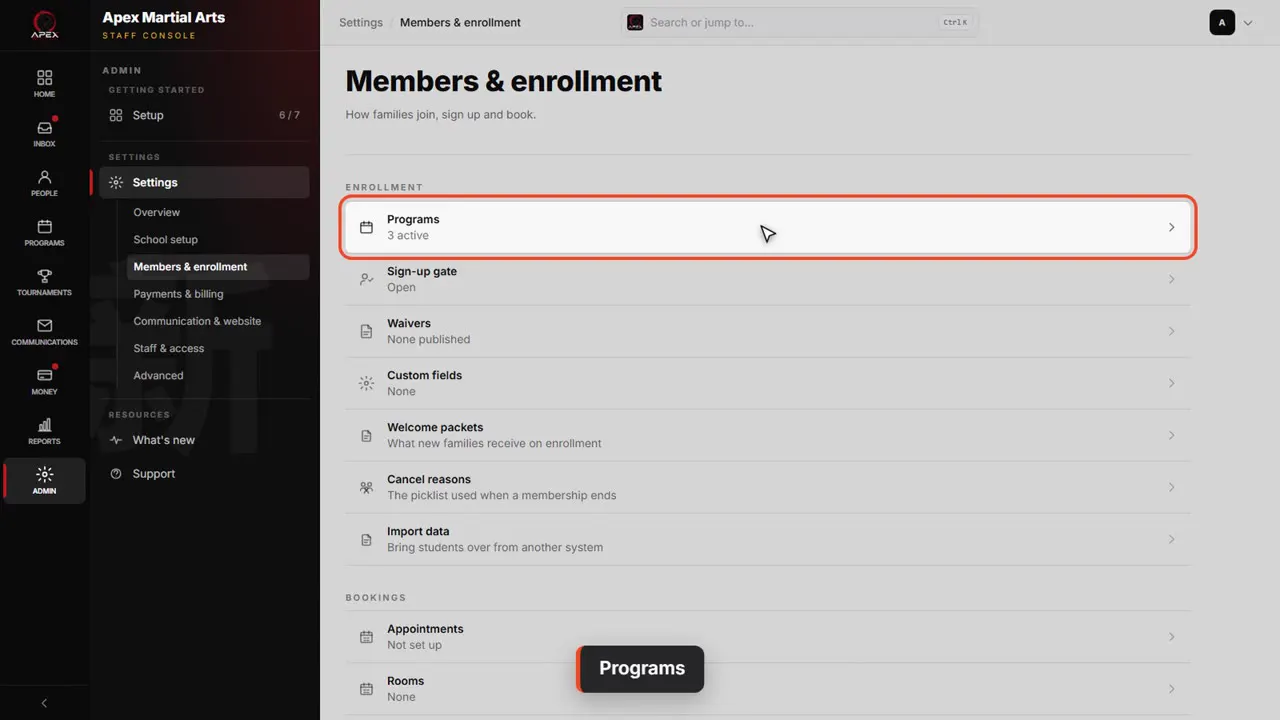
Programs
Programs is the first entry. It shows how many you have active.
Your programs
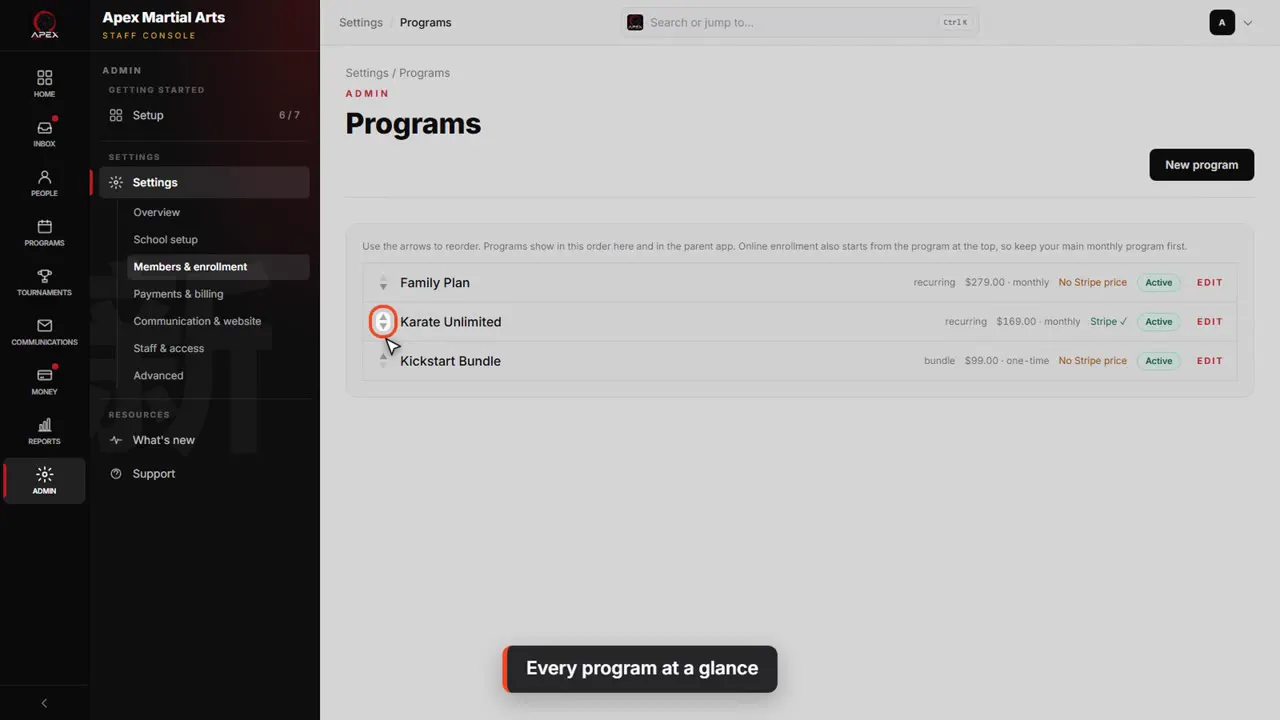
Every program at a glance
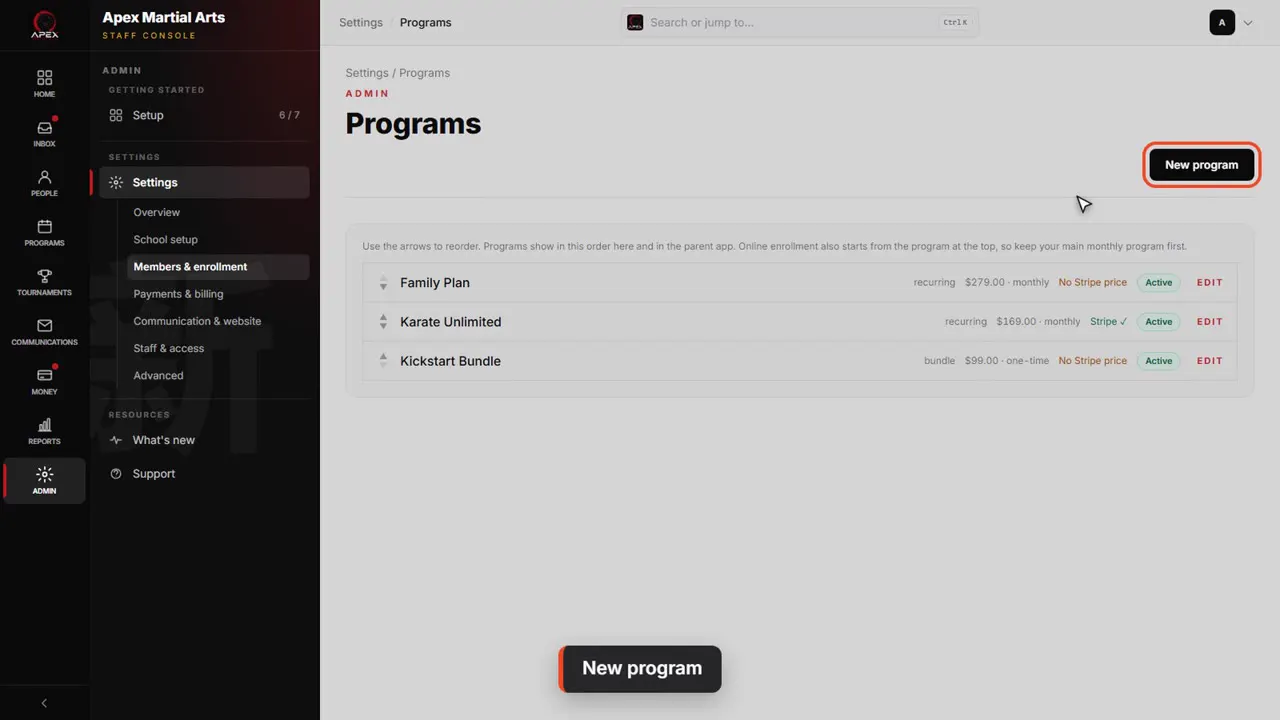
Each row shows the kind, recurring or bundle, the price and how often it is charged. Use the arrows to change the order they are listed in.
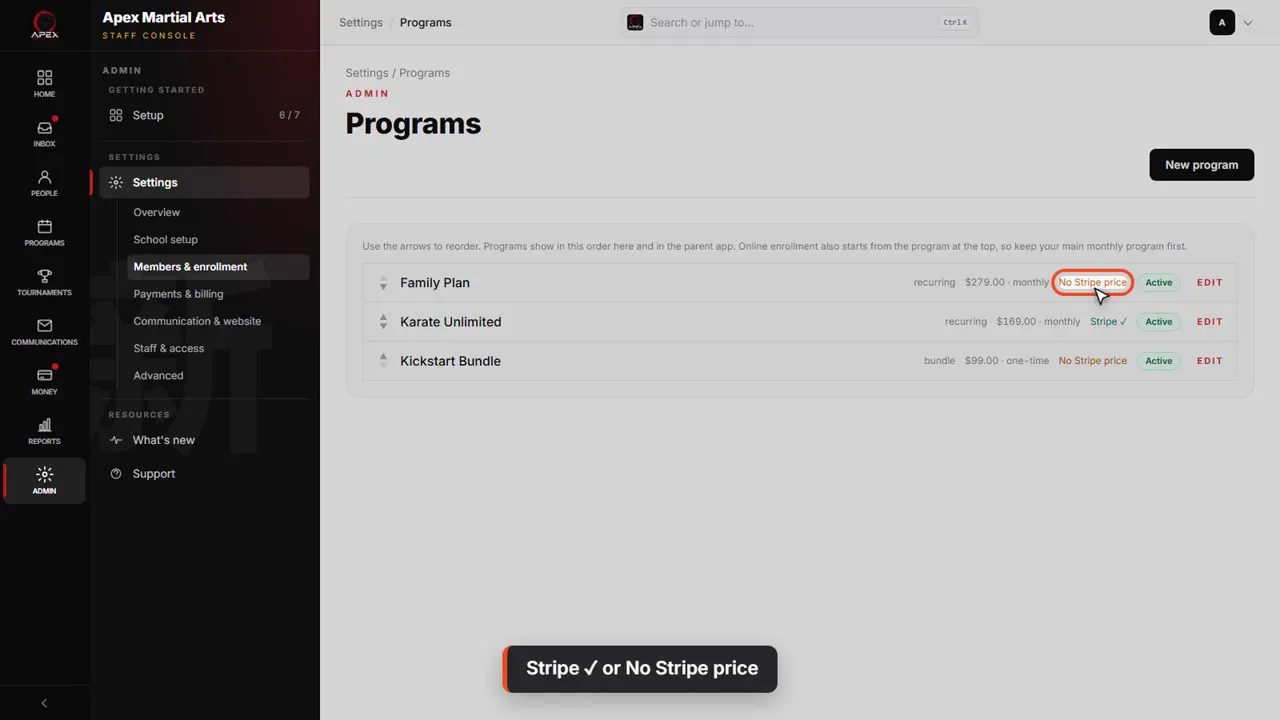
Stripe ✓ or No Stripe price
Stripe check means the program is ready to bill a card. No Stripe price means it isn't synced yet, so memberships on it are billed by hand, with cash or check.
A recurring program
Recurring or Bundle
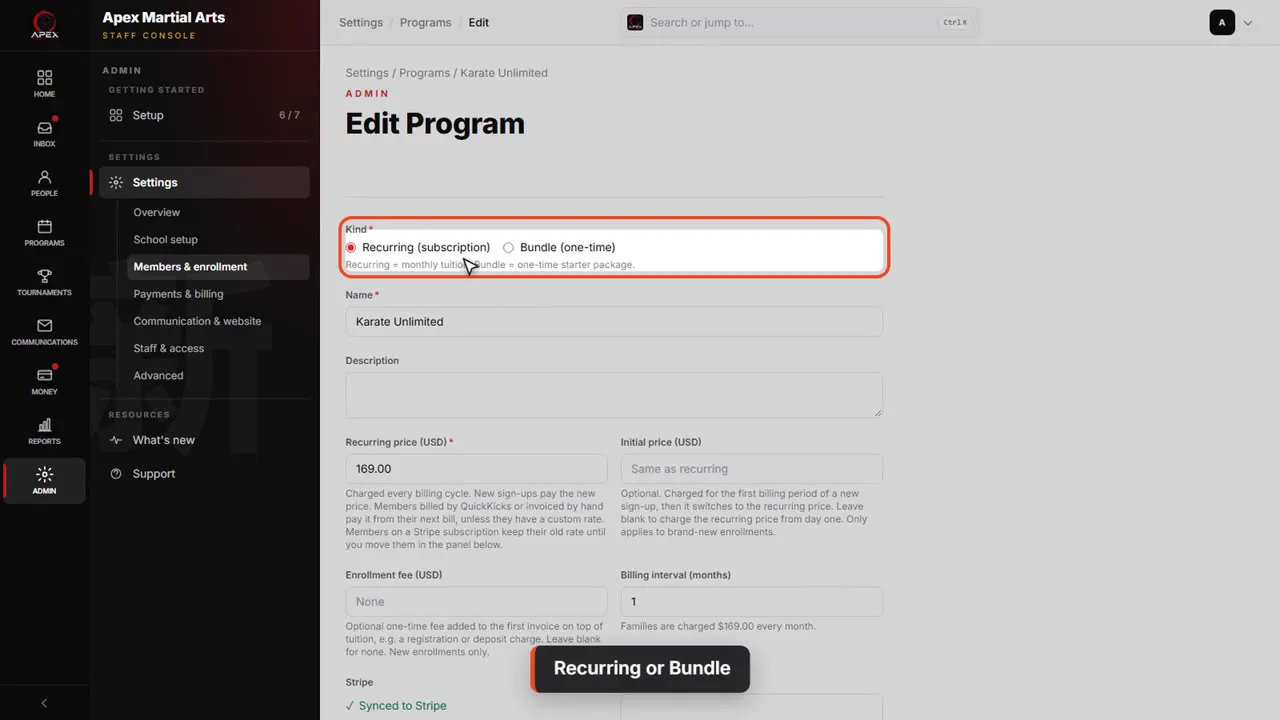
Click a program to open it. Kind is Recurring for tuition that's charged every billing period, or Bundle for a one-time charge, like a starter package.
Price and billing interval
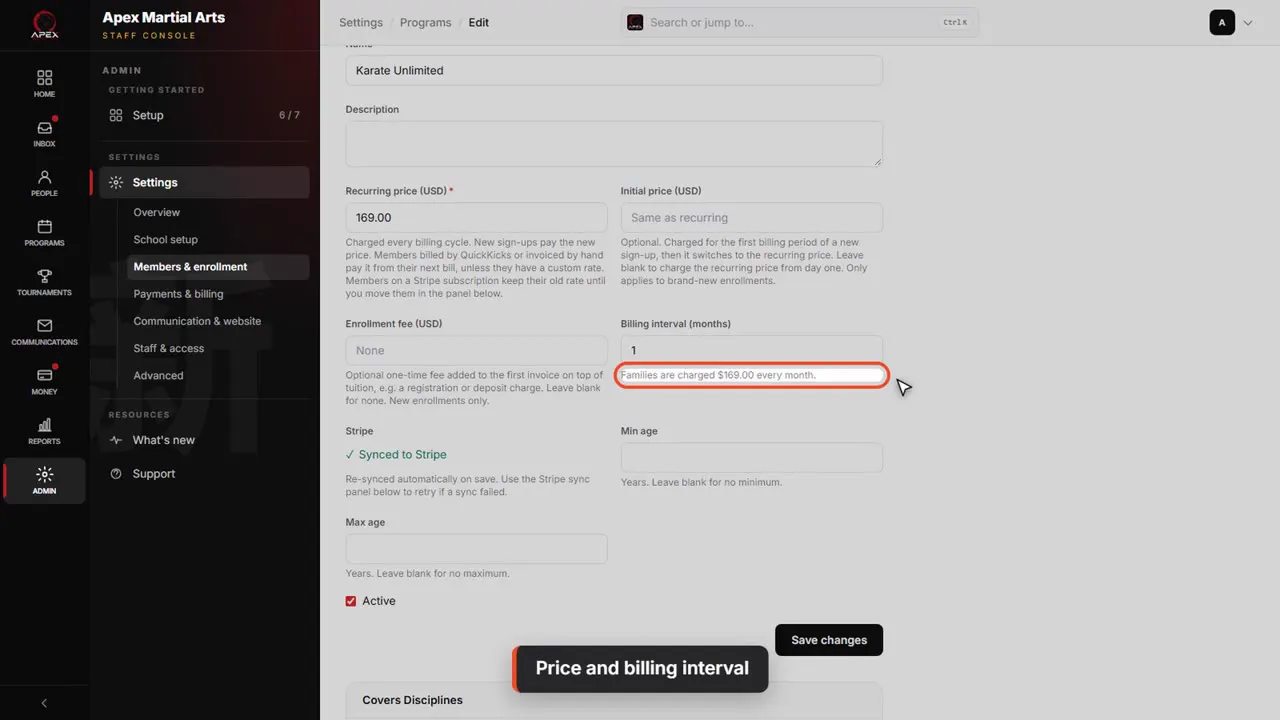
Recurring price is what a family pays each period. Billing interval is how many months a period lasts. The line underneath says it in plain words: one hundred sixty-nine dollars every month.
Intro price and enrollment fee
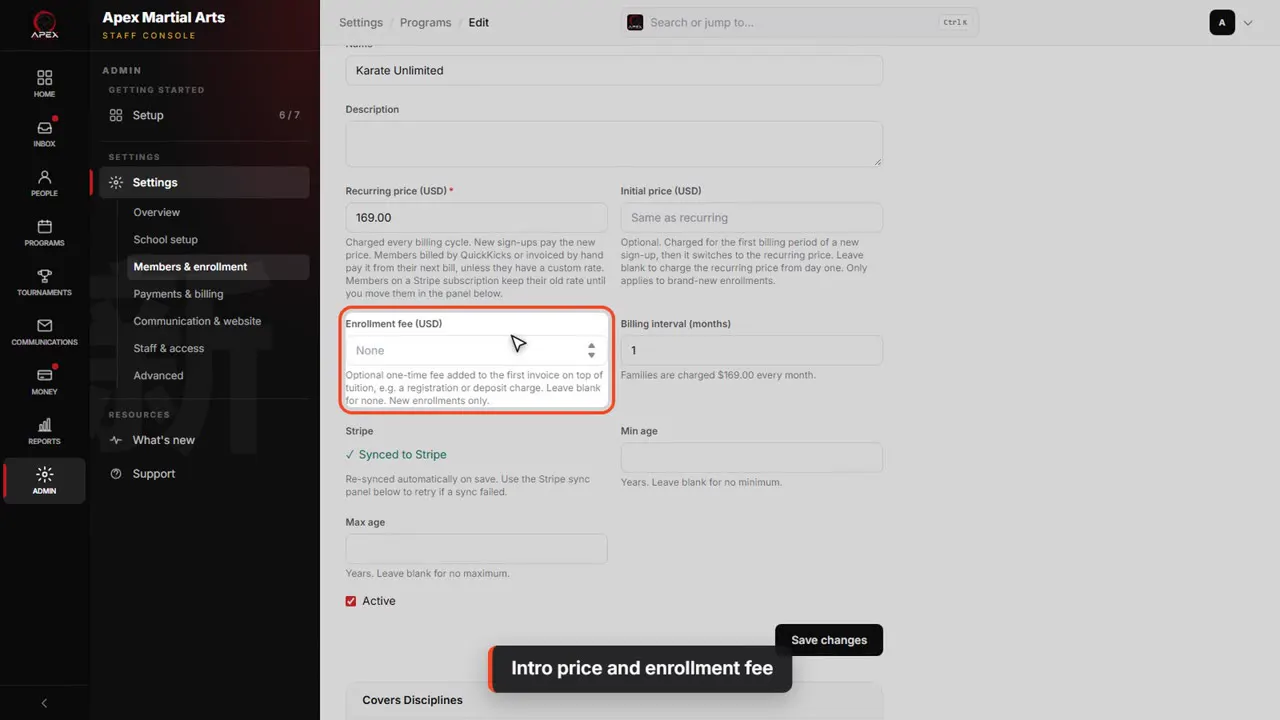
Two optional extras, for new sign-ups only. Initial price replaces the first period, handy for an intro offer. Enrollment fee is a one-time charge added to the first invoice.
Age limits
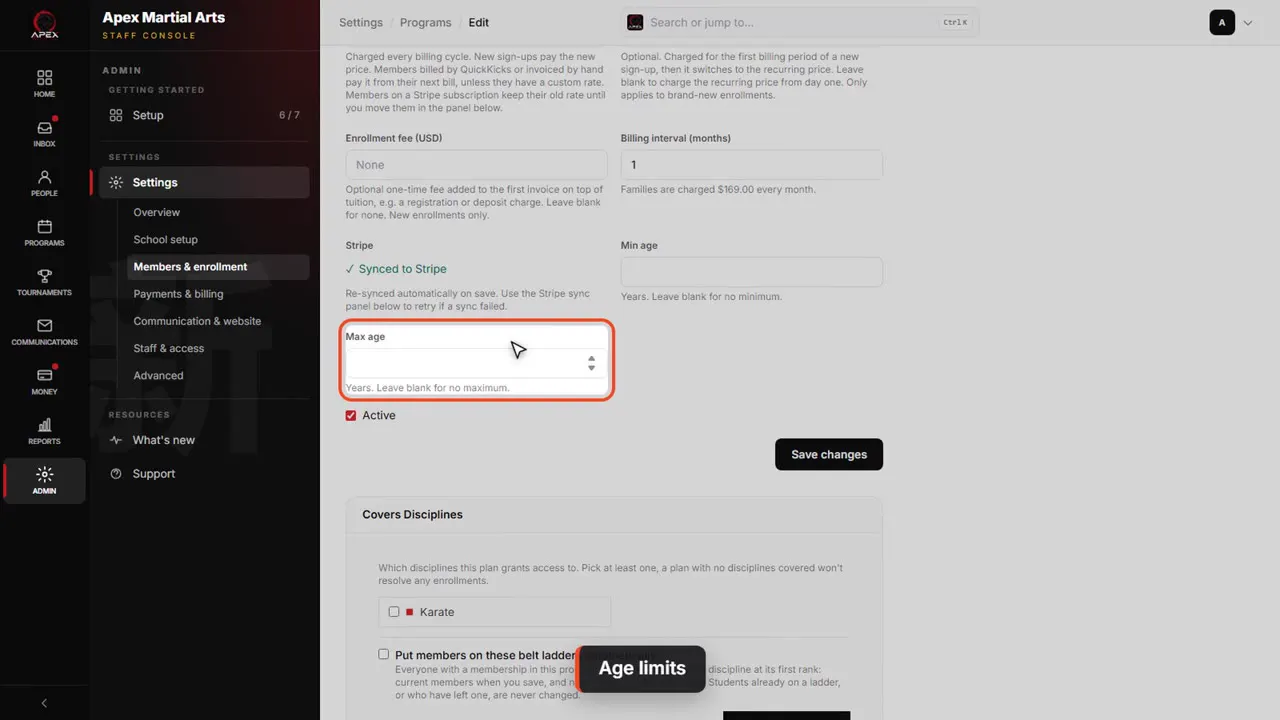
Min age and max age are optional. When you add a membership, the program that fits the student's age is picked for you.
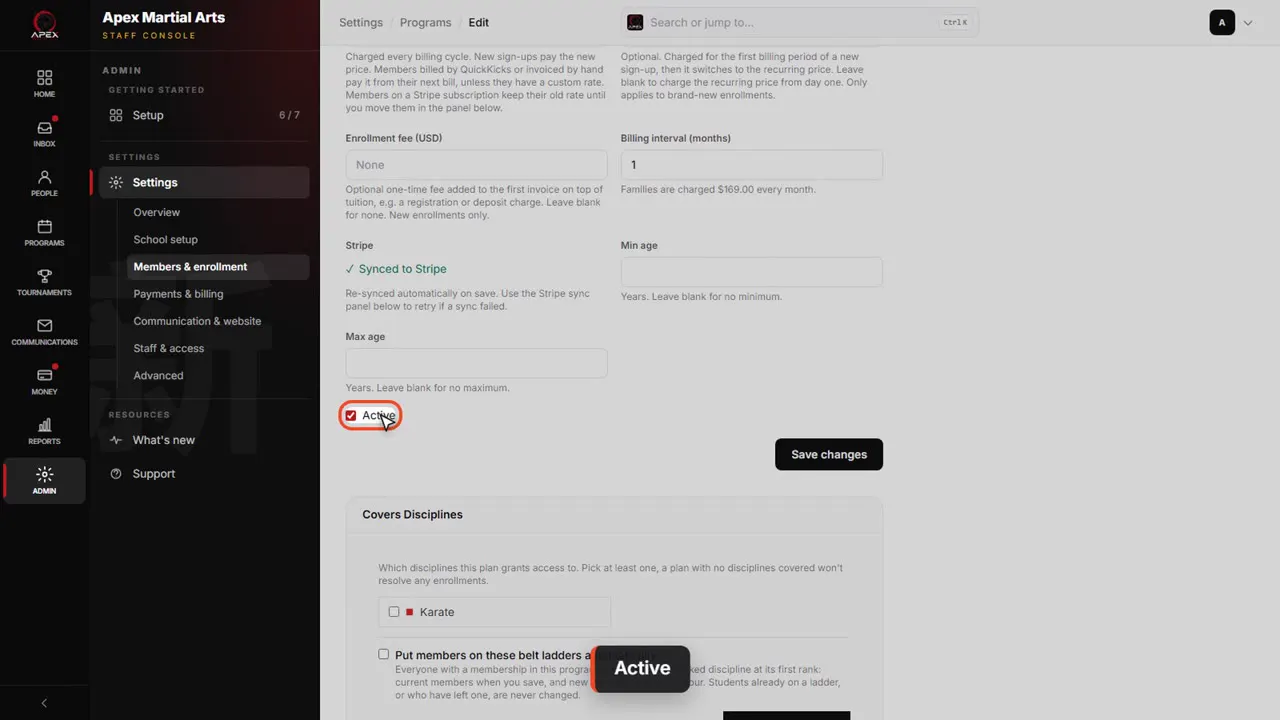
Active
Untick Active to stop offering a program. It won't be offered to new sign-ups, and current members are not changed.
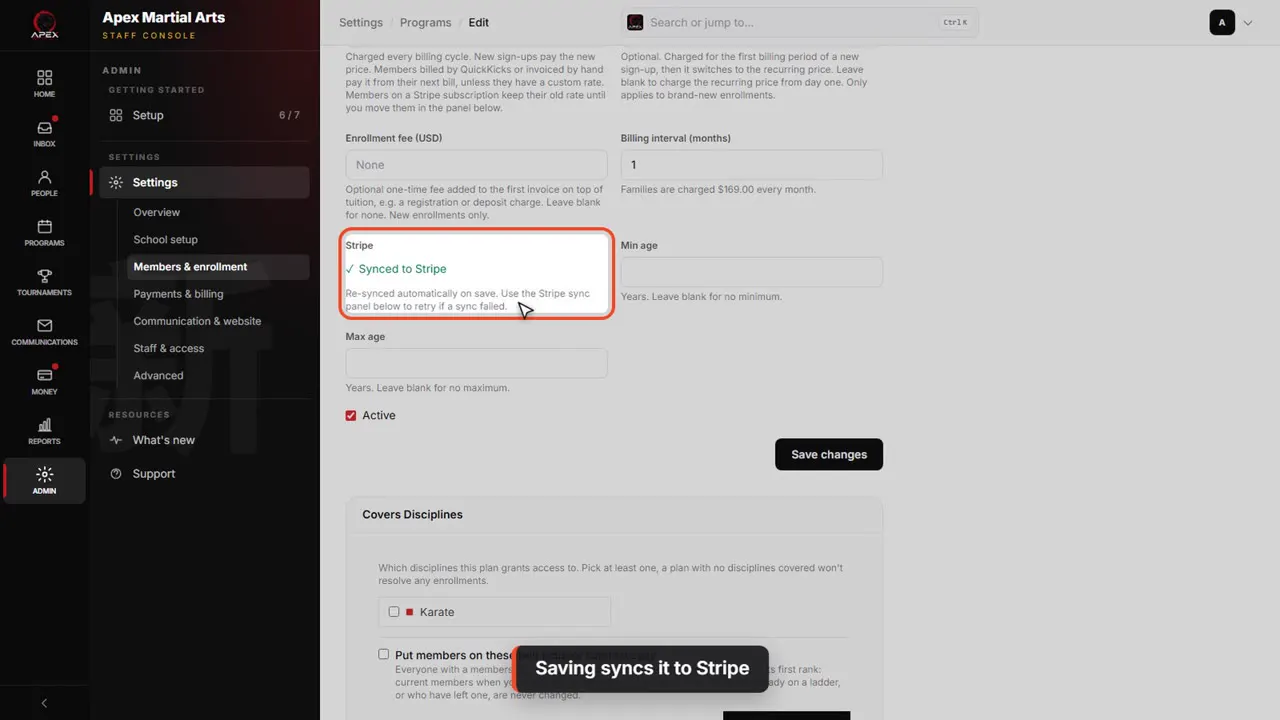
Saving syncs it to Stripe
When you click Save changes, the program and its price are synced to your Stripe account automatically. This one is already synced.
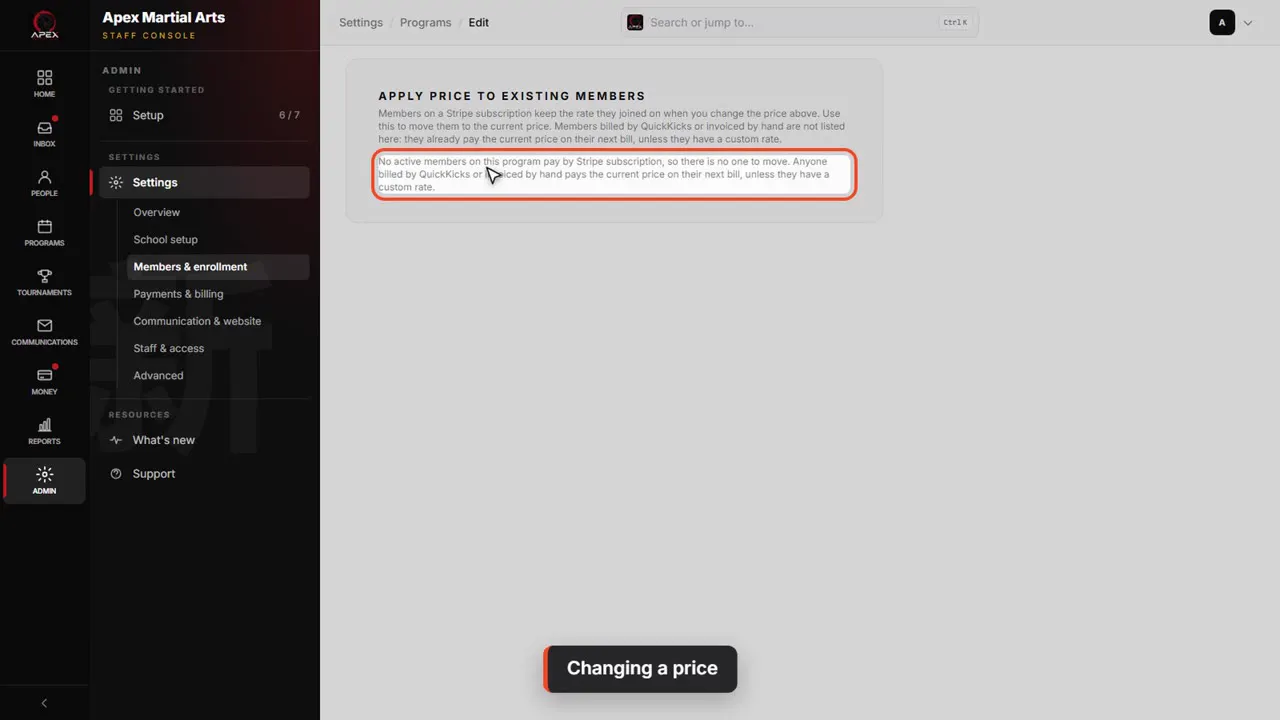
Changing a price
A new price is for new sign-ups. Members on Stripe autopay keep their old rate until you push the new one from this panel. No one on this program pays by Stripe autopay, so there's nothing to push. Members billed any other way pay the new price from their next bill, unless they're on a custom rate.
Starter bundles
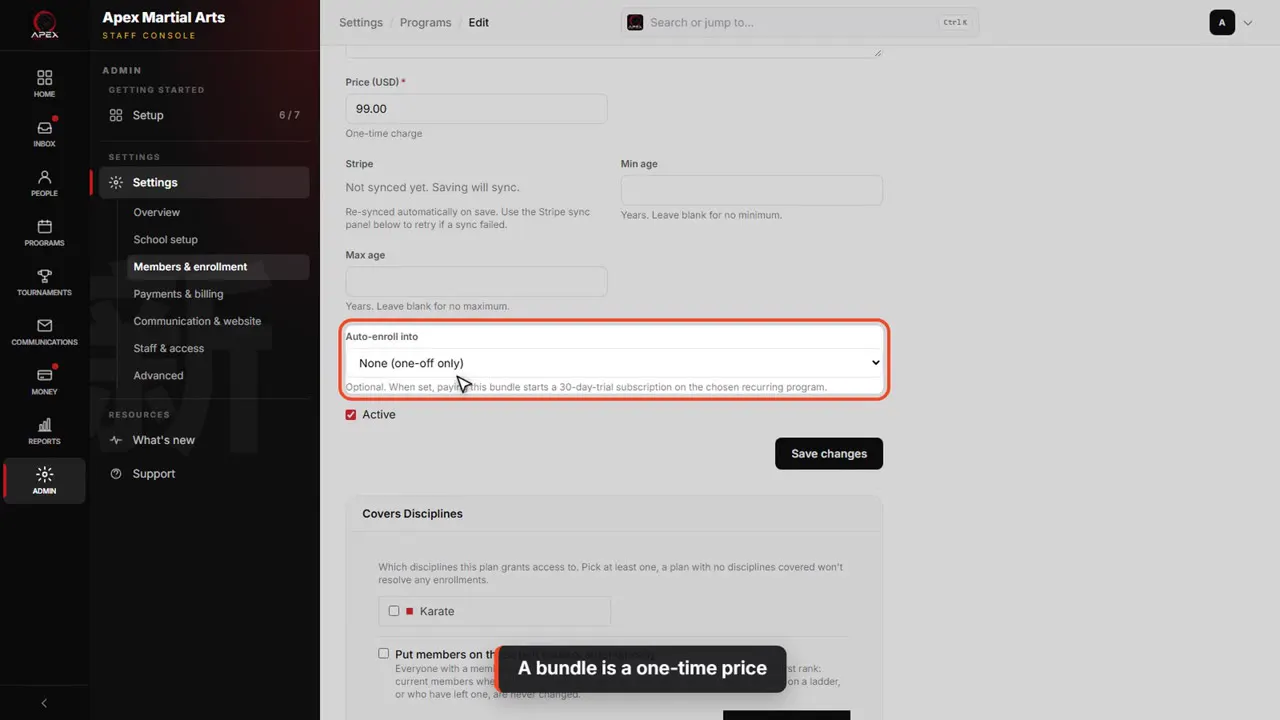
A bundle is a one-time price
Here's a bundle. It has one price, charged once. Auto-enroll into can name a monthly program to follow it: paying the bundle then starts a thirty-day trial on that program. This one is set to None, so it stays a one-off.
New program
To add a program, click New program on the list. It is the same form, and Create program saves it and syncs it to Stripe.
Family discounts and coupons
Settings, Payments & billing
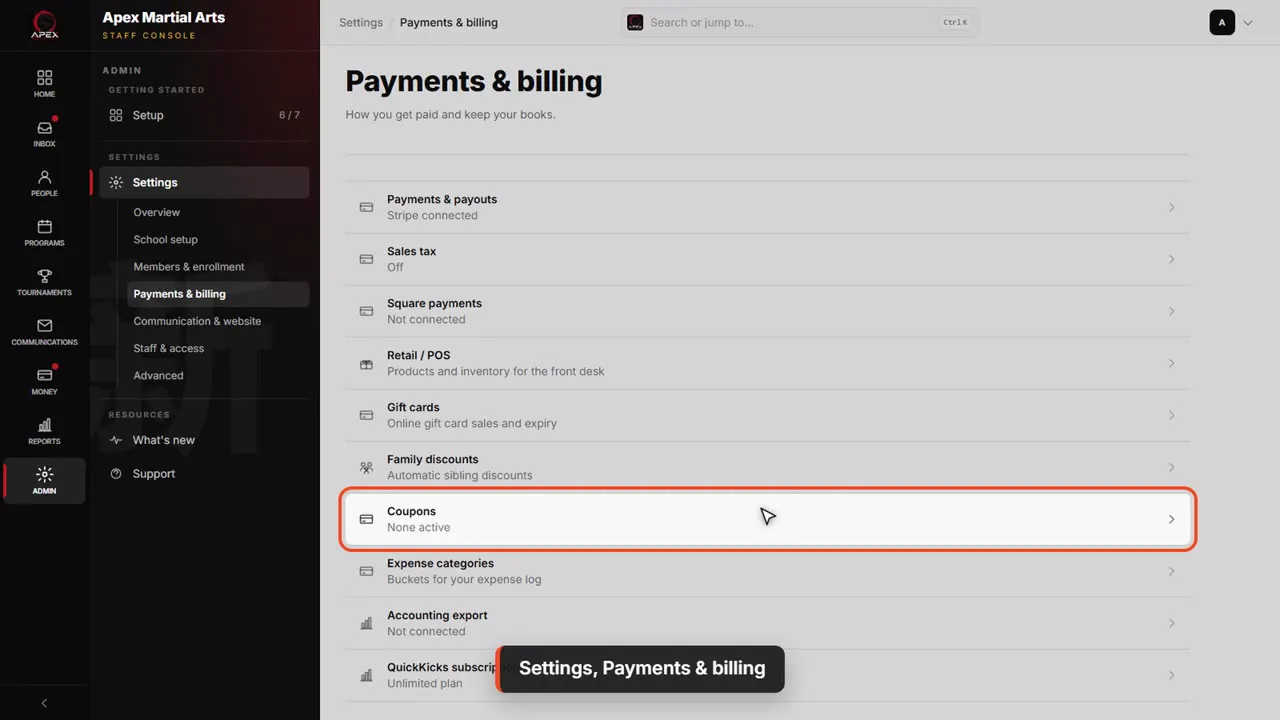
Discounts live in Settings too, under Payments and billing. There are two pages: Family discounts, and Coupons.
Family discounts: off until you add a rule
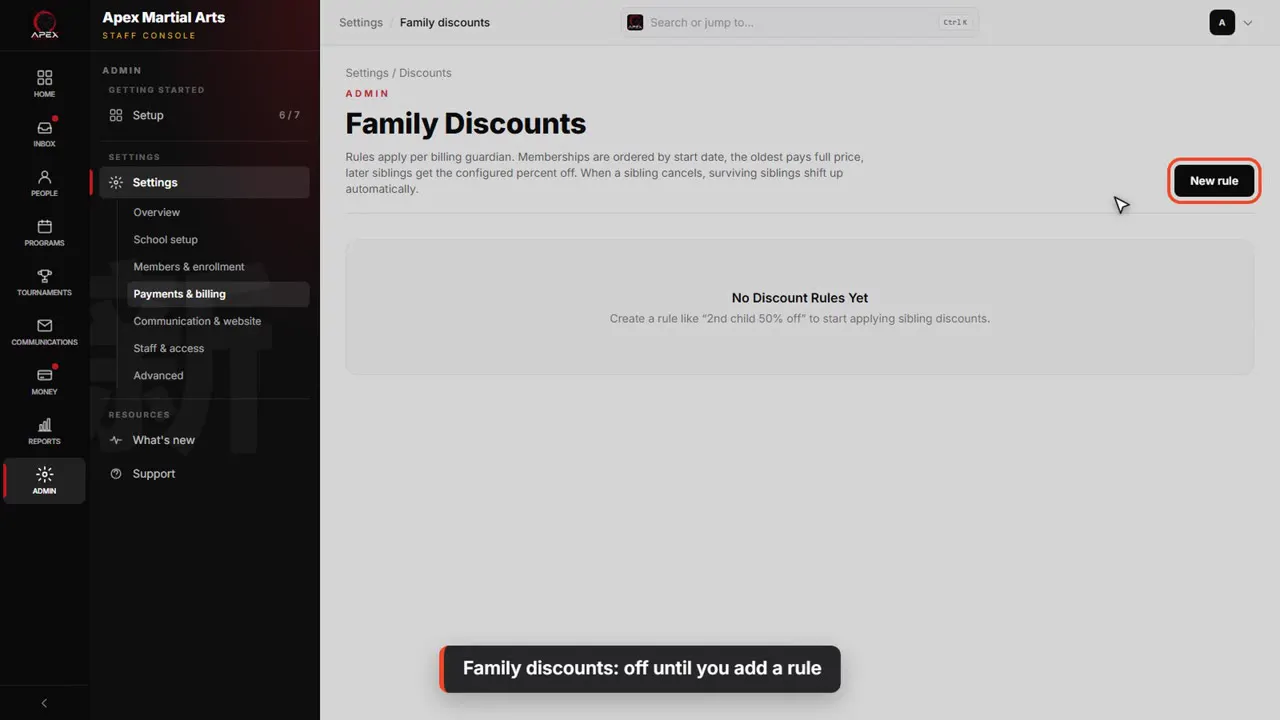
Family discounts take a percentage off for brothers and sisters. For each billing parent, the oldest membership pays full price and later siblings get the percent off, on autopay. Apex has no rule yet, so nothing is discounted until you click New rule.
Coupons: promo codes
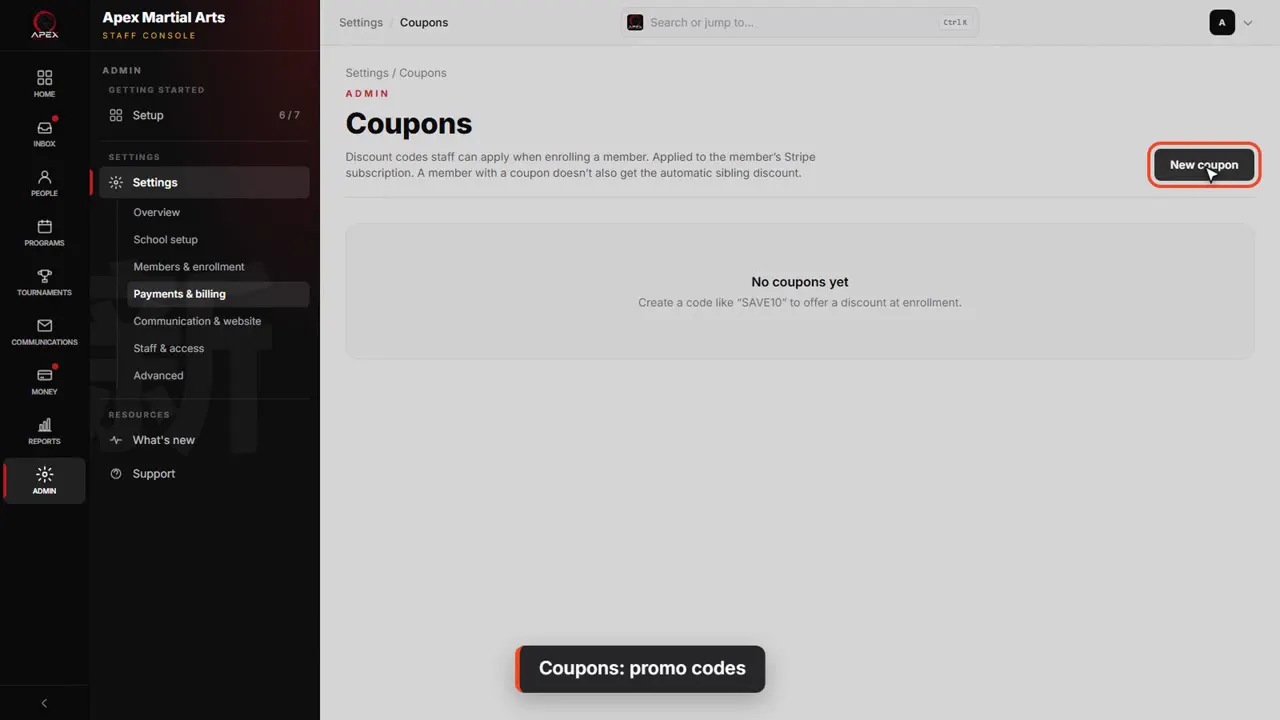
Coupons are promo codes. Click New coupon to make one. We'll look at the form, and leave it unsaved.
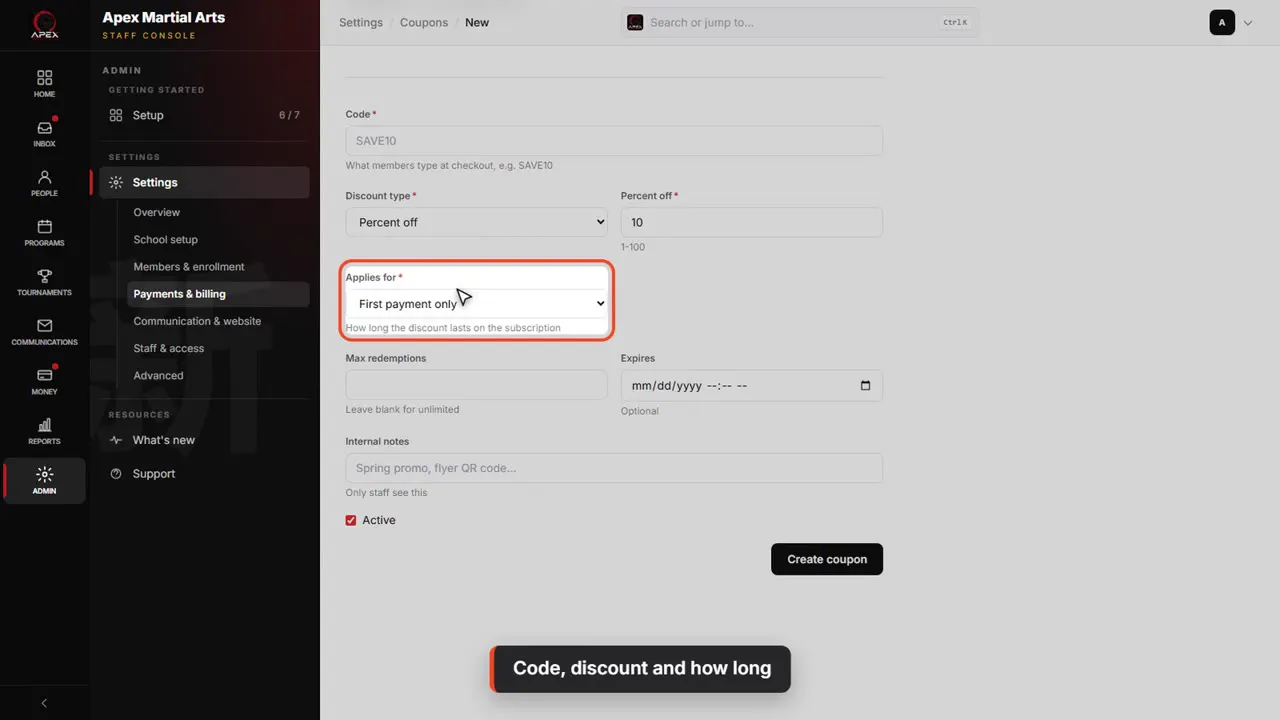
Code, discount and how long
Give it a code, like SAVE10. Choose percent off or an amount off. Then choose how long it lasts: the first payment only, a number of months, or forever.
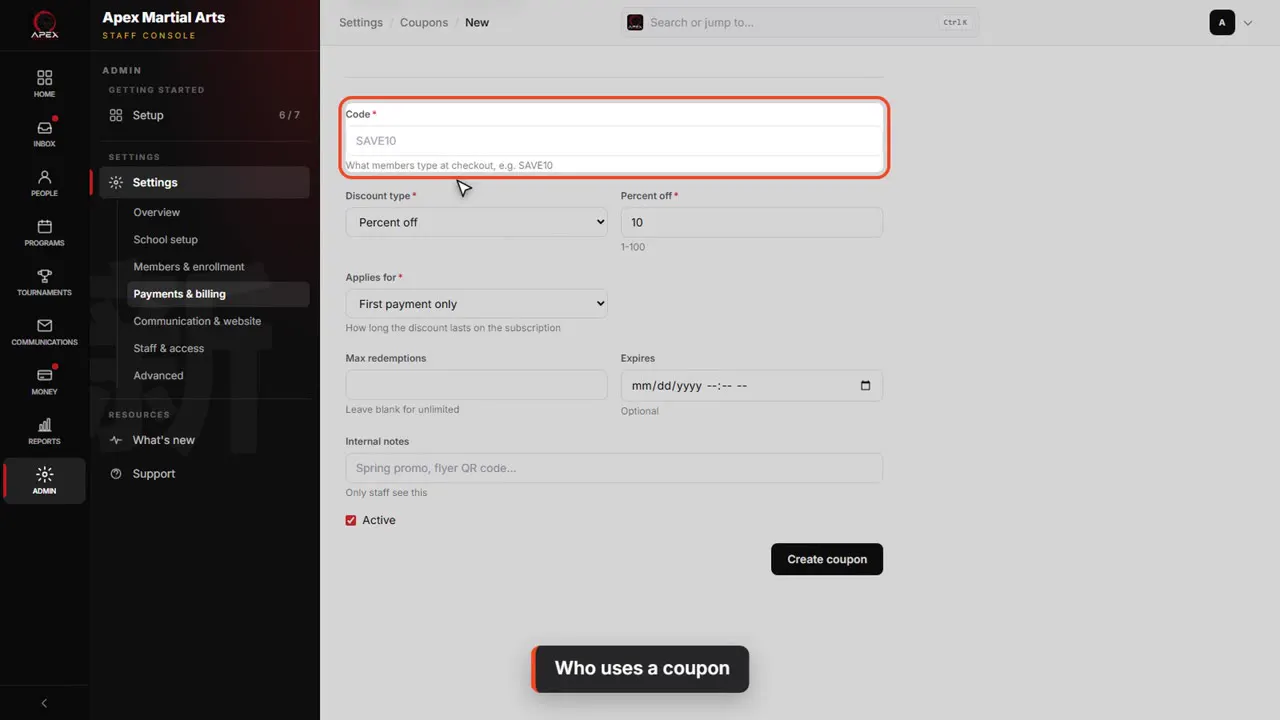
Who uses a coupon
Staff can enter a coupon when they add a membership, and families can type it as a promo code when they sign up and pay online. A member with a coupon doesn't also get the family discount.
Shown with a demo school. Your screens show your own school, and may look a little different.
Read the whole video as text
In this video you'll set up what families pay: your programs and their prices, and the discounts and coupons that come off them.
A program is what a family pays for: monthly tuition, or a one-time starter package. Click Admin, then Settings, then Members and enrollment.
Programs is the first entry. It shows how many you have active.
Each row shows the kind, recurring or bundle, the price and how often it is charged. Use the arrows to change the order they are listed in.
Stripe check means the program is ready to bill a card. No Stripe price means it isn't synced yet, so memberships on it are billed by hand, with cash or check.
Click a program to open it. Kind is Recurring for tuition that's charged every billing period, or Bundle for a one-time charge, like a starter package.
Recurring price is what a family pays each period. Billing interval is how many months a period lasts. The line underneath says it in plain words: one hundred sixty-nine dollars every month.
Two optional extras, for new sign-ups only. Initial price replaces the first period, handy for an intro offer. Enrollment fee is a one-time charge added to the first invoice.
Min age and max age are optional. When you add a membership, the program that fits the student's age is picked for you.
Untick Active to stop offering a program. It won't be offered to new sign-ups, and current members are not changed.
When you click Save changes, the program and its price are synced to your Stripe account automatically. This one is already synced.
A new price is for new sign-ups. Members on Stripe autopay keep their old rate until you push the new one from this panel. No one on this program pays by Stripe autopay, so there's nothing to push. Members billed any other way pay the new price from their next bill, unless they're on a custom rate.
Here's a bundle. It has one price, charged once. Auto-enroll into can name a monthly program to follow it: paying the bundle then starts a thirty-day trial on that program. This one is set to None, so it stays a one-off.
To add a program, click New program on the list. It is the same form, and Create program saves it and syncs it to Stripe.
Discounts live in Settings too, under Payments and billing. There are two pages: Family discounts, and Coupons.
Family discounts take a percentage off for brothers and sisters. For each billing parent, the oldest membership pays full price and later siblings get the percent off, on autopay. Apex has no rule yet, so nothing is discounted until you click New rule.
Coupons are promo codes. Click New coupon to make one. We'll look at the form, and leave it unsaved.
Give it a code, like SAVE10. Choose percent off or an amount off. Then choose how long it lasts: the first payment only, a number of months, or forever.
Staff can enter a coupon when they add a membership, and families can type it as a promo code when they sign up and pay online. A member with a coupon doesn't also get the family discount.
That's programs and pricing. Next, we'll look at getting paid.
Up next · Set up your school
Add your classes and schedule
Add a class with its days, times, who it’s for, how many fit and who teaches it, then read your weekly schedule.
Watch next: Add your classes and scheduleBefore this: Build your curriculum
Stuck?
In QuickKicks, open Admin, then Support (or Help, in the simpler menu), and send us a message. Or email hello@quickkicks.app.