
For schools · Set up your school
Get paid
Check your Stripe connection, choose how families pay, decide which fees you pass on, and set sales tax.
Jump to a part
Step by step
The same steps as the video, with what to look for on each screen. The orange box shows where to look.
Where it lives
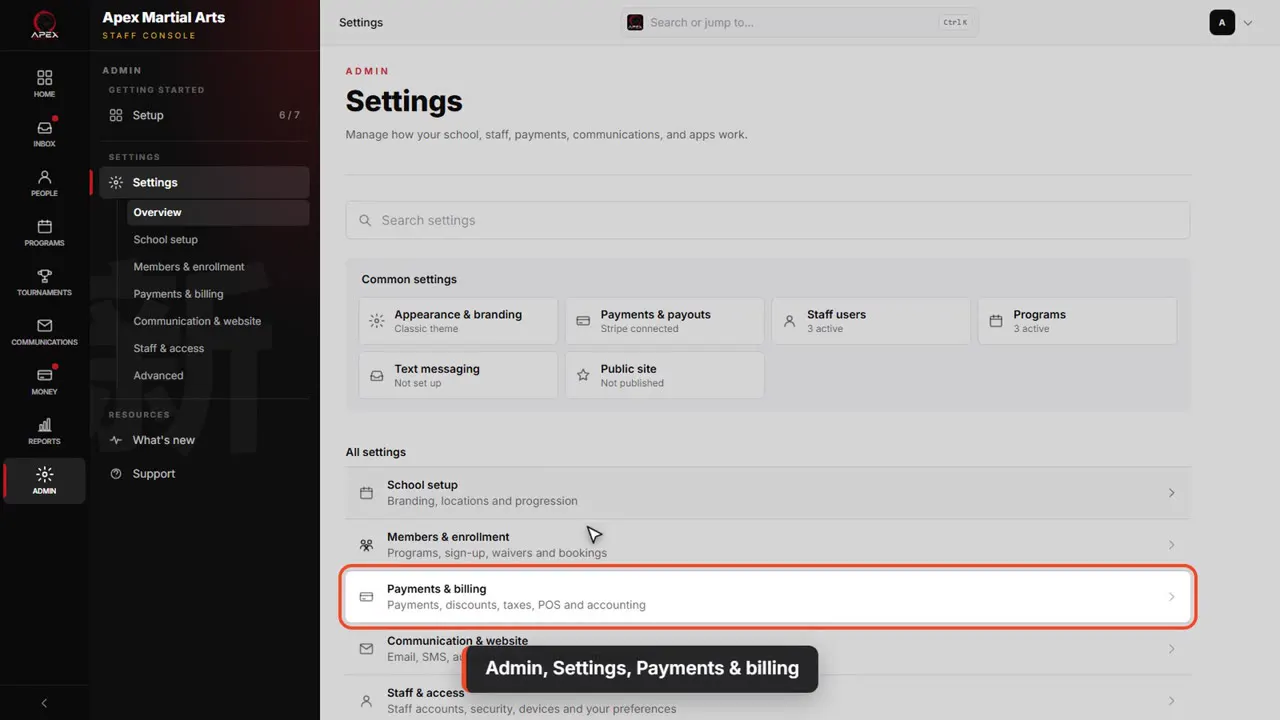
Admin, Settings, Payments & billing
Everything about getting paid is under Admin, then Settings, then Payments and billing.
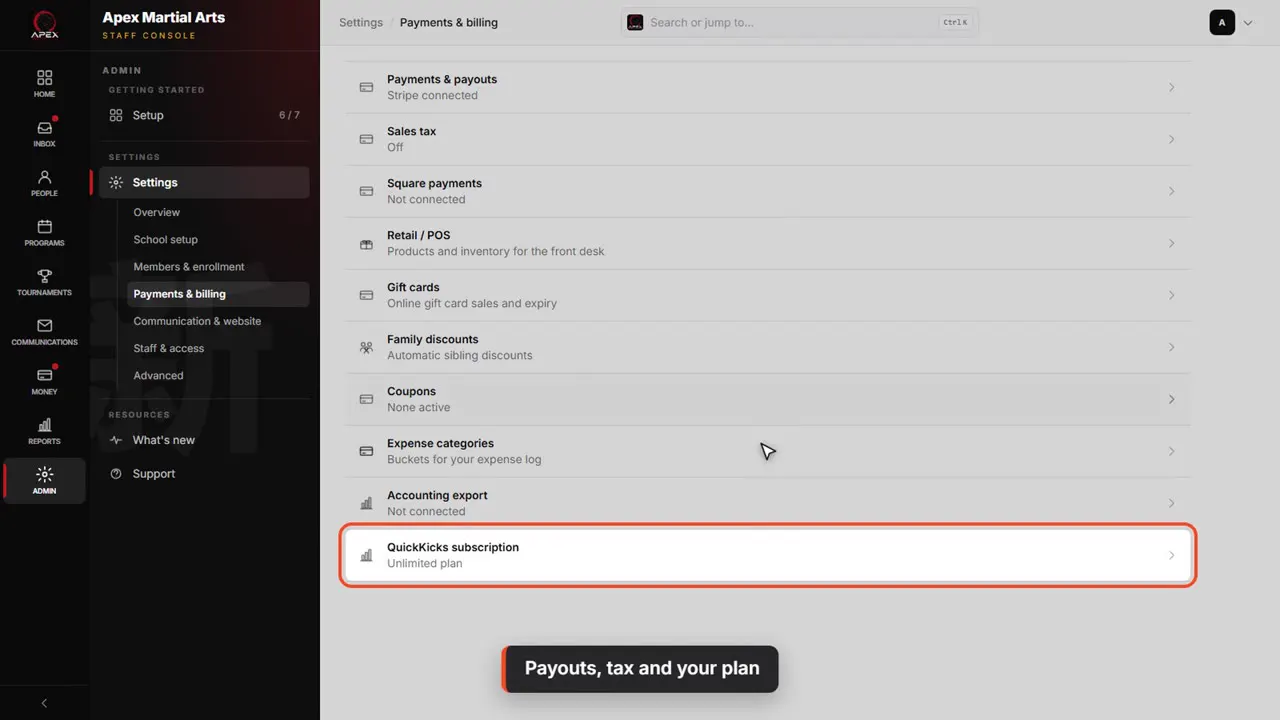
Payouts, tax and your plan
This video covers three of these: Payments and payouts, Sales tax, and at the bottom, your QuickKicks subscription. Each one shows how it's set right now.
Payments and payouts
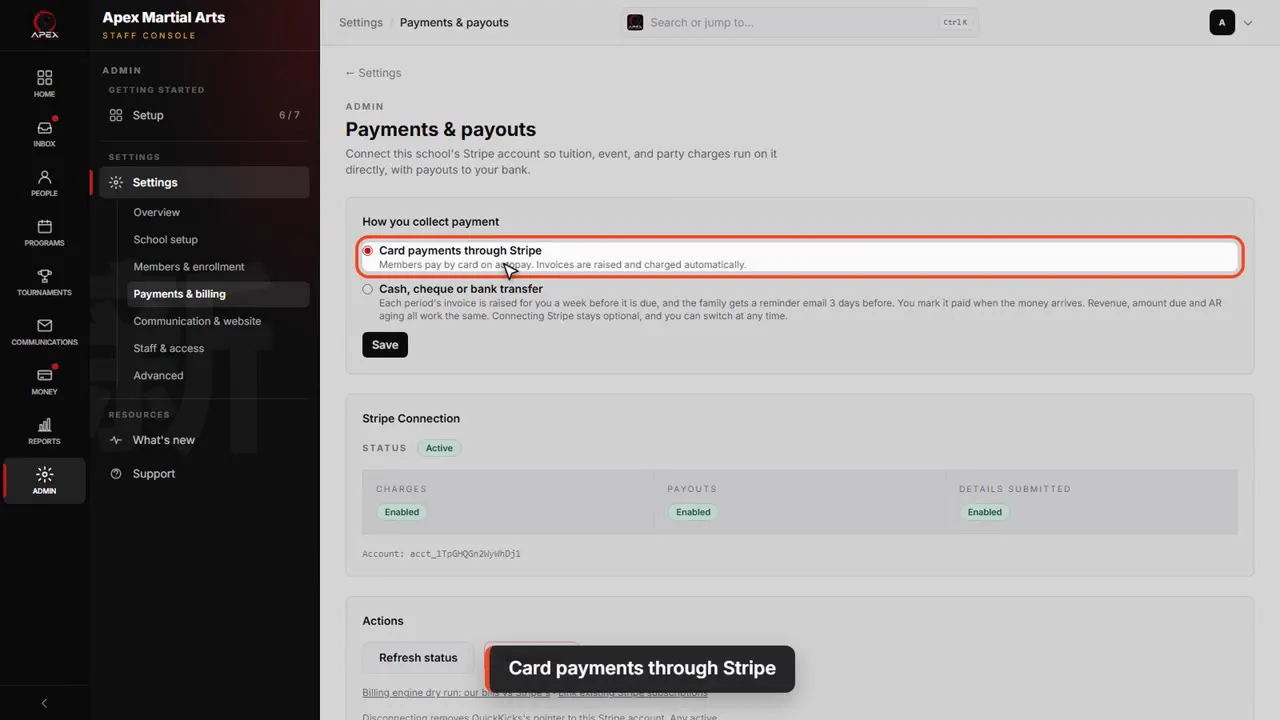
Card payments through Stripe
Open Payments and payouts. First, how you collect payment. Most schools use Card payments through Stripe: families pay online, and autopay charges them each period.
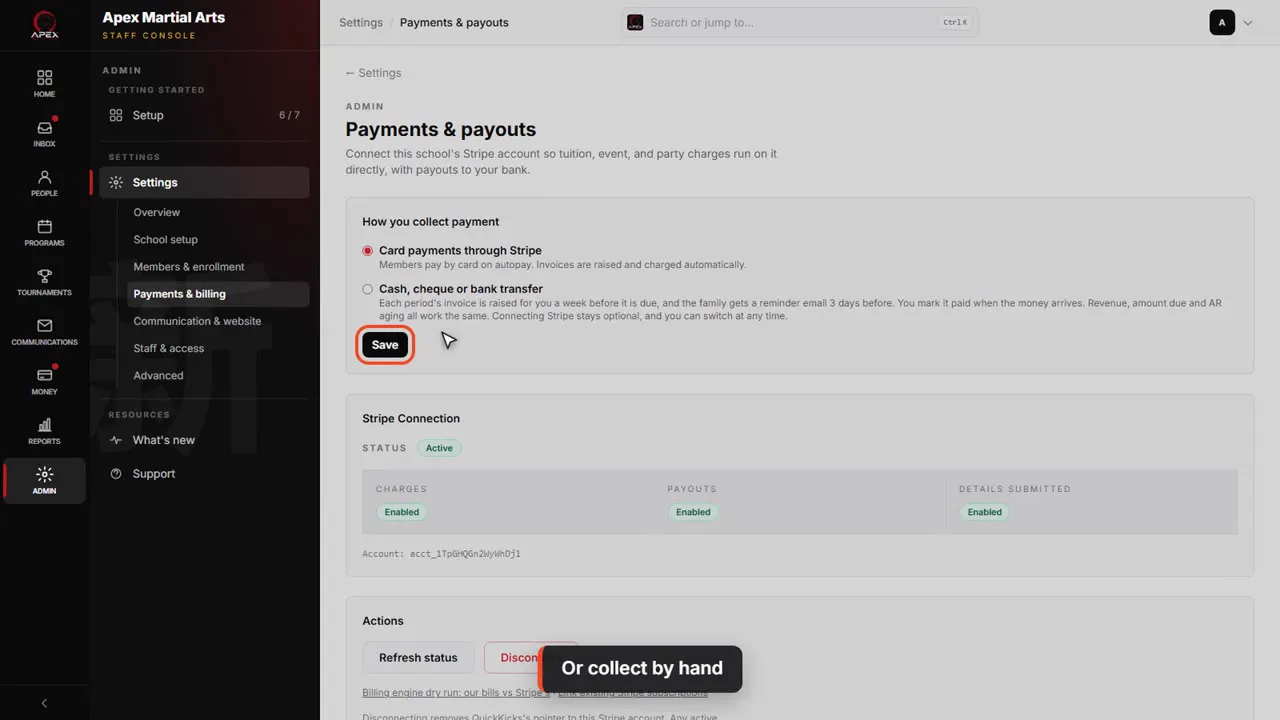
Or collect by hand
If you only take cash, checks or bank transfers, pick the second option and save. Connecting Stripe then becomes optional on your Setup checklist.
Your Stripe connection
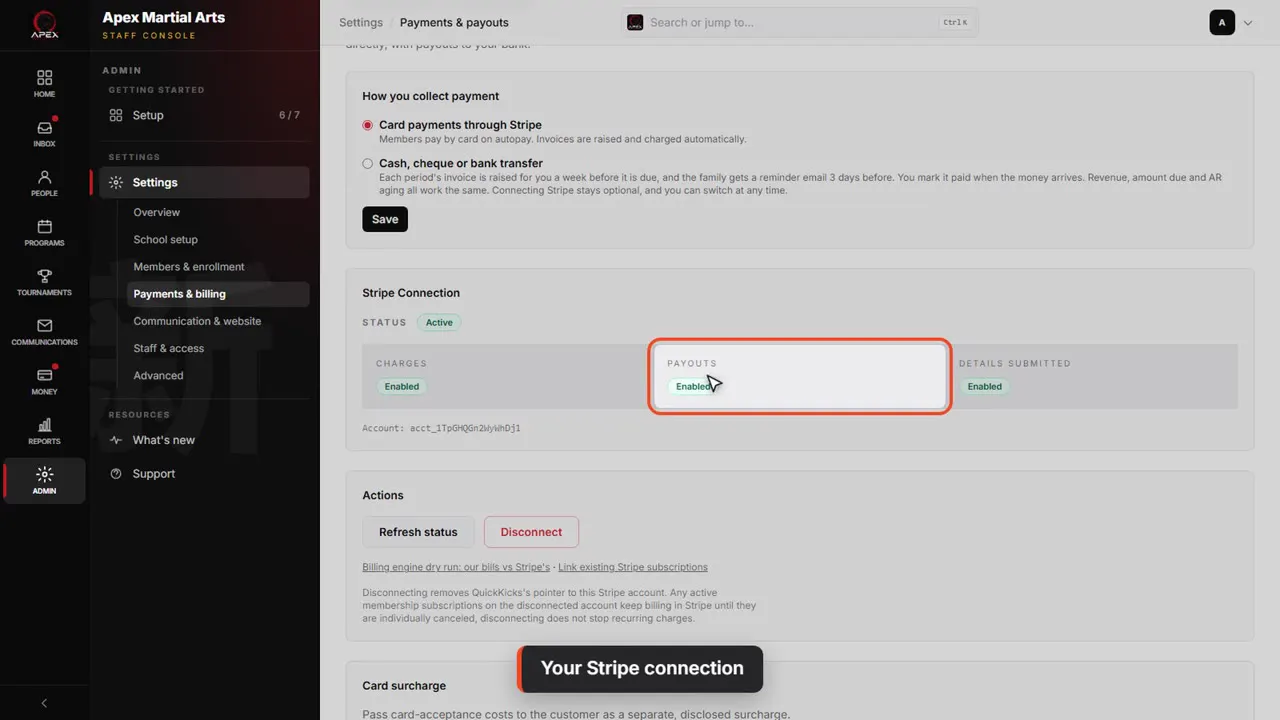
Stripe Connection shows your account. Active, with charges and payouts enabled, means families can pay, and Stripe can send the money to your bank.
Refresh status, and Disconnect
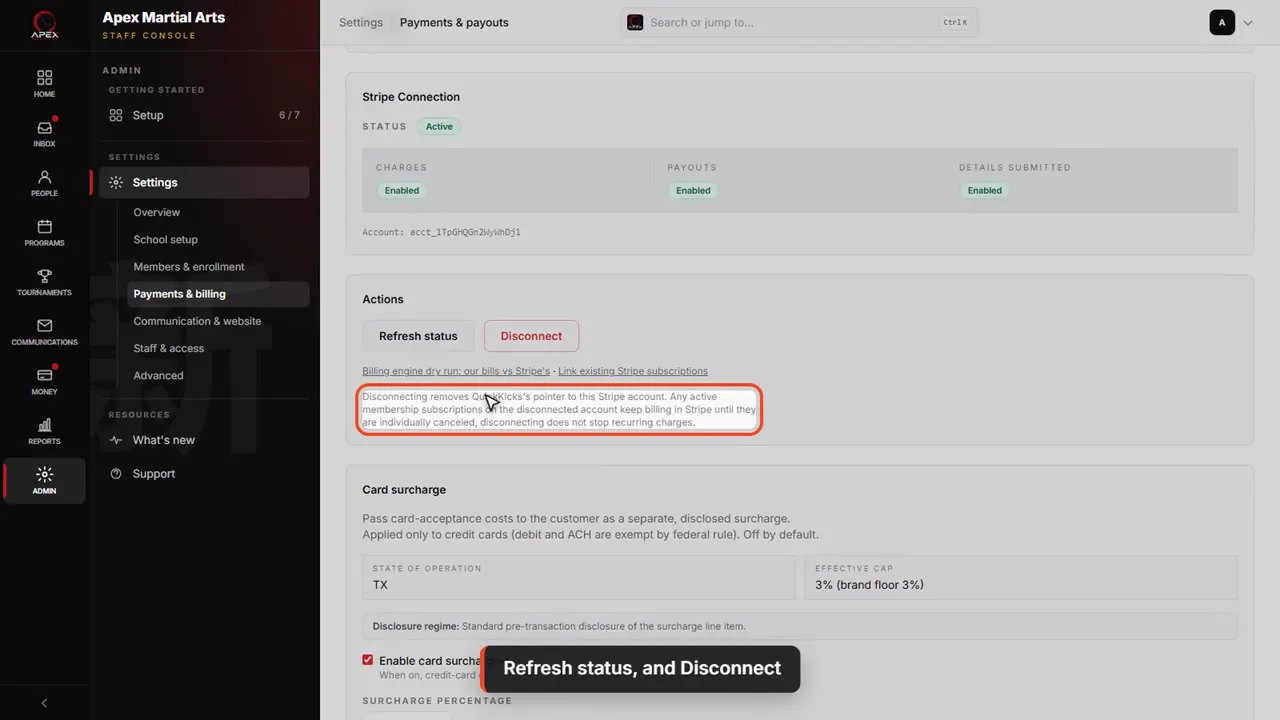
Refresh status asks Stripe for the latest. Disconnect only removes the link: memberships already billing in Stripe keep charging until they are cancelled.
Fees you can pass on
Card surcharge: credit cards only
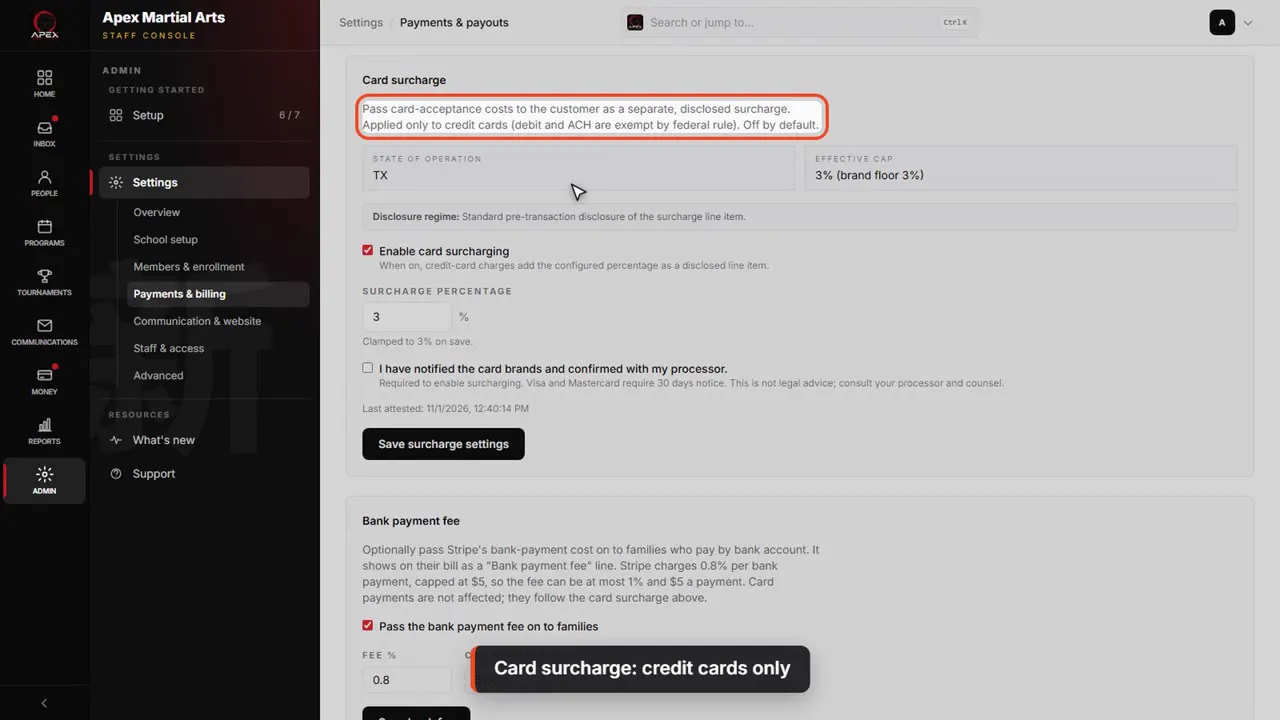
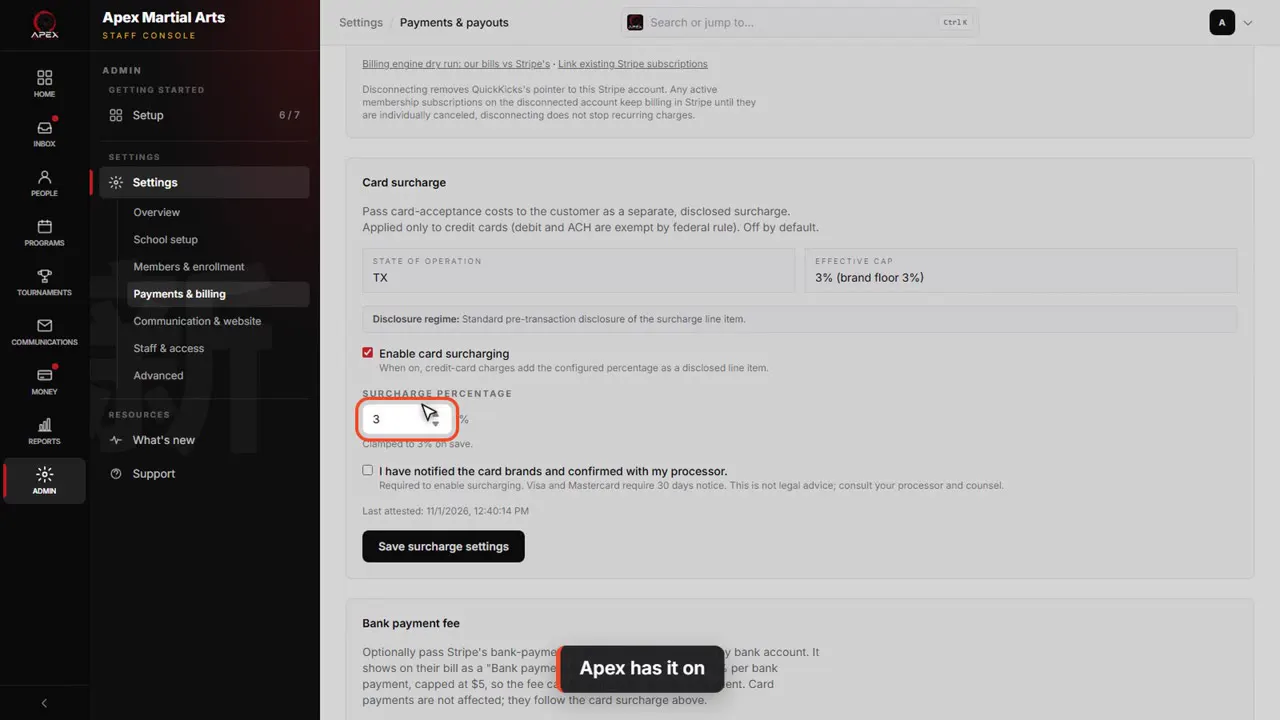
Card surcharge passes card costs on to families. It's off unless you turn it on, and it only ever applies to credit cards. Debit cards and bank payments never get it.
The cap depends on your state
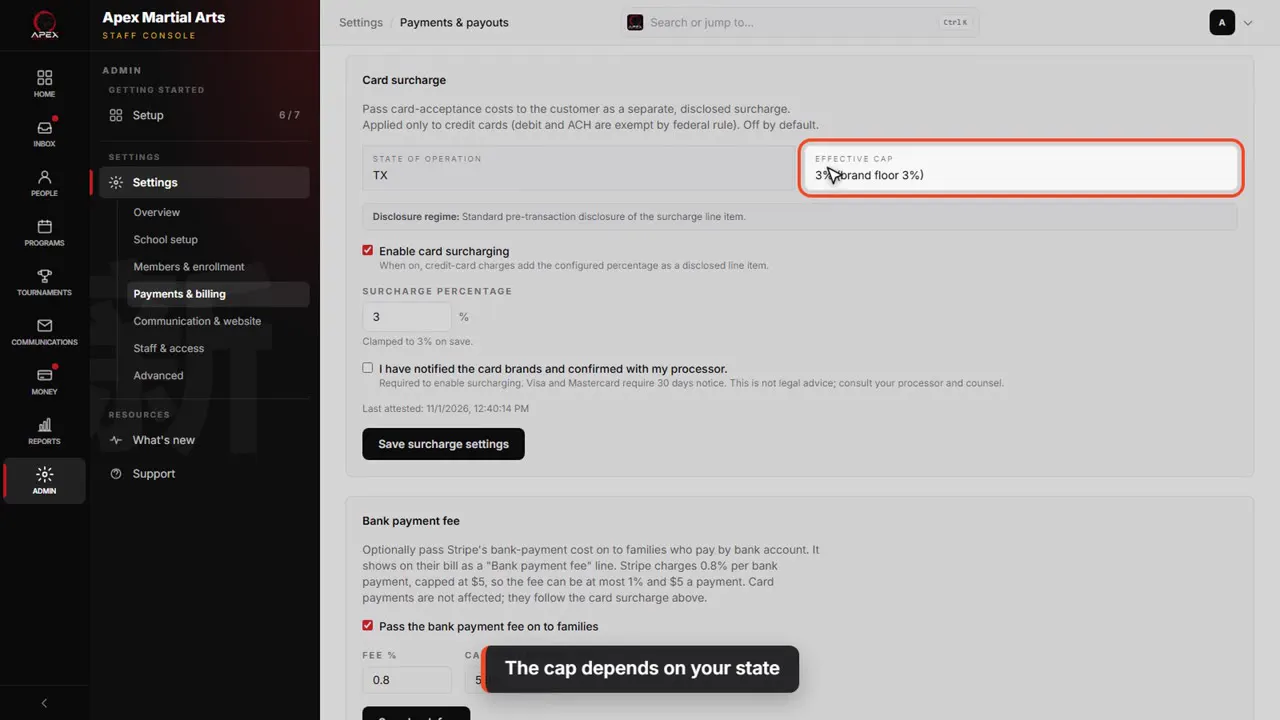
How much depends on the state in your school's address. Most states allow up to three percent, Colorado two, and a few none at all. Apex is in Texas, so three percent.
Apex has it on
Apex has it on: Enable card surcharging is ticked, at three percent. Families see the fee before they pay.
Turning it on
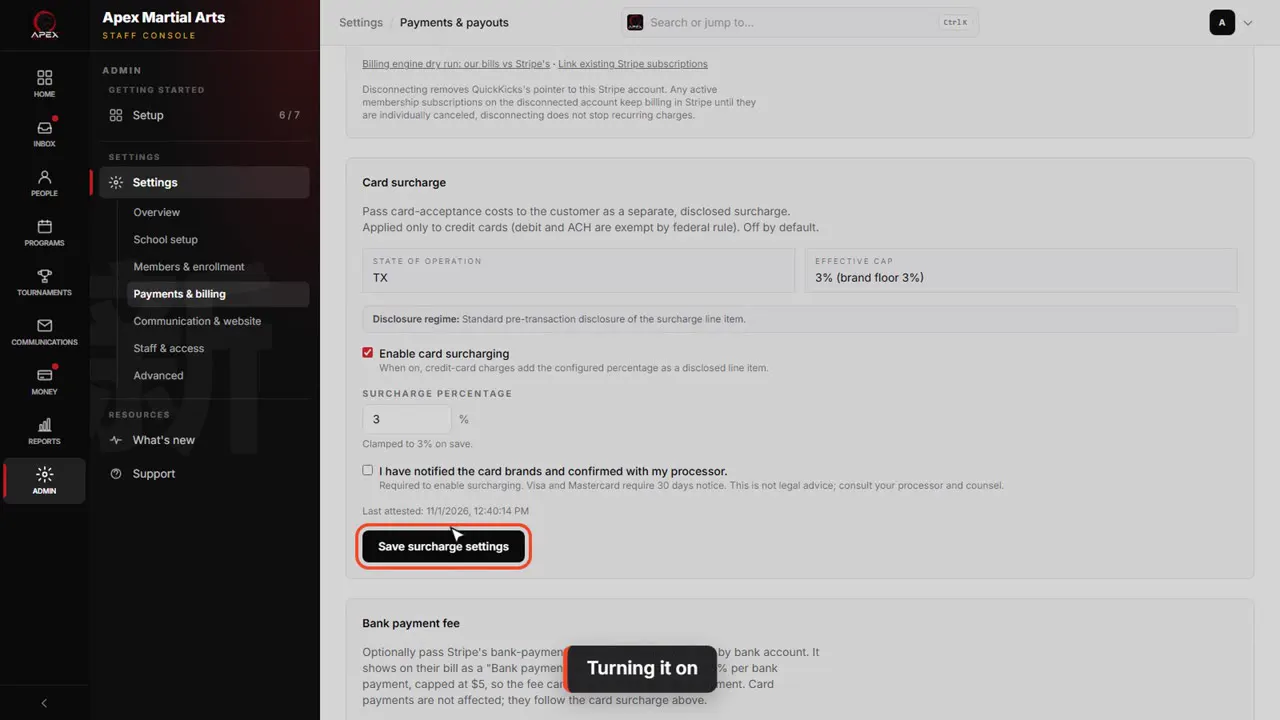
To turn it on, tick the box, enter the percentage, and confirm you have notified the card brands and your processor. Then Save surcharge settings.
Bank payment fee
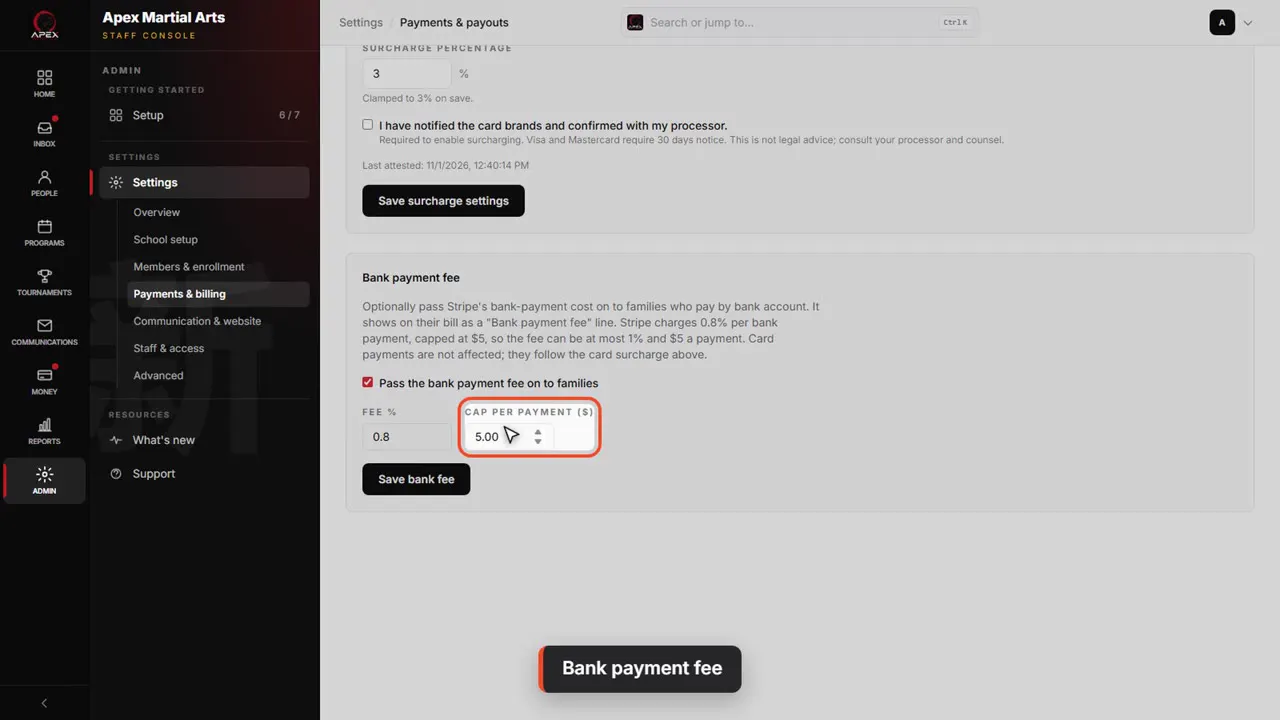
The bank payment fee does the same for families who pay from a bank account. Apex passes on Stripe's own cost, zero point eight percent. You can set up to one percent, never more than five dollars a payment.
Ticked means on
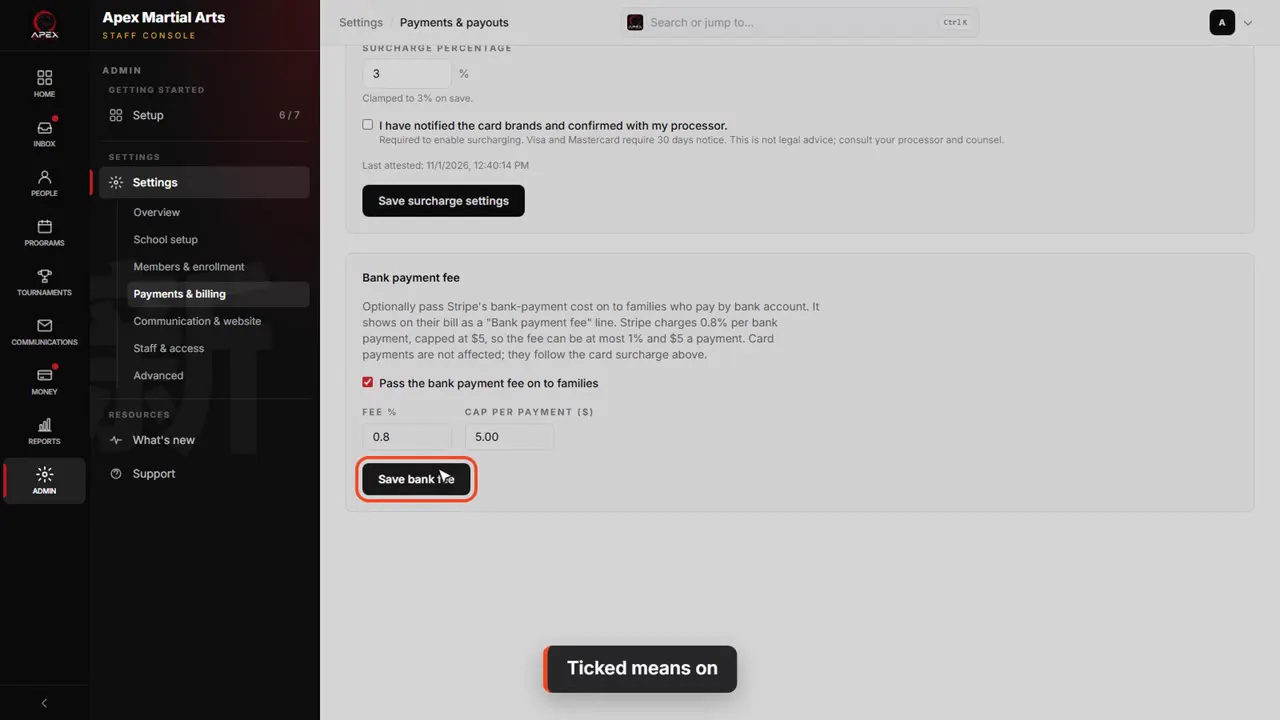
Ticked means it's on. Change it, then click Save bank fee. Card payments aren't affected.
Programs and Stripe
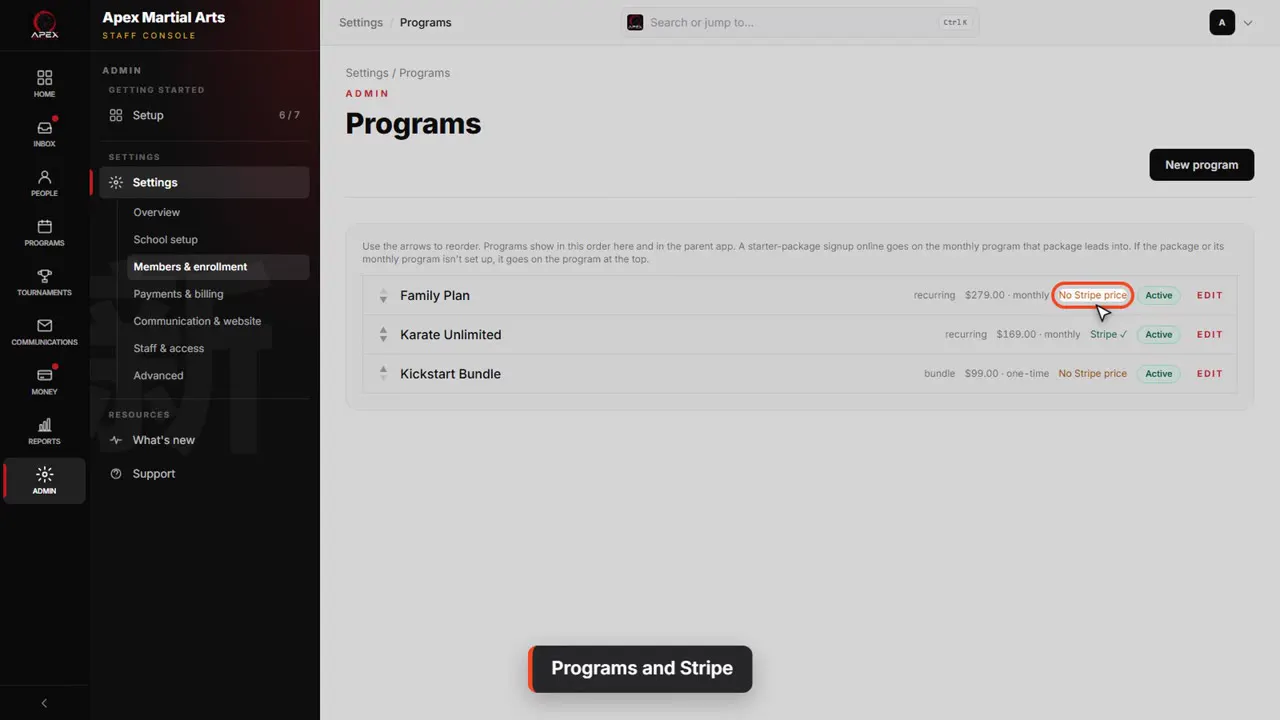
Connected Stripe after making programs or events? Those need re-syncing to your account: the Programs and Events pages then show a red banner with a Re-sync all button. Apex has no banner. A program priced on your Stripe account shows Stripe, with a tick. No Stripe price means it's billed by hand.
Sales tax
Sales tax: a fixed rate you set
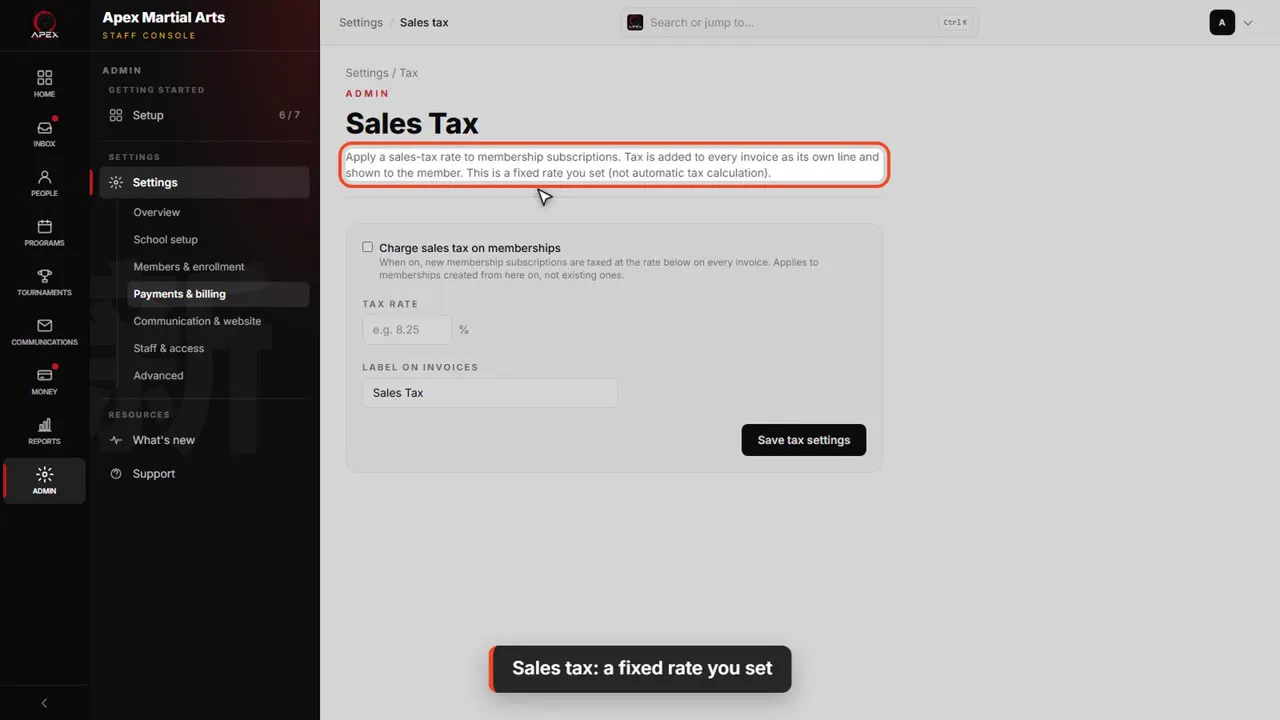
Sales tax is back under Payments and billing. It adds a fixed rate you set to membership bills, as its own line. It isn't worked out automatically.
Turn it on, rate and label
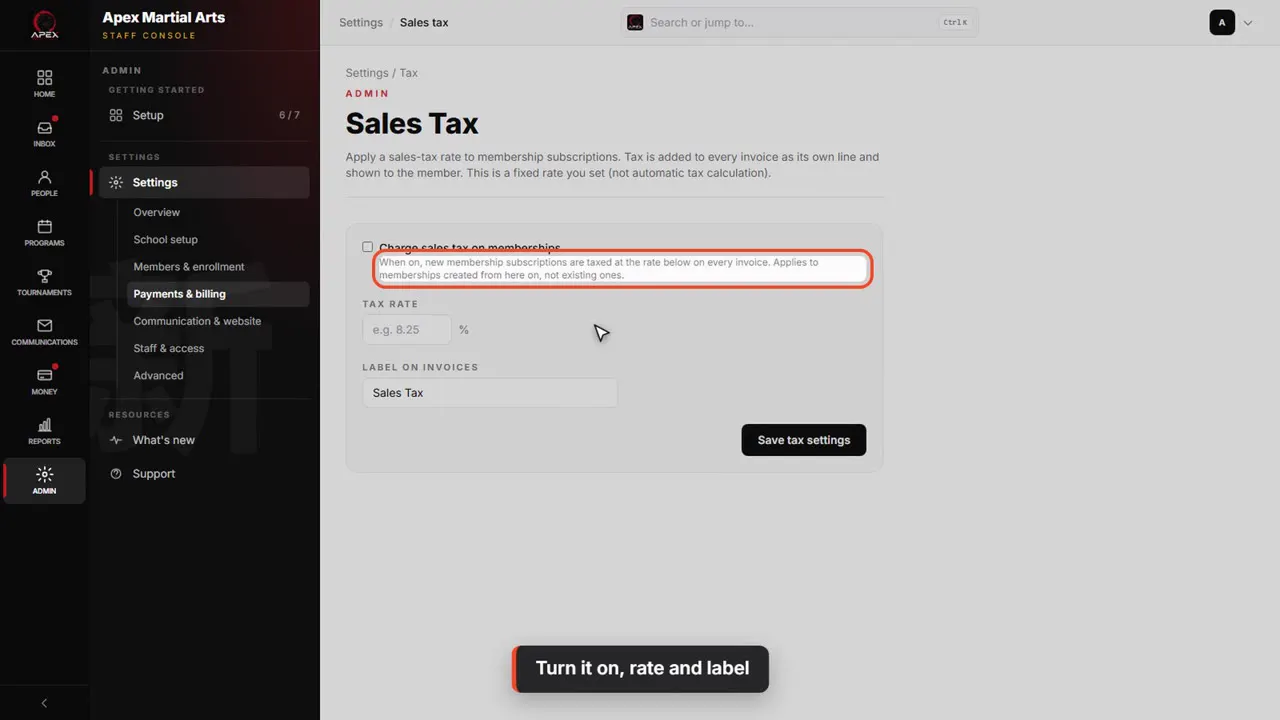
Tick Charge sales tax on memberships, enter your rate and the label families see, then Save tax settings. It applies to memberships started after that. Existing ones aren't changed.
Your QuickKicks plan
Your QuickKicks subscription
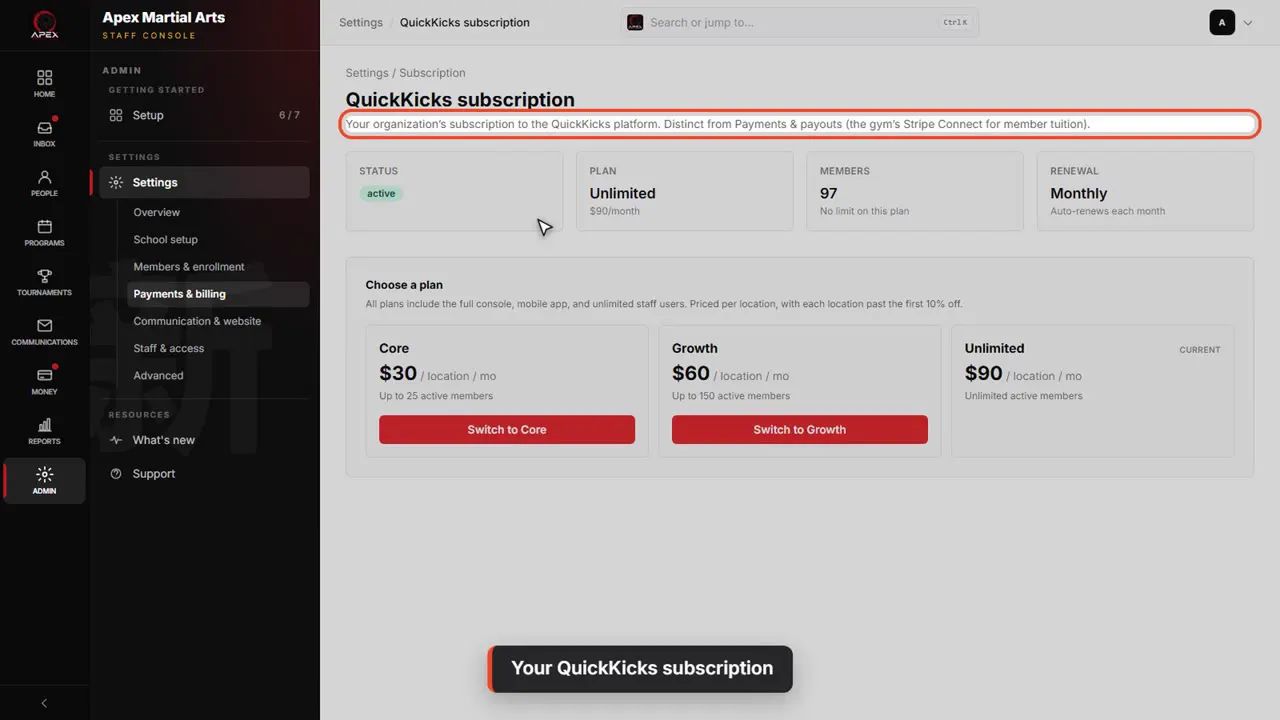
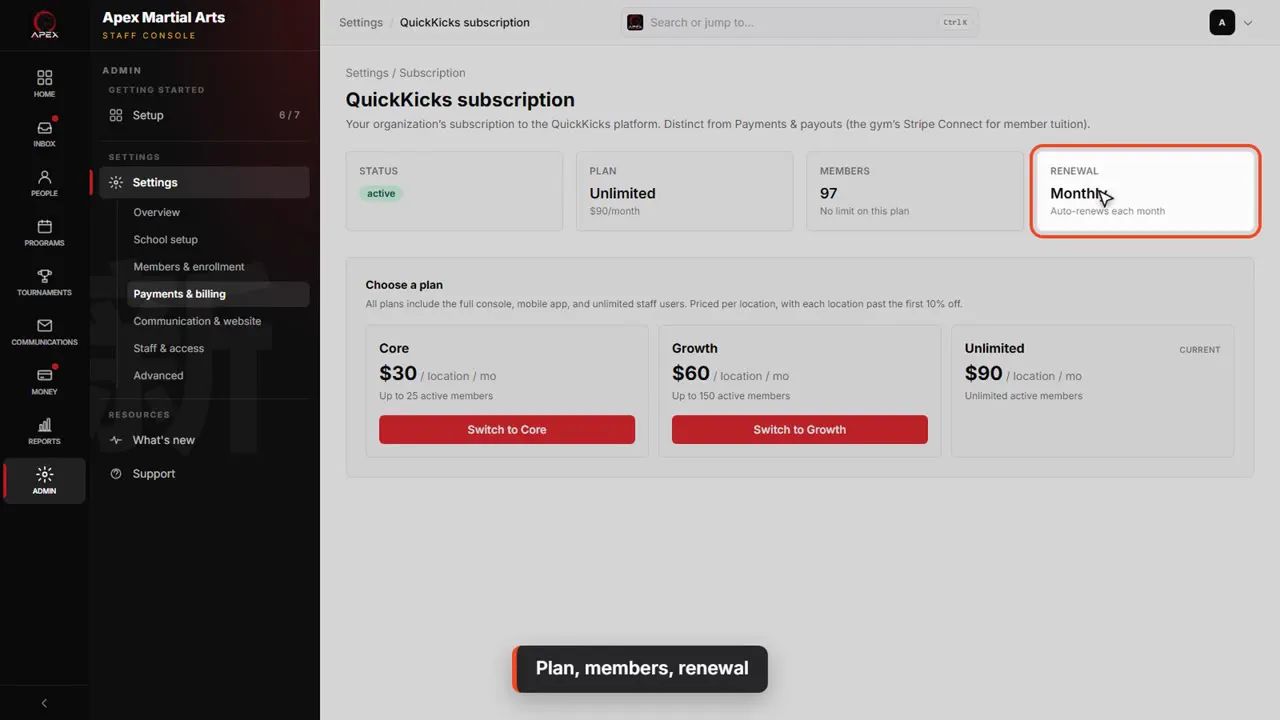
Last, QuickKicks subscription. This is the other direction: what your school pays for QuickKicks, kept separate from what families pay you.
Plan, members, renewal
It shows your plan, how many active members you have against its limit, and how often it renews.
Choose a plan
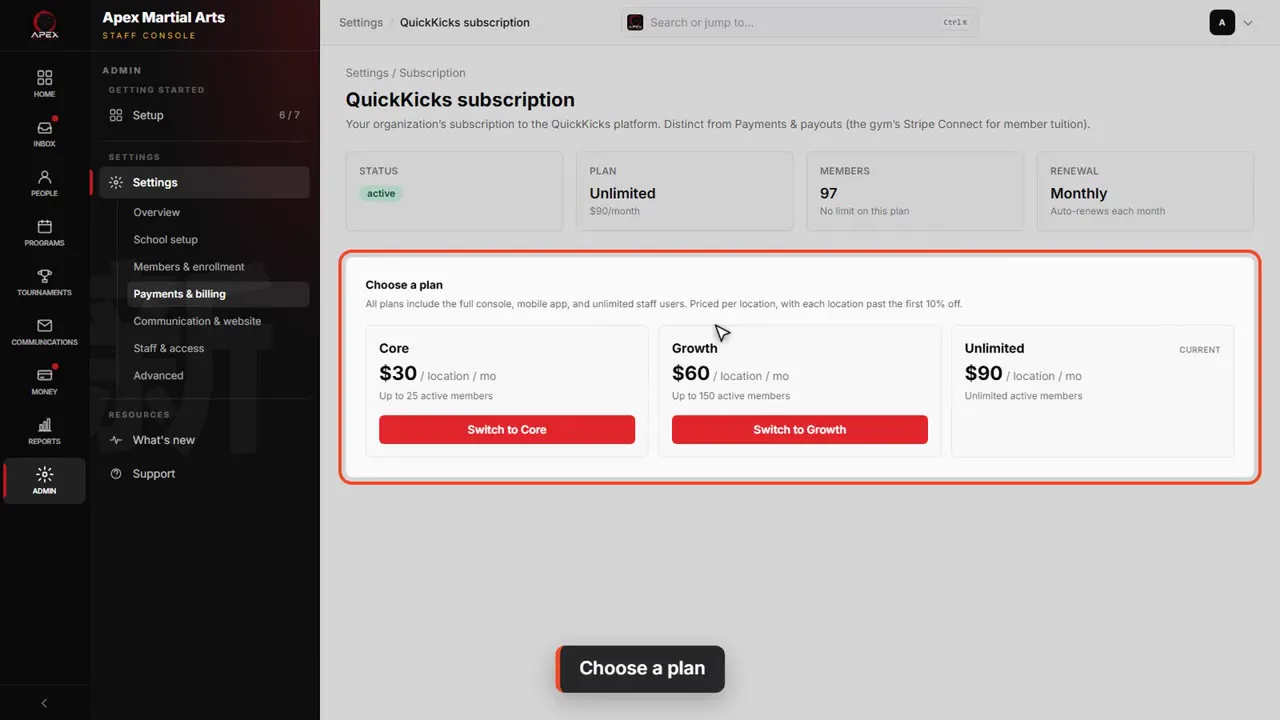
Choose a plan lists each plan, its price per location and how many active members it allows.
Shown with a demo school. Your screens show your own school, and may look a little different.
Read the whole video as text
In this video you'll see how money reaches your school: your Stripe account, fees you can pass on to families, sales tax, and your own QuickKicks plan.
Everything about getting paid is under Admin, then Settings, then Payments and billing.
This video covers three of these: Payments and payouts, Sales tax, and at the bottom, your QuickKicks subscription. Each one shows how it's set right now.
Open Payments and payouts. First, how you collect payment. Most schools use Card payments through Stripe: families pay online, and autopay charges them each period.
If you only take cash, checks or bank transfers, pick the second option and save. Connecting Stripe then becomes optional on your Setup checklist.
Stripe Connection shows your account. Active, with charges and payouts enabled, means families can pay, and Stripe can send the money to your bank.
Refresh status asks Stripe for the latest. Disconnect only removes the link: memberships already billing in Stripe keep charging until they are cancelled.
Card surcharge passes card costs on to families. It's off unless you turn it on, and it only ever applies to credit cards. Debit cards and bank payments never get it.
How much depends on the state in your school's address. Most states allow up to three percent, Colorado two, and a few none at all. Apex is in Texas, so three percent.
Apex has it on: Enable card surcharging is ticked, at three percent. Families see the fee before they pay.
To turn it on, tick the box, enter the percentage, and confirm you have notified the card brands and your processor. Then Save surcharge settings.
The bank payment fee does the same for families who pay from a bank account. Apex passes on Stripe's own cost, zero point eight percent. You can set up to one percent, never more than five dollars a payment.
Ticked means it's on. Change it, then click Save bank fee. Card payments aren't affected.
Connected Stripe after making programs or events? Those need re-syncing to your account: the Programs and Events pages then show a red banner with a Re-sync all button. Apex has no banner. A program priced on your Stripe account shows Stripe, with a tick. No Stripe price means it's billed by hand.
Sales tax is back under Payments and billing. It adds a fixed rate you set to membership bills, as its own line. It isn't worked out automatically.
Tick Charge sales tax on memberships, enter your rate and the label families see, then Save tax settings. It applies to memberships started after that. Existing ones aren't changed.
Last, QuickKicks subscription. This is the other direction: what your school pays for QuickKicks, kept separate from what families pay you.
It shows your plan, how many active members you have against its limit, and how often it renews.
Choose a plan lists each plan, its price per location and how many active members it allows.
That's how you get paid. Next, we'll put your classes on the schedule.
Up next · Run your day
Add a new family
Add a student and the parent who pays in one form, set who to call in an emergency, and find the family page.
Watch next: Add a new familyBefore this: Add your classes and schedule
Stuck?
In QuickKicks, open Admin, then Support (or Help, in the simpler menu), and send us a message. Or email hello@quickkicks.app.