
For schools · Run your day
Find any student
Open any student’s page in two clicks with the search box at the top of every page.
Step by step
The same steps as the video, with what to look for on each screen. The orange box shows where to look.
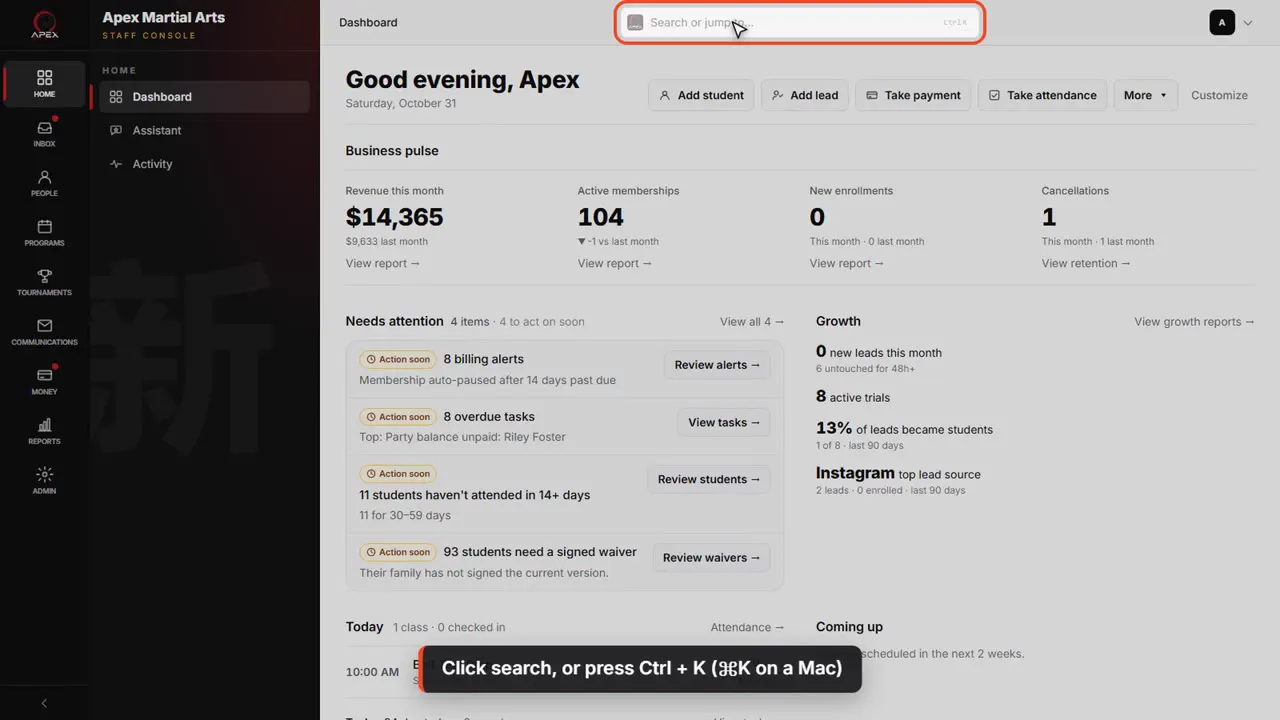
Click search, or press Ctrl + K (⌘K on a Mac)
Click the search bar at the top of any page, or press Control K, or Command K on a Mac.
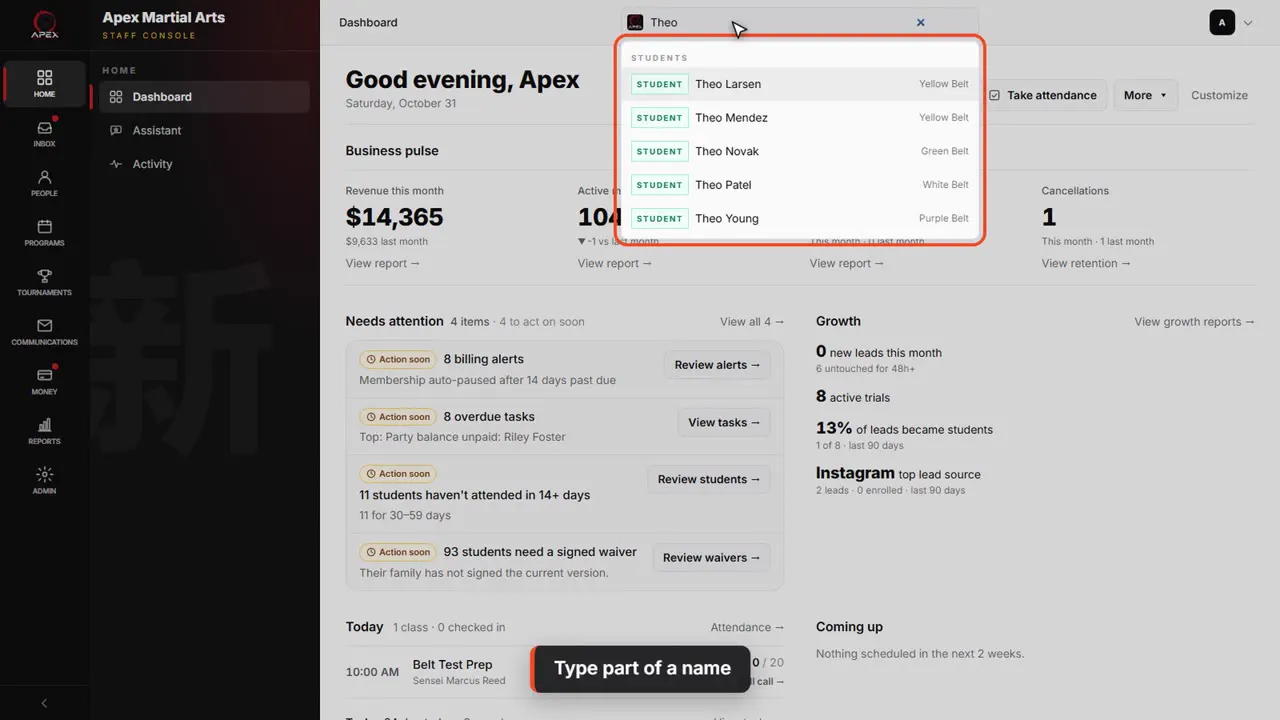
Type part of a name
Type part of their name. Matching students show up right away.
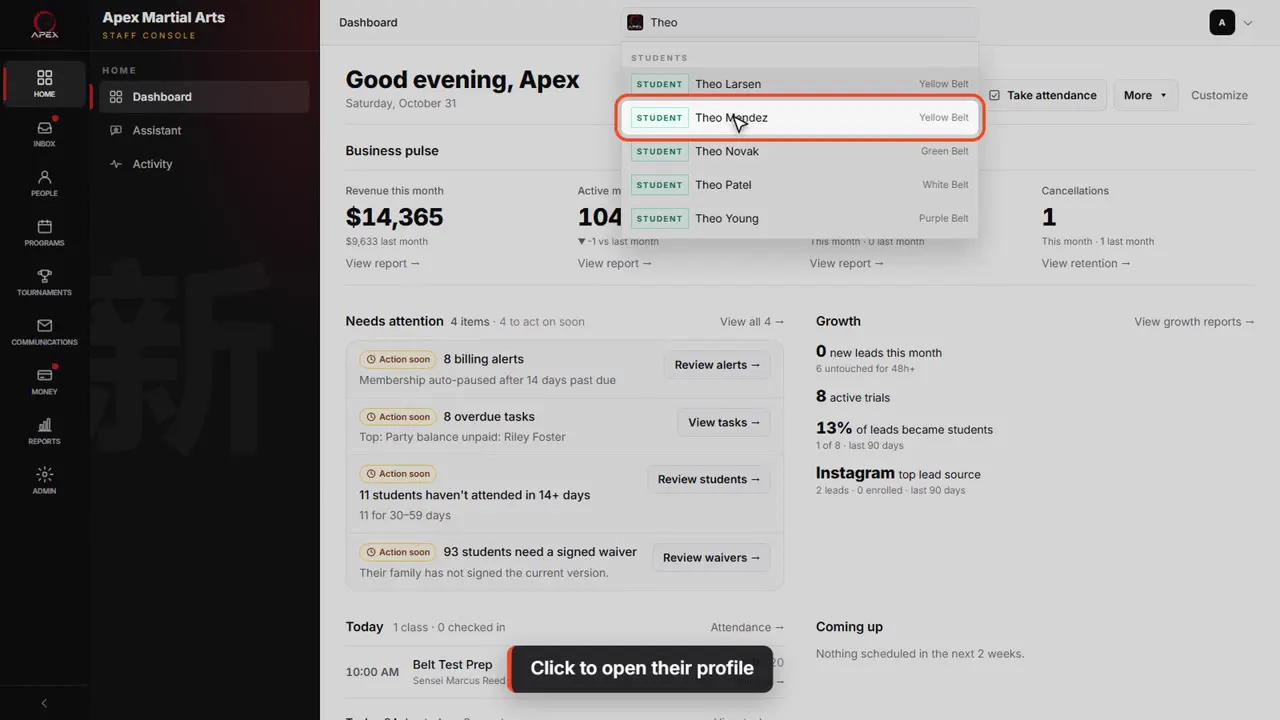
Click to open their profile
Click a name to open their profile.
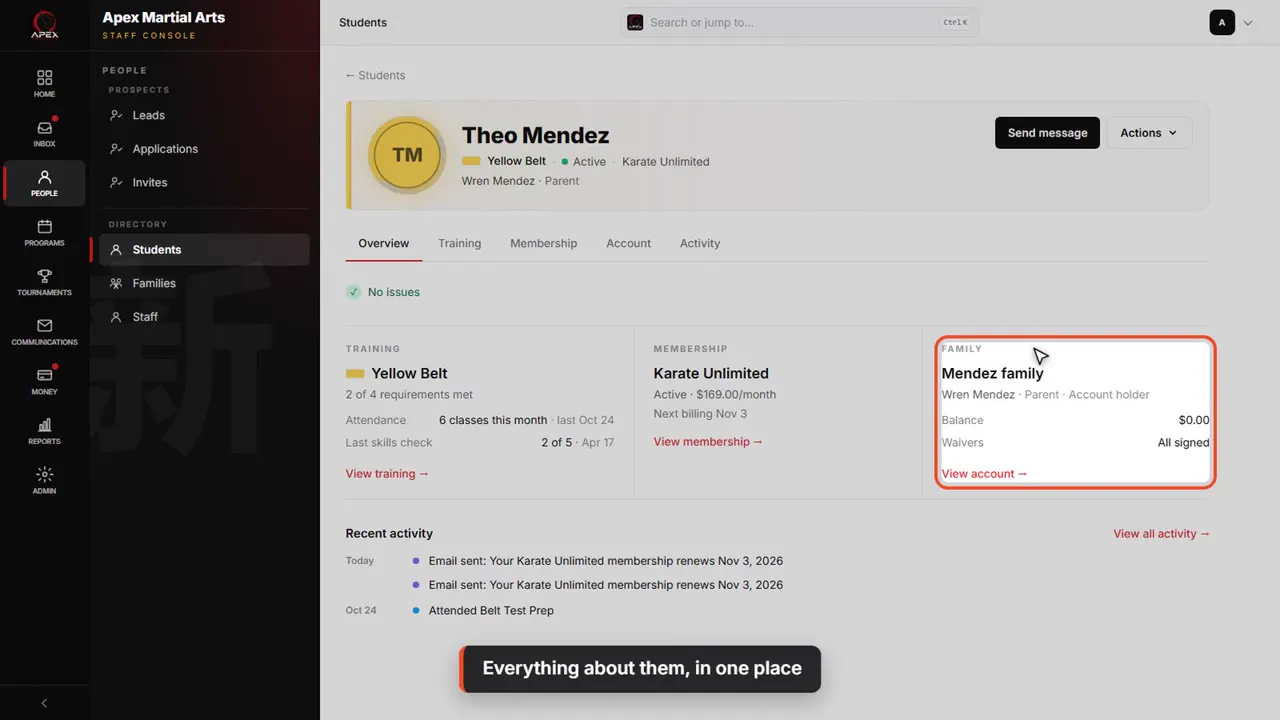
Everything about them, in one place
Overview shows their belt and training, their membership, and their family, all at a glance.
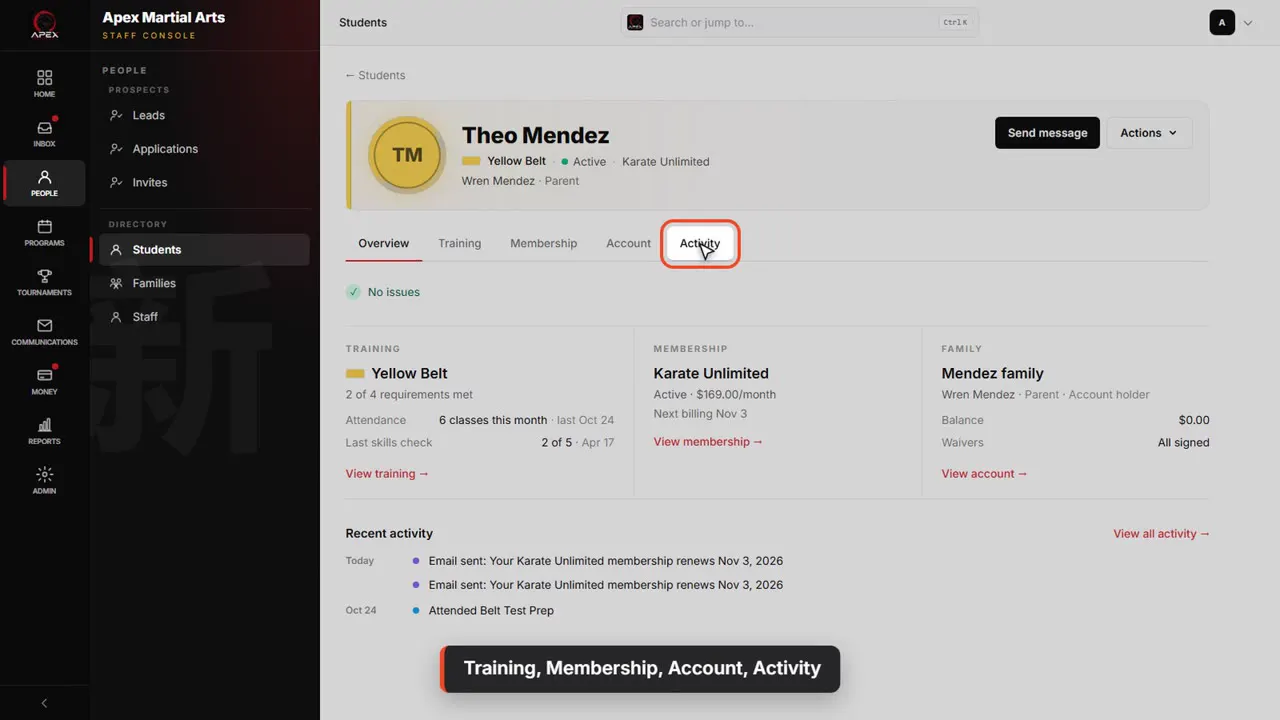
Training, Membership, Account, Activity
The tabs go deeper: Training for belts and attendance, Membership for plans and payments, Account for family and waivers, and Activity for notes and history.
Shown with a demo school. Your screens show your own school, and may look a little different.
Read the whole video as text
Here's the fastest way to find any student.
Click the search bar at the top of any page, or press Control K, or Command K on a Mac.
Type part of their name. Matching students show up right away.
Click a name to open their profile.
Overview shows their belt and training, their membership, and their family, all at a glance.
The tabs go deeper: Training for belts and attendance, Membership for plans and payments, Account for family and waivers, and Activity for notes and history.
That's it.
Up next · Money
Memberships: start, pause and cancel
Add a membership, take the first payment at the desk, pause it, move the billing date, and cancel when a family leaves.
Watch next: Memberships: start, pause and cancelBefore this: Track progress on the mat
Stuck?
In QuickKicks, open Admin, then Support (or Help, in the simpler menu), and send us a message. Or email hello@quickkicks.app.