
For schools · Money
Handle a declined card
Find who is past due, see what QuickKicks does on its own, retry, snooze or waive a payment, and ask the family for a new card.
Jump to a part
Step by step
The same steps as the video, with what to look for on each screen. The orange box shows where to look.
Failed payments
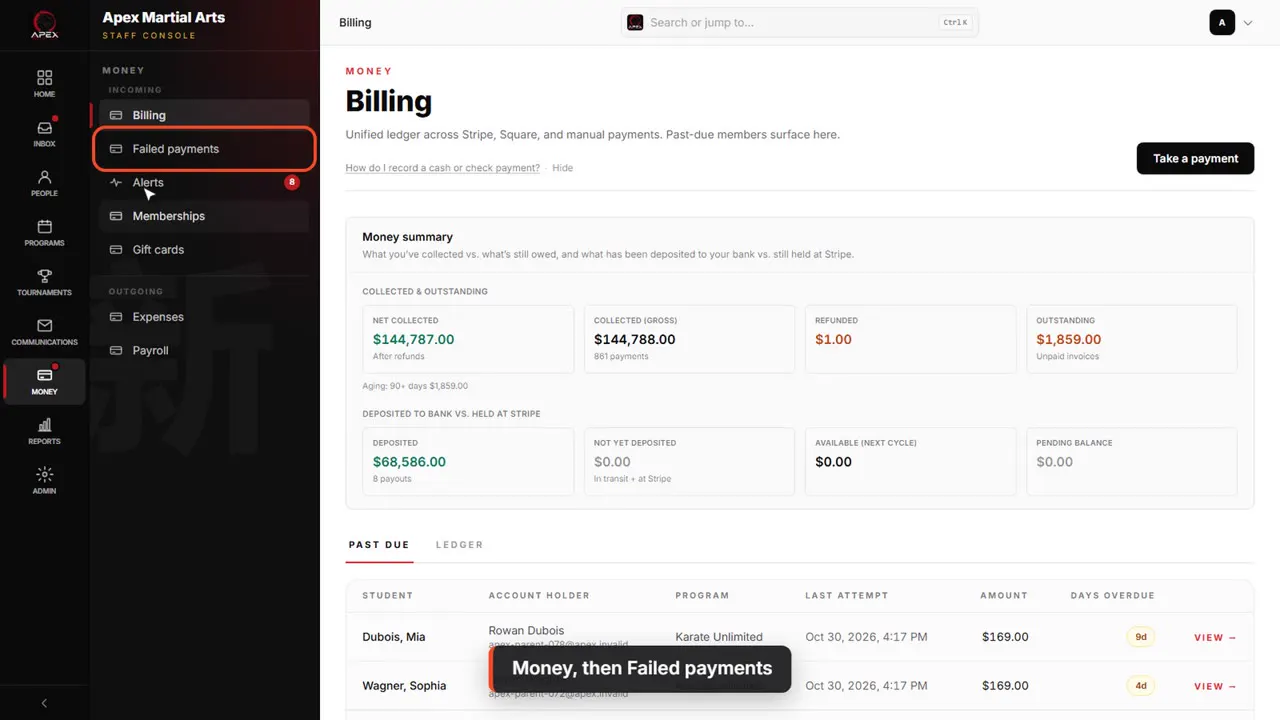
Money, then Failed payments
When a membership payment fails, the membership goes past due. You'll find it under Money, then Failed payments.
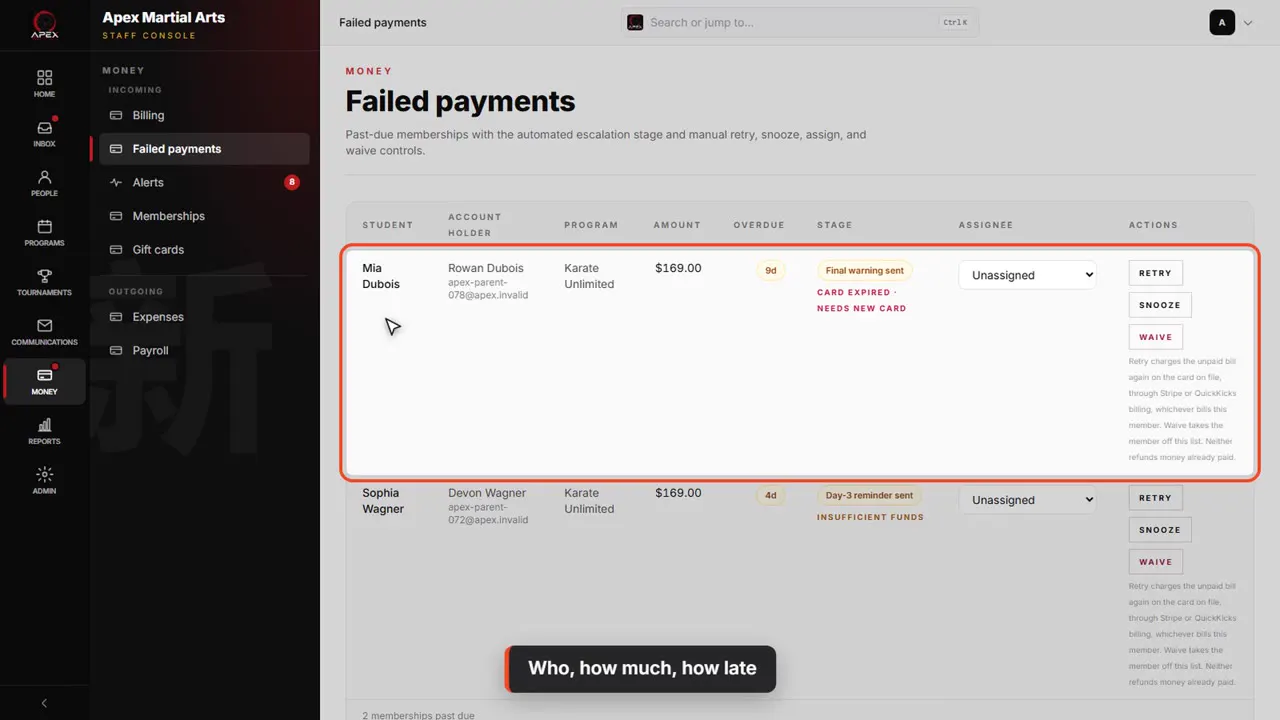
Who, how much, how late
Each row is one membership: the student, the account holder, the program, the amount, and how many days overdue. The oldest is at the top.
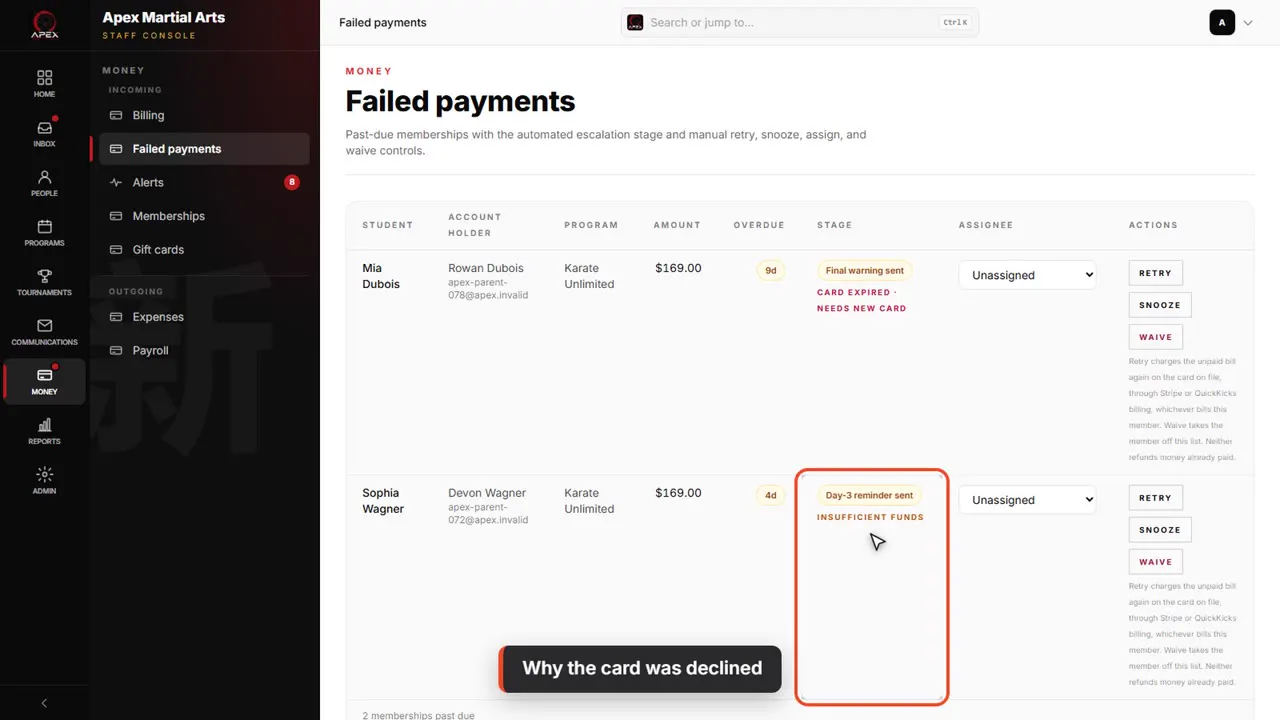
Why the card was declined
Stage shows why the card was declined. Card expired means that card won't work again, so the family needs to give you a new one. Insufficient funds may go through on a later try.
What happens on its own
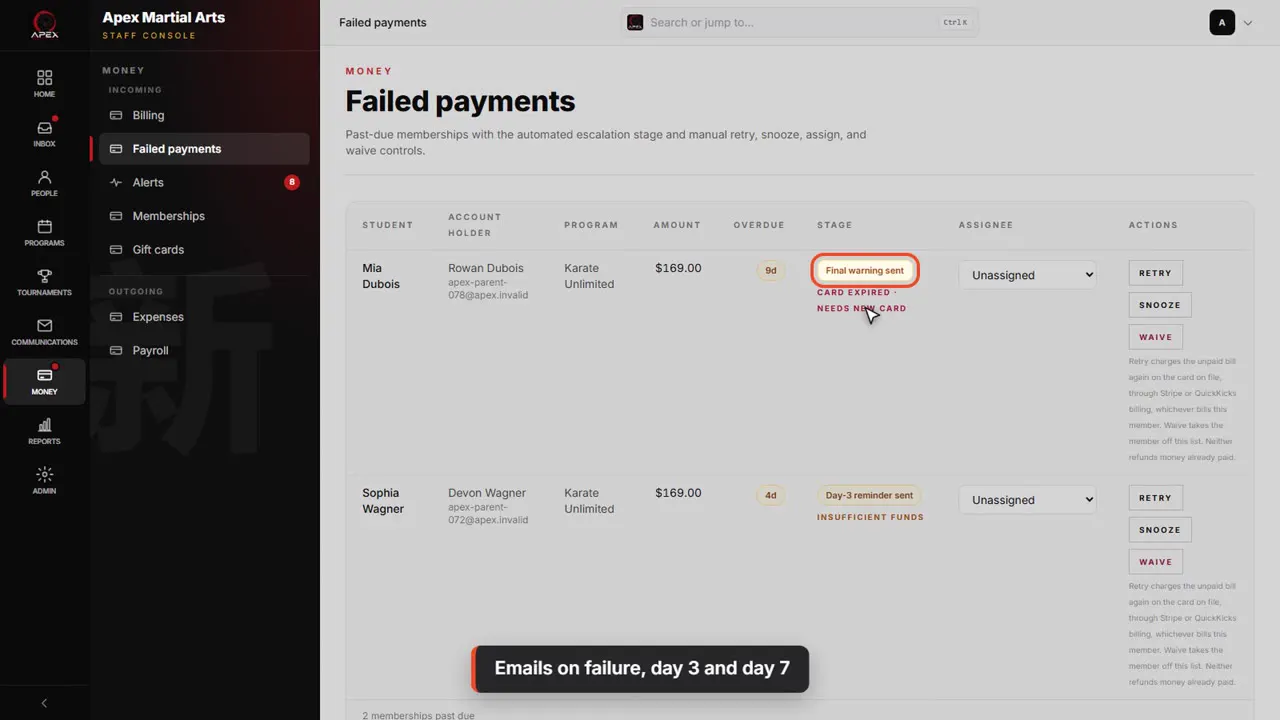
Emails on failure, day 3 and day 7
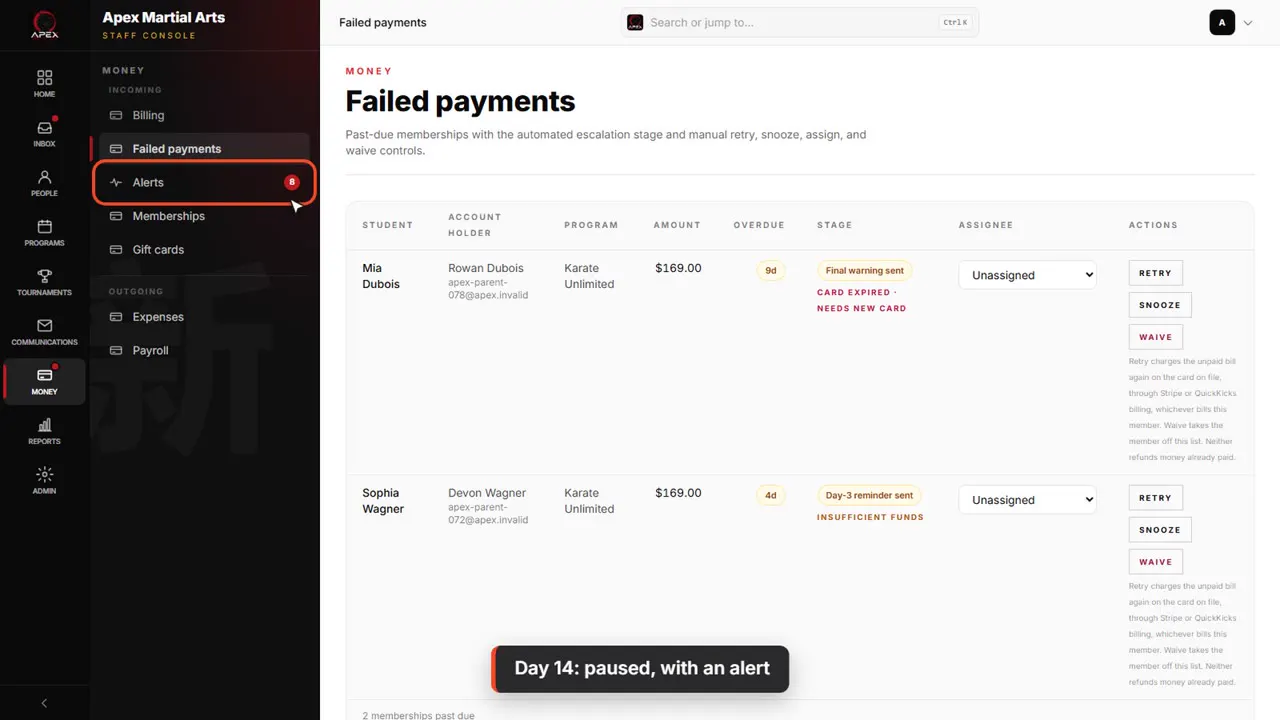
QuickKicks follows up for you. The family is emailed when the charge fails, again on day three, and a final warning on day seven. Stage shows how far each one has got.
Day 14: paused, with an alert
On day fourteen the membership is paused automatically, the emails stop, and it leaves this list. You get an alert under Money, then Alerts, instead.
Retry, snooze or waive
Retry: charge the card again
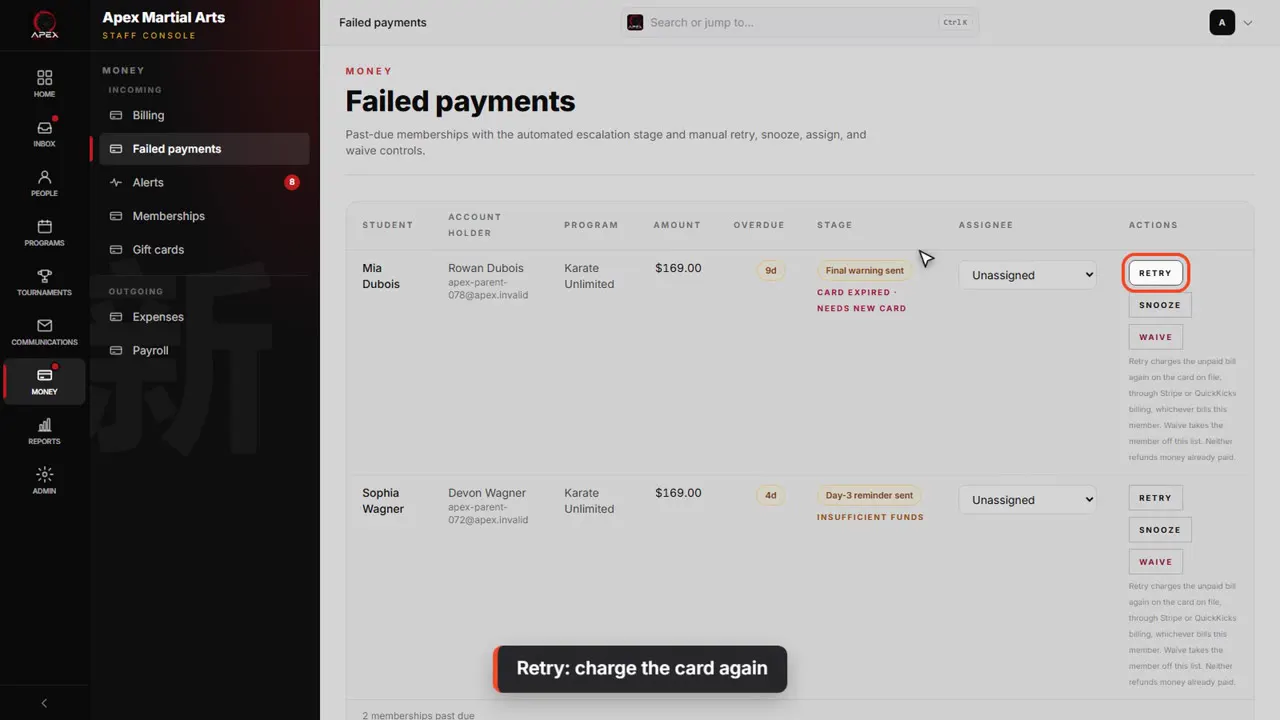
Retry charges the card on file again, right now, for the same unpaid bill. It doesn't add a new bill. If it goes through, the membership leaves this list.
Snooze: hold off until a date
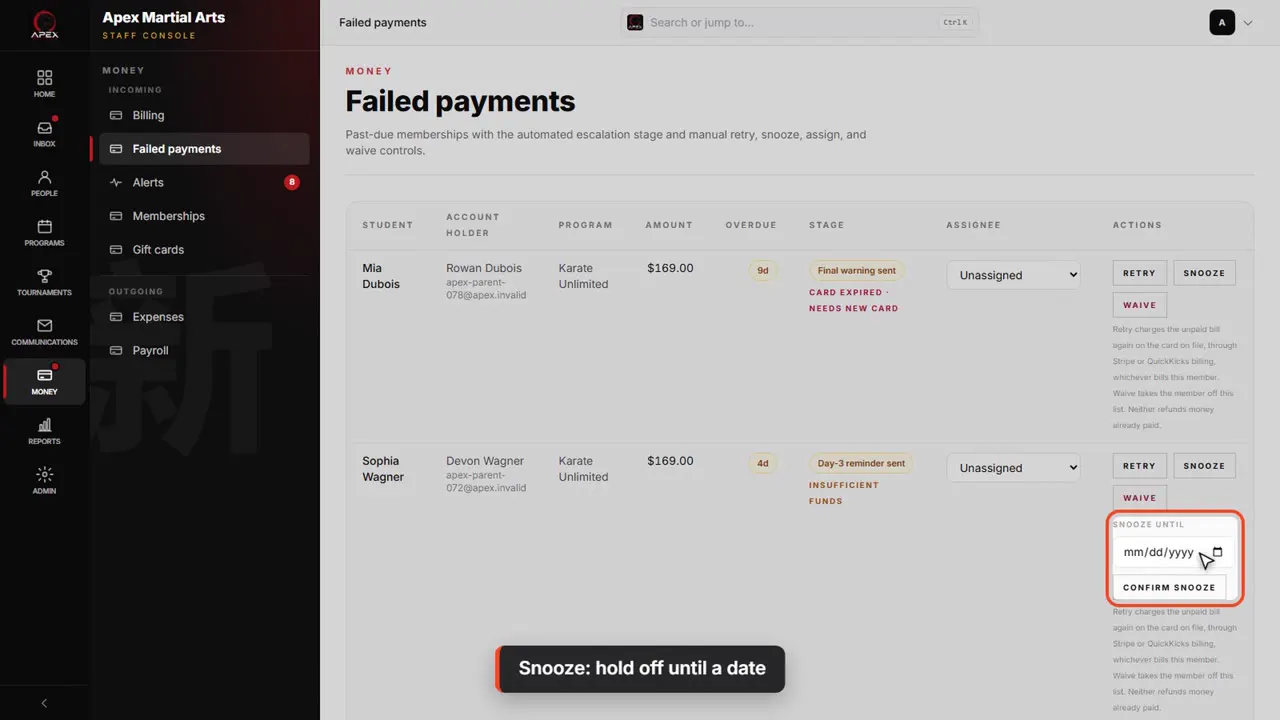
Snooze holds things off until a date you pick: no reminder emails and no automatic pause for this membership until then. Handy when a family says they will pay on Friday.
Waive: clear it
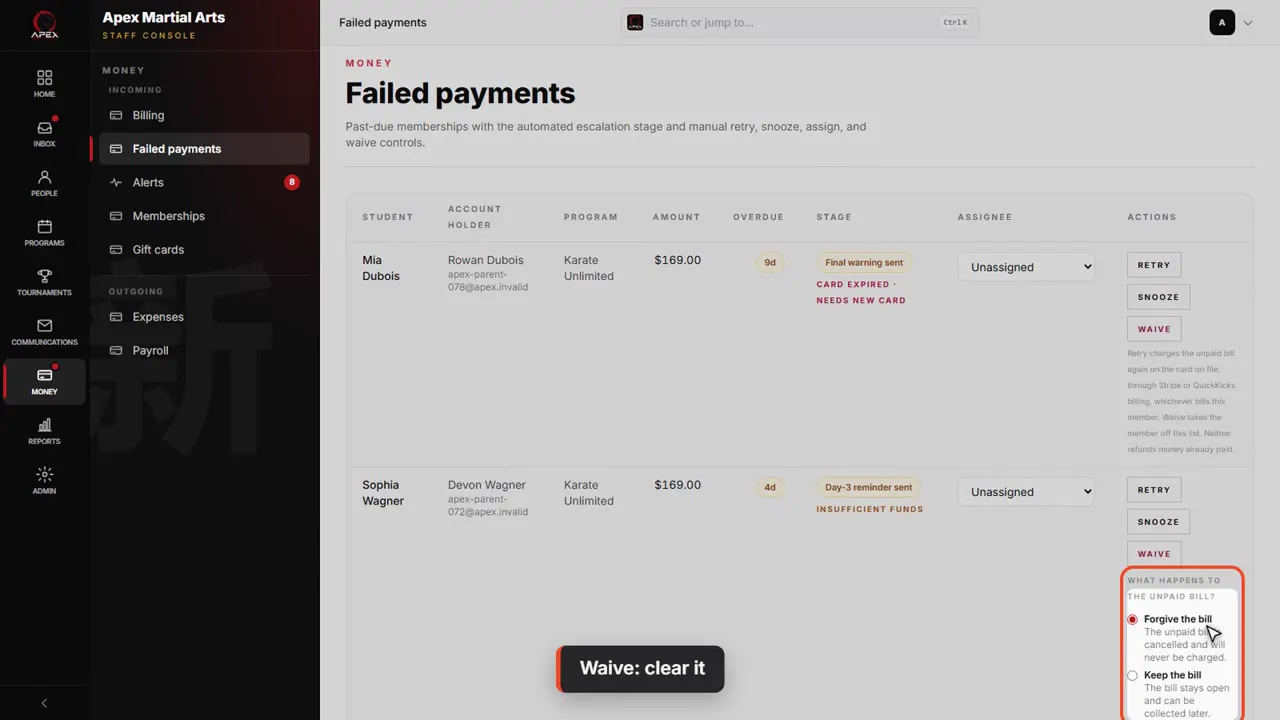
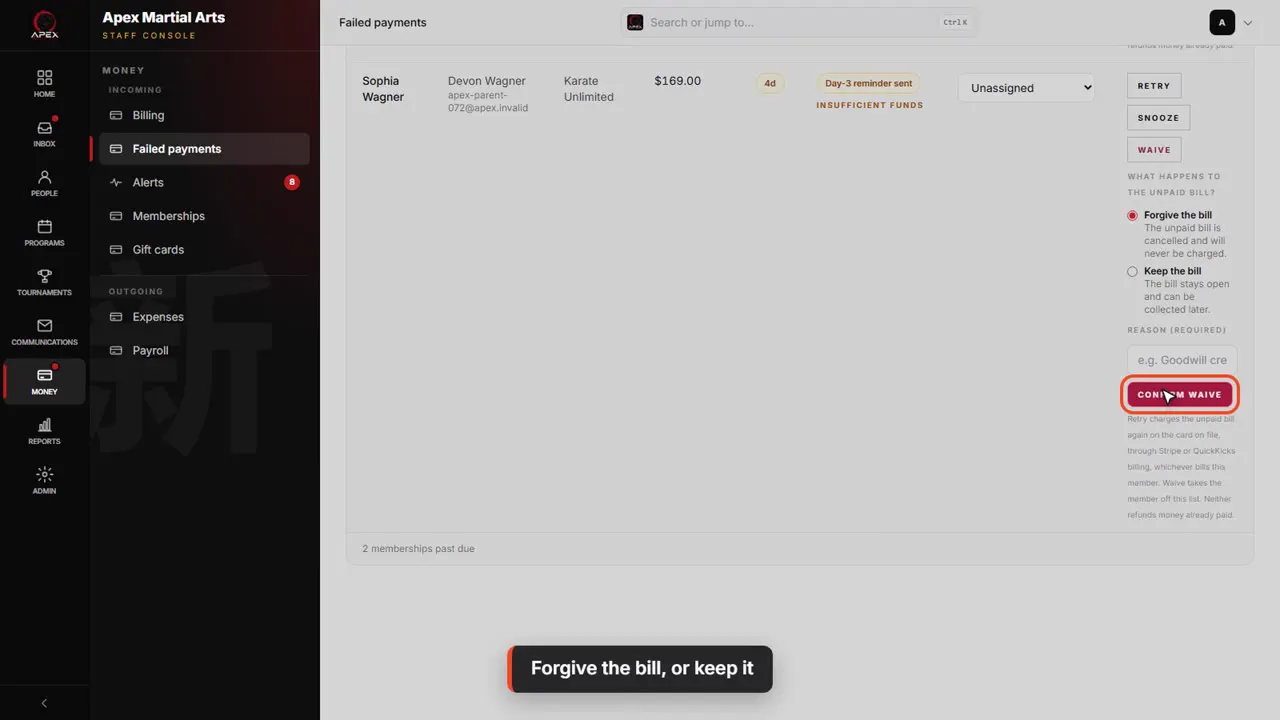
Waive puts the membership back to active and takes it off this list. Click Waive, and you choose what happens to the unpaid bill.
Forgive the bill, or keep it
Forgive the bill, the default, cancels it, so it's never charged. Keep the bill leaves it open, to collect later. Then give a reason and click Confirm waive. We won't confirm it here.
Assignee: who is following up
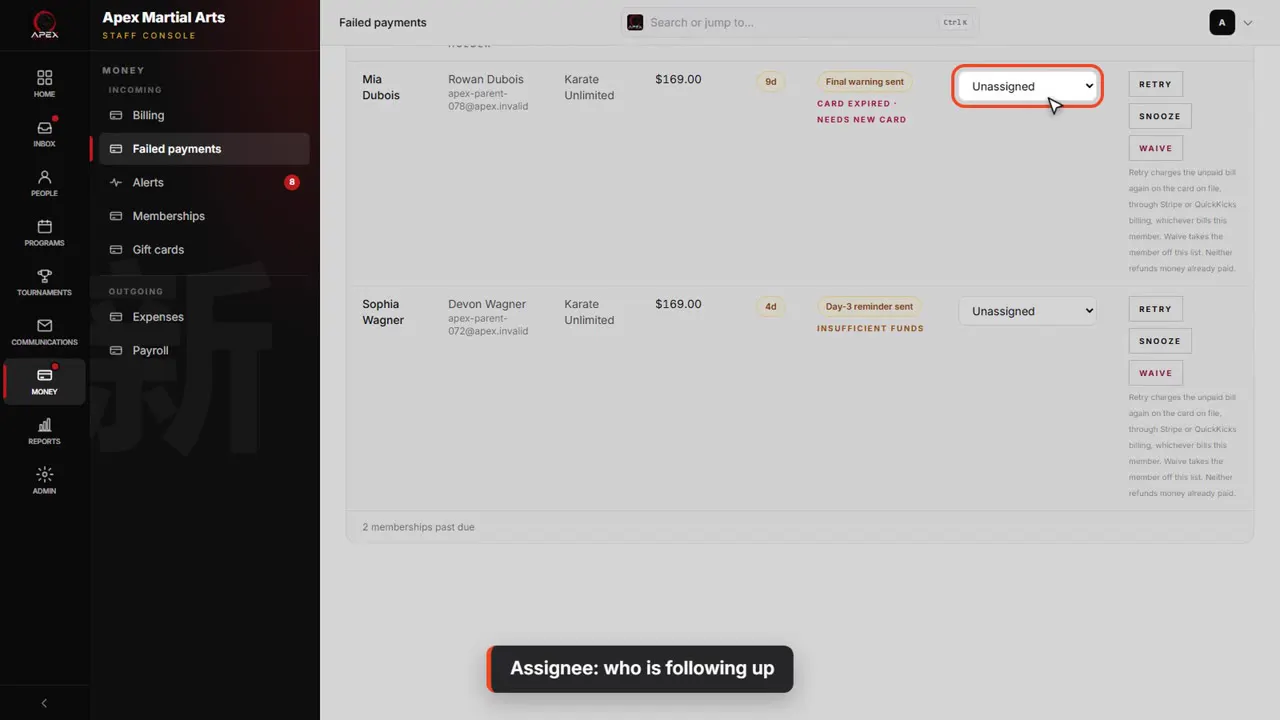
Assignee puts one person in charge of chasing it, so two people never call the same family.
Who owes money
Billing opens on Past due
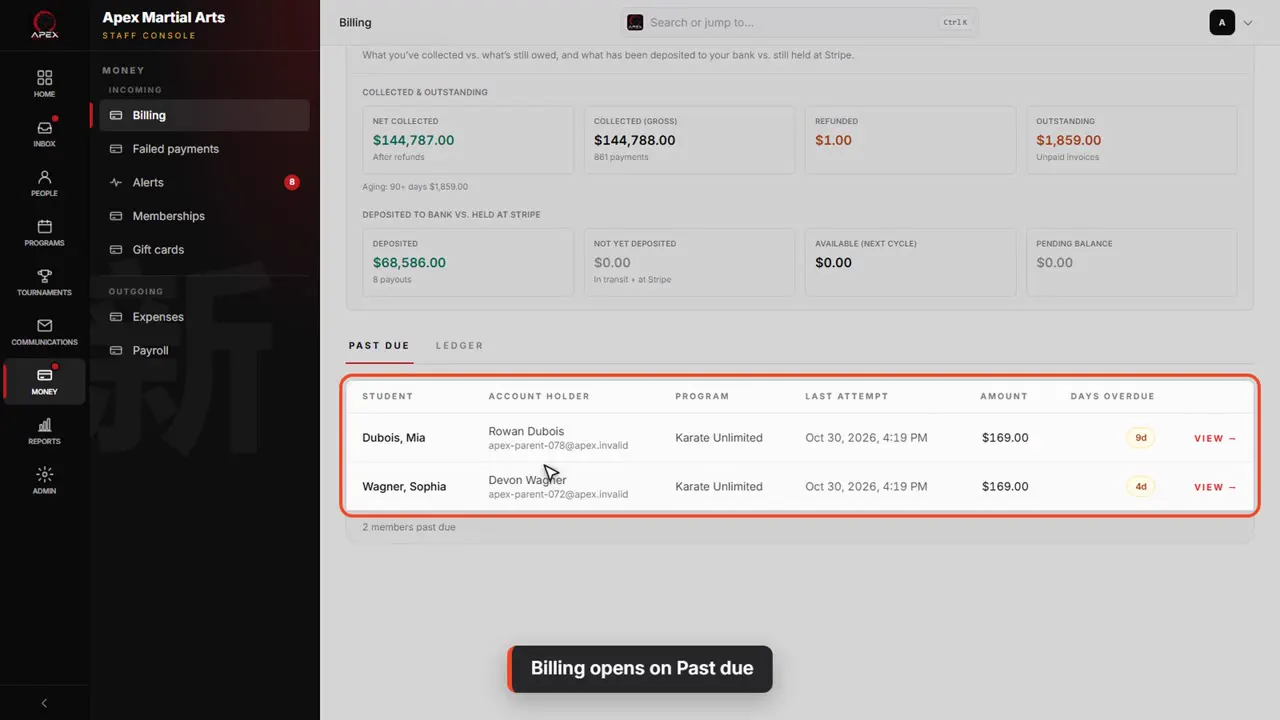
For the same list with when the card was last tried, open Billing. It starts on the Past due tab, with the list below.
In simple mode: Who owes money
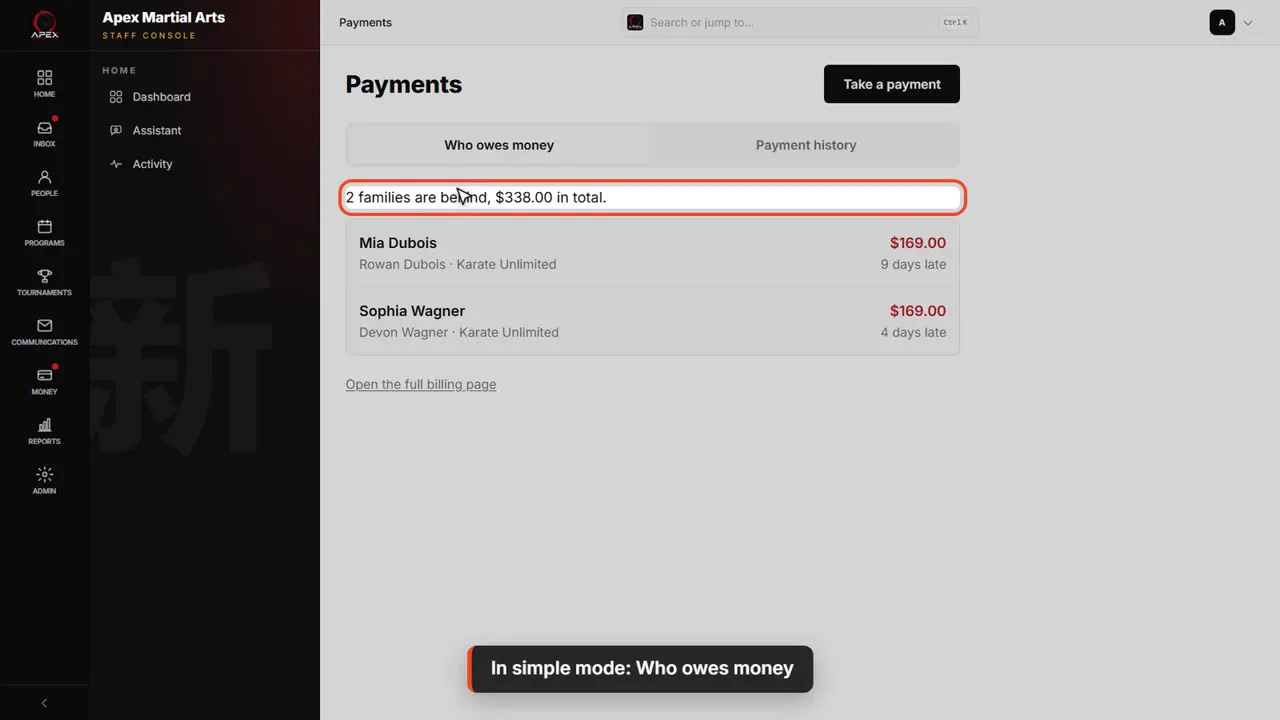
In simple mode the same list is called Who owes money, with the total at the top.
Billing alerts
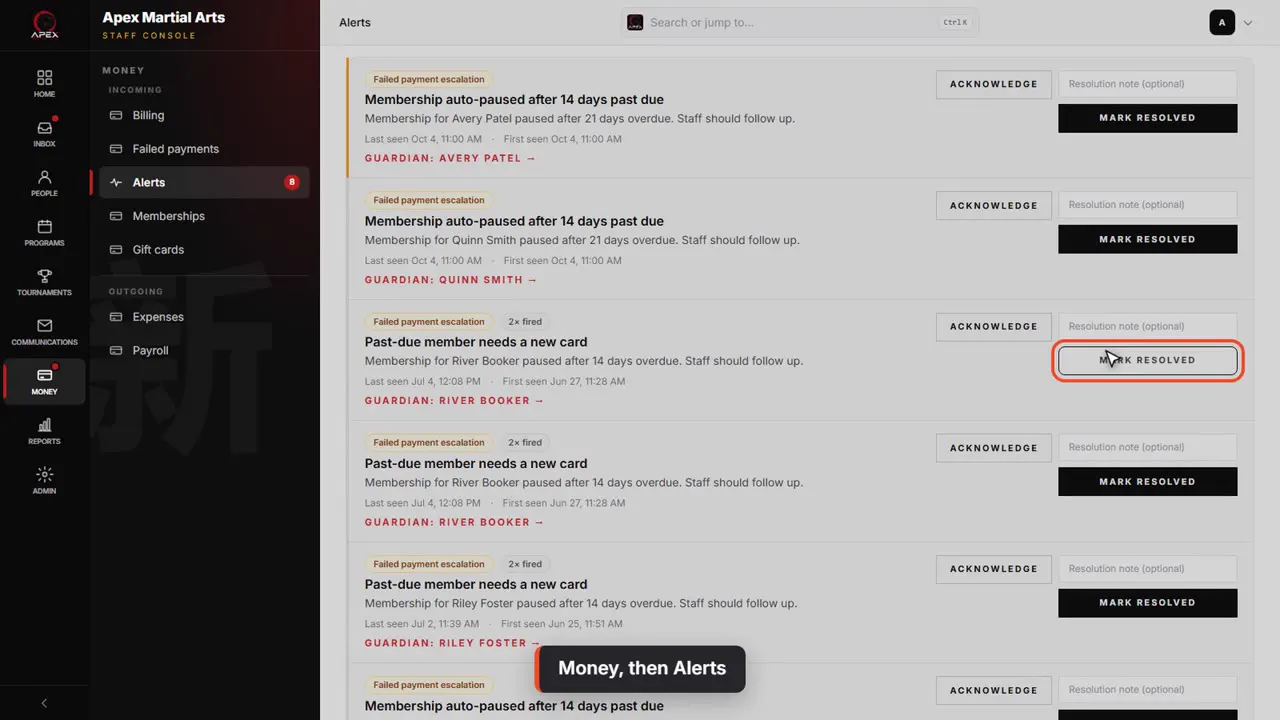
Money, then Alerts
Alerts collect what needs a person: auto-paused memberships, cards that need replacing, and other failed charges. Click Acknowledge when you take one on, and Mark resolved when it is done.
Ask for a new card
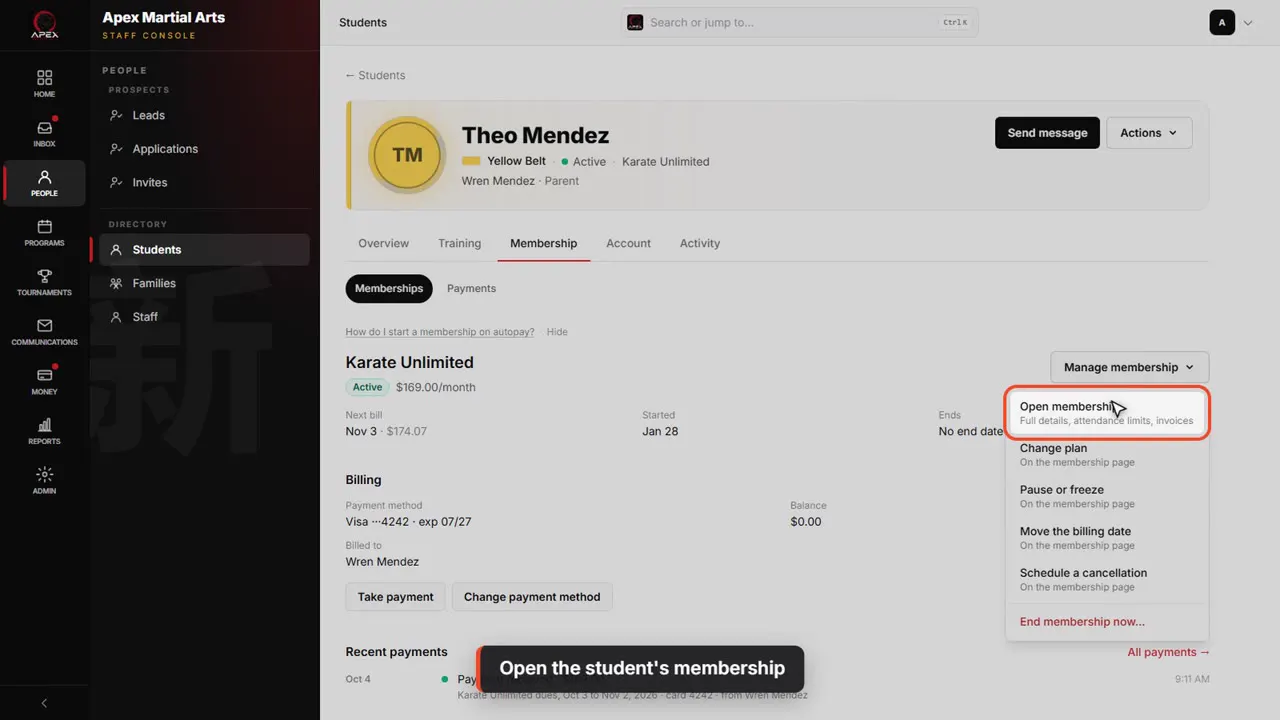
Open the student's membership
When a family needs to update their card, open the student's profile, then Membership, then Manage membership, and Open membership.
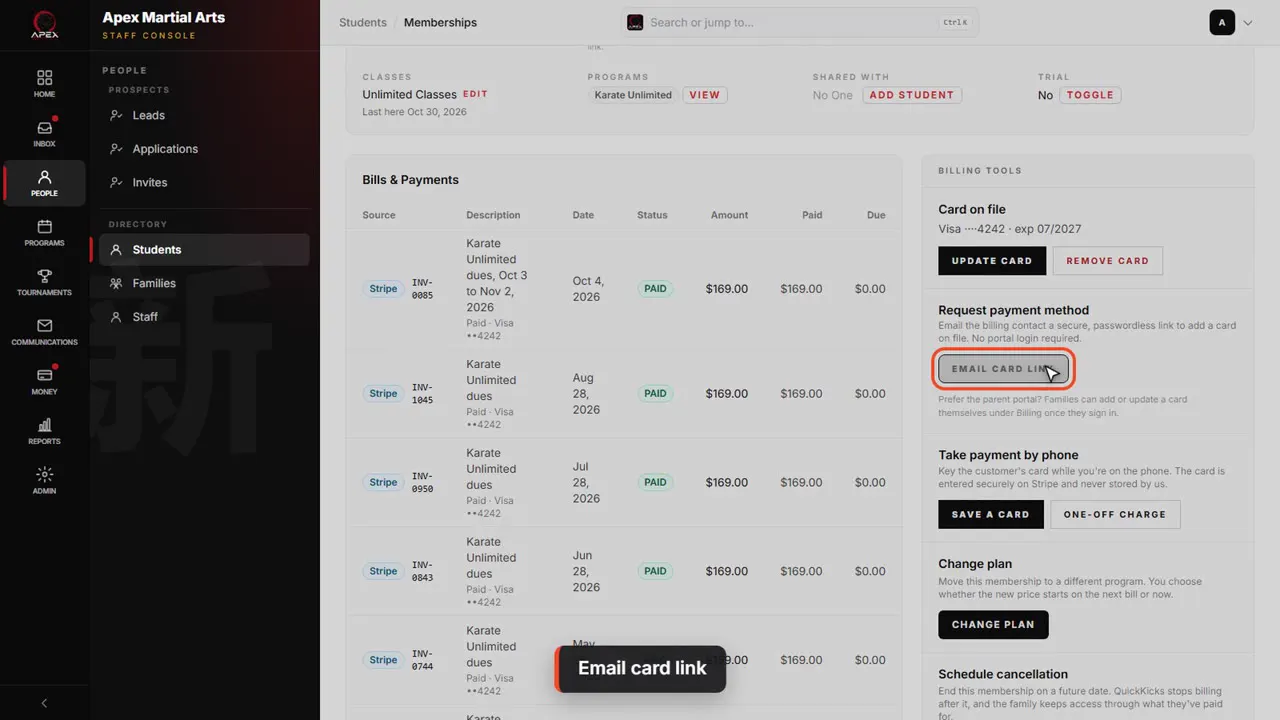
Email card link
In Billing tools, under Request payment method, click Email card link. The account holder gets a secure link to add a new card, with no login needed.
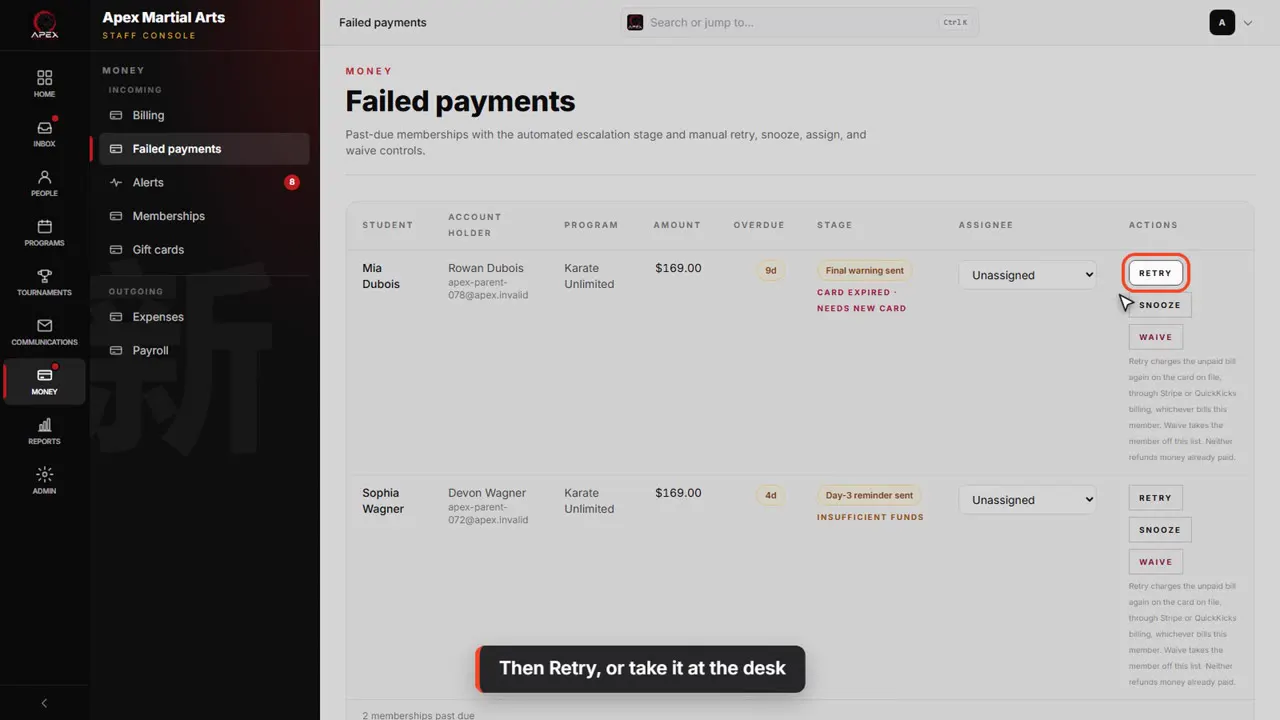
Then Retry, or take it at the desk
Once the new card is in, go back to Failed payments and click Retry, or take the payment at the desk.
Shown with a demo school. Your screens show your own school, and may look a little different.
Read the whole video as text
When a family's card is declined, the membership goes past due. In this video you'll see where those land, what QuickKicks does about them on its own, and what you can do.
When a membership payment fails, the membership goes past due. You'll find it under Money, then Failed payments.
Each row is one membership: the student, the account holder, the program, the amount, and how many days overdue. The oldest is at the top.
Stage shows why the card was declined. Card expired means that card won't work again, so the family needs to give you a new one. Insufficient funds may go through on a later try.
QuickKicks follows up for you. The family is emailed when the charge fails, again on day three, and a final warning on day seven. Stage shows how far each one has got.
On day fourteen the membership is paused automatically, the emails stop, and it leaves this list. You get an alert under Money, then Alerts, instead.
Retry charges the card on file again, right now, for the same unpaid bill. It doesn't add a new bill. If it goes through, the membership leaves this list.
Snooze holds things off until a date you pick: no reminder emails and no automatic pause for this membership until then. Handy when a family says they will pay on Friday.
Waive puts the membership back to active and takes it off this list. Click Waive, and you choose what happens to the unpaid bill.
Forgive the bill, the default, cancels it, so it's never charged. Keep the bill leaves it open, to collect later. Then give a reason and click Confirm waive. We won't confirm it here.
Assignee puts one person in charge of chasing it, so two people never call the same family.
For the same list with when the card was last tried, open Billing. It starts on the Past due tab, with the list below.
In simple mode the same list is called Who owes money, with the total at the top.
Alerts collect what needs a person: auto-paused memberships, cards that need replacing, and other failed charges. Click Acknowledge when you take one on, and Mark resolved when it is done.
When a family needs to update their card, open the student's profile, then Membership, then Manage membership, and Open membership.
In Billing tools, under Request payment method, click Email card link. The account holder gets a secure link to add a new card, with no login needed.
Once the new card is in, go back to Failed payments and click Retry, or take the payment at the desk.
That's failed payments: where they land, what happens on its own, and how to get a new card.
That’s every video
Come back any time: the guides are here when a new person joins your front desk.
All videos for schoolsBefore this: Take a payment or give a refund
Stuck?
In QuickKicks, open Admin, then Support (or Help, in the simpler menu), and send us a message. Or email hello@quickkicks.app.