
For families · Payments
Adding a card
Save a card for your memberships and bills, on your phone.
 1
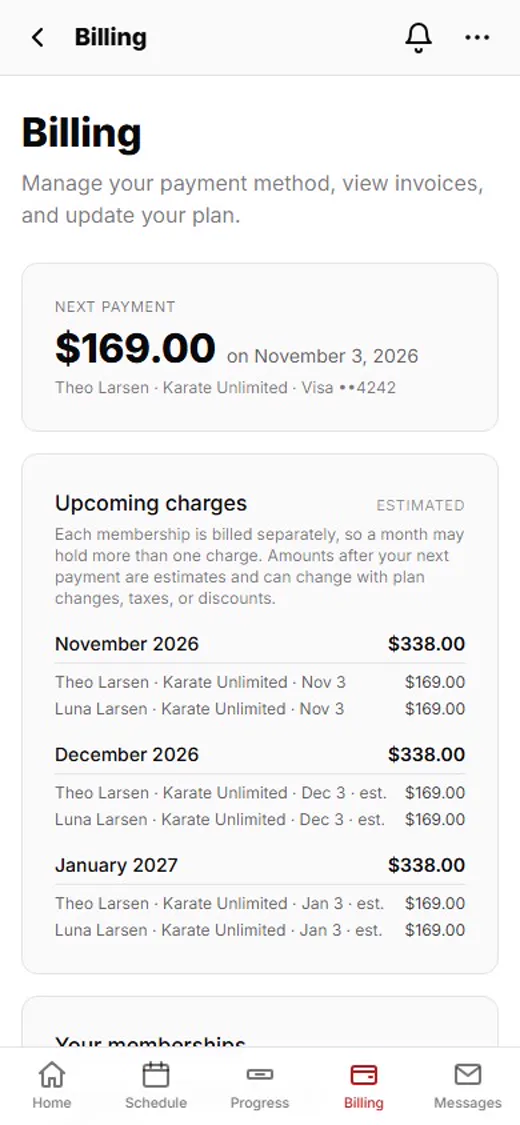
1Tap Billing
Sign in to your family portal or the app, and tap Billing.
 2
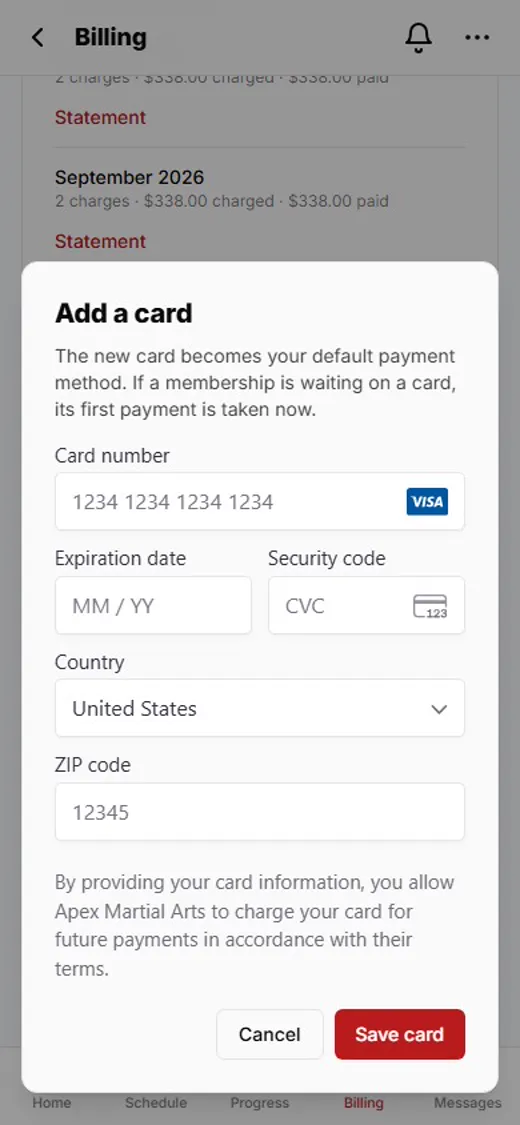
2Tap Add a card
Scroll down to Payment methods and tap Add a card.
 3
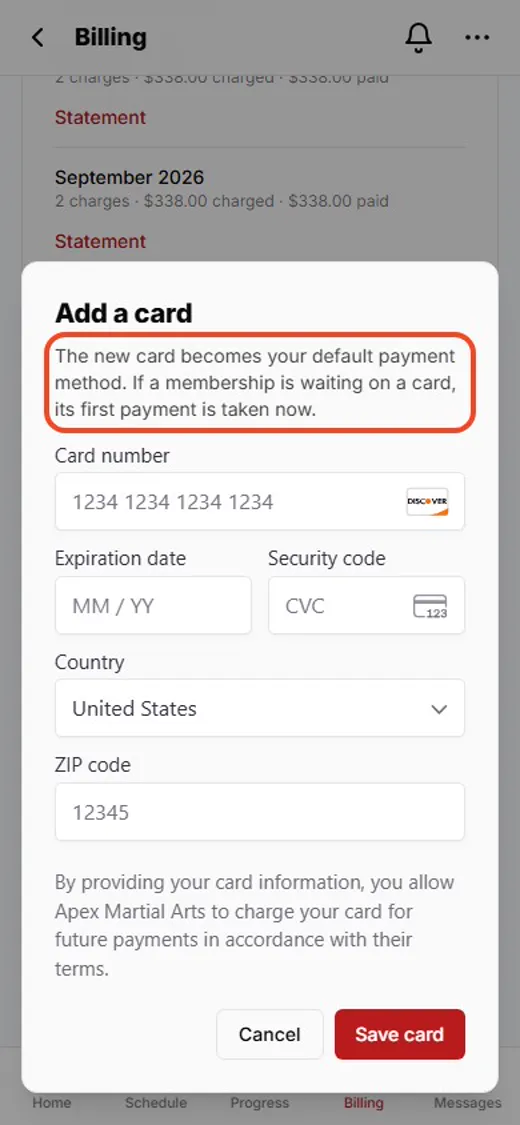
3Read this first
The new card becomes the one that pays. If a membership is waiting for a card, its first payment is taken when you save.
 4
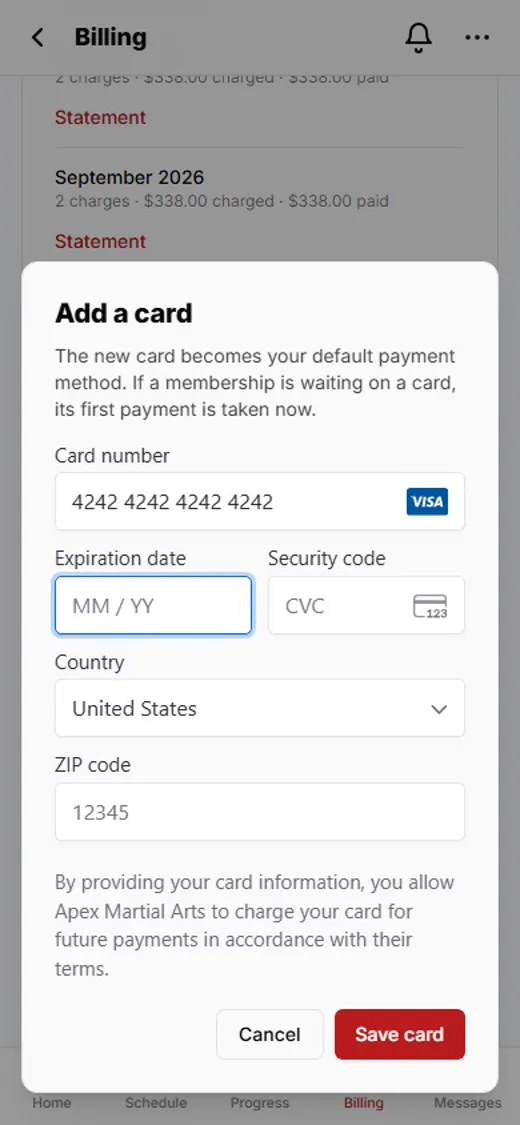
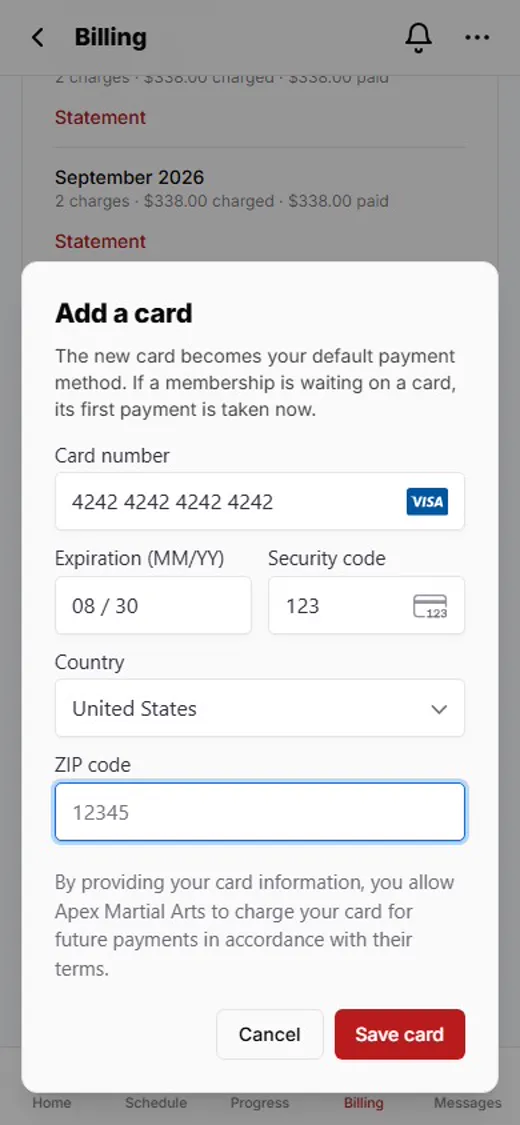
4Type your card number
Type the long number on the front of your card.
 5
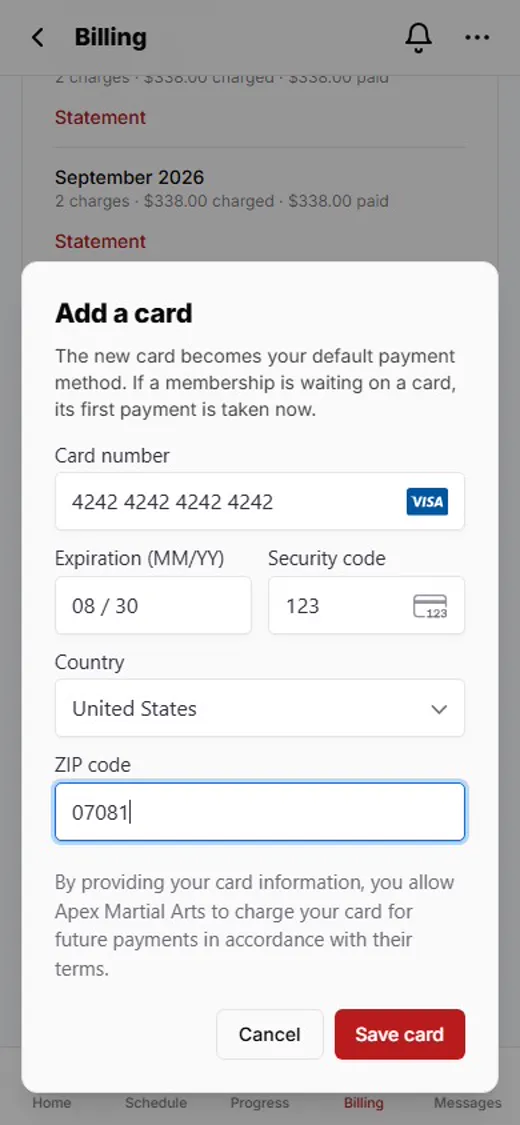
5Expiry date and security code
The expiry date, then the 3-digit security code from the back.
 6
6Your ZIP code
The ZIP code your card statements go to.
 7
7Tap Save card
Tap Save card.
Shown with Apex Martial Arts, a demo school. Your school’s pages may look a little different.
What happens next
- 1
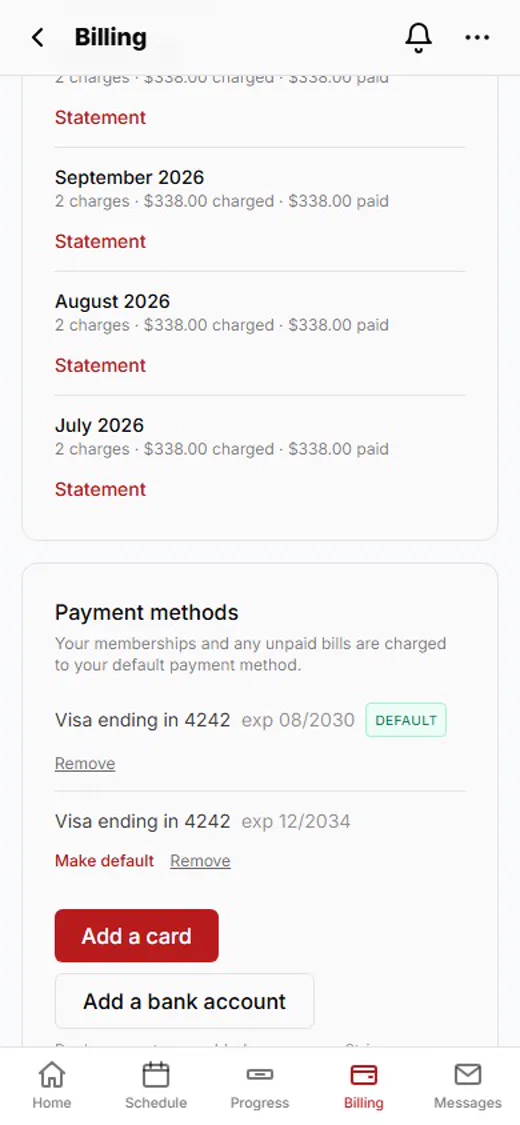
It’s your default now
The new card pays your memberships and any unpaid bills from now on.
- 2
Change your mind?
Tap Make default on another card, or Remove on one you don’t want. Removing a card does not cancel a membership.
Good to know
- Will I be charged right away?
- Only if a membership is waiting for a card: its first payment is taken when you save. Otherwise nothing is charged until the next bill.
- Is it safe?
- Your card is kept by Stripe, the payment company your school uses. The school never sees the full number.
- Paying by bank instead?
- Tap Add a bank account. It opens a secure Stripe page to connect your bank.
Stuck?
Ask the front desk at your school. They can send you a link to add your card, or take it at the desk.