
For families · Getting started
Your class schedule
See when your children’s classes are, and put them in your phone’s calendar.
 1
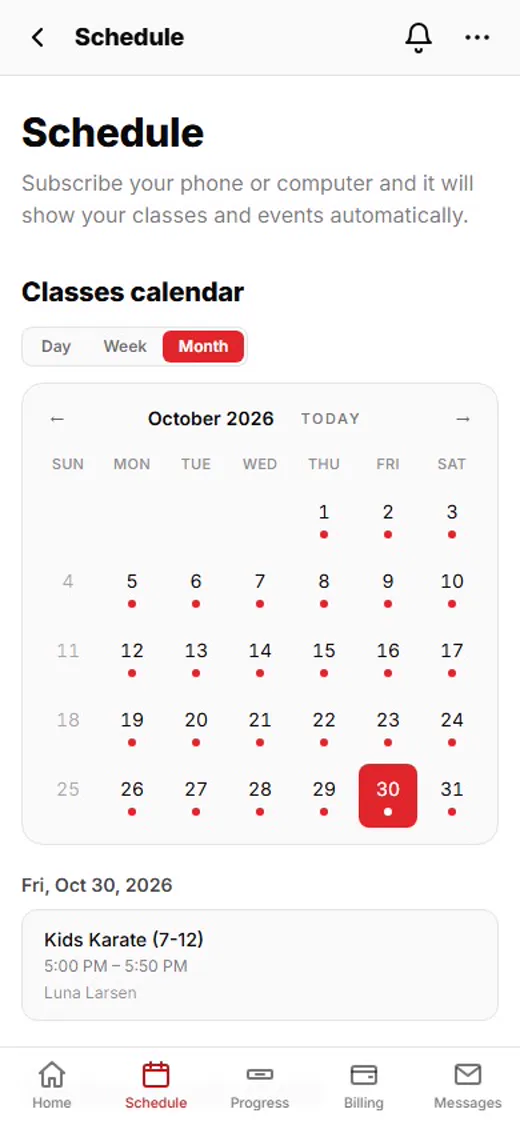
1Tap Schedule
Sign in to your family portal or the app, and tap Schedule.
 2
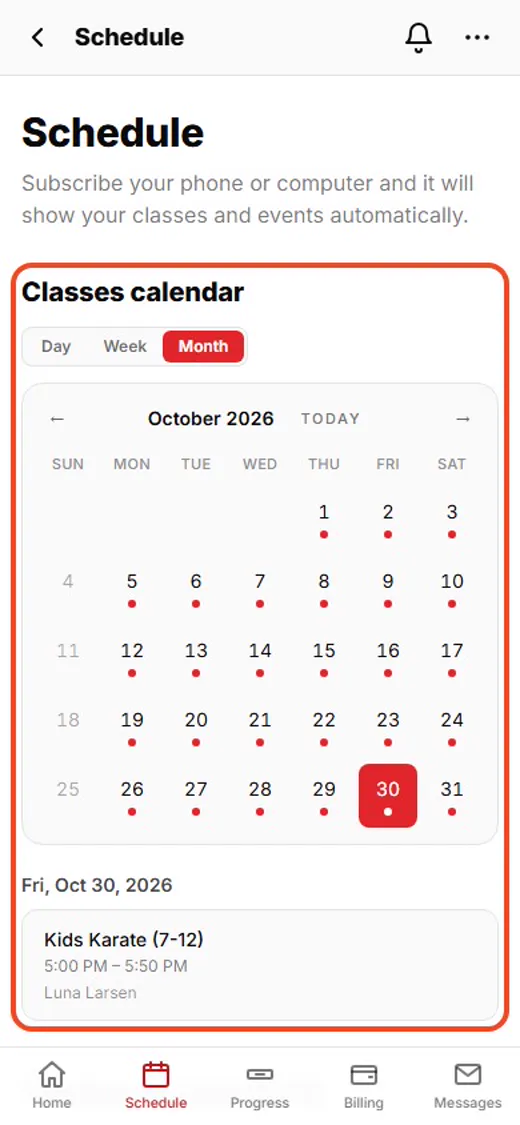
2Your month at a glance
The calendar shows your children’s classes. Tap any day to see that day’s classes.
 3
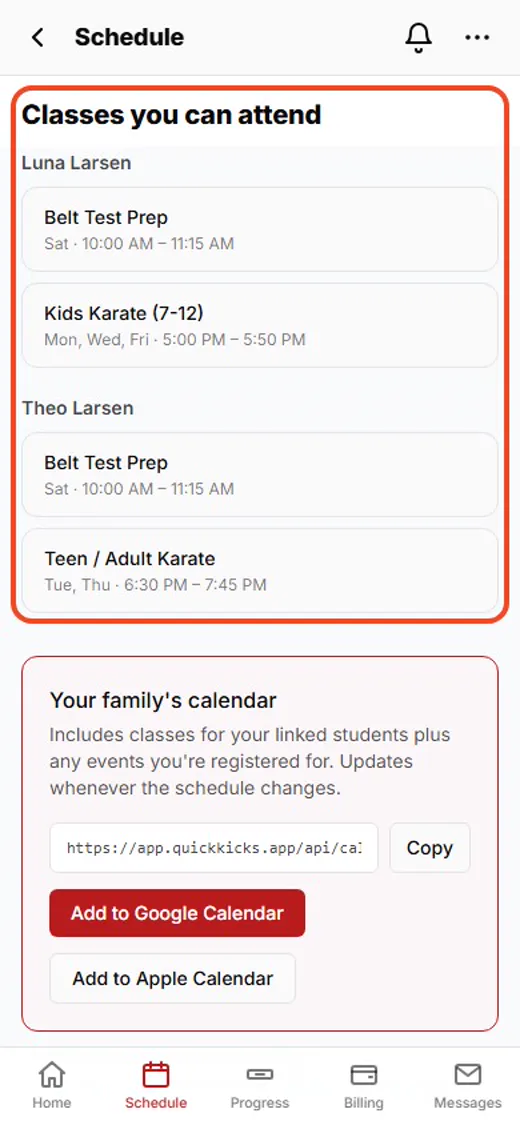
3Classes each child can attend
Classes you can attend lists every class each child can come to, with days and times.
 4
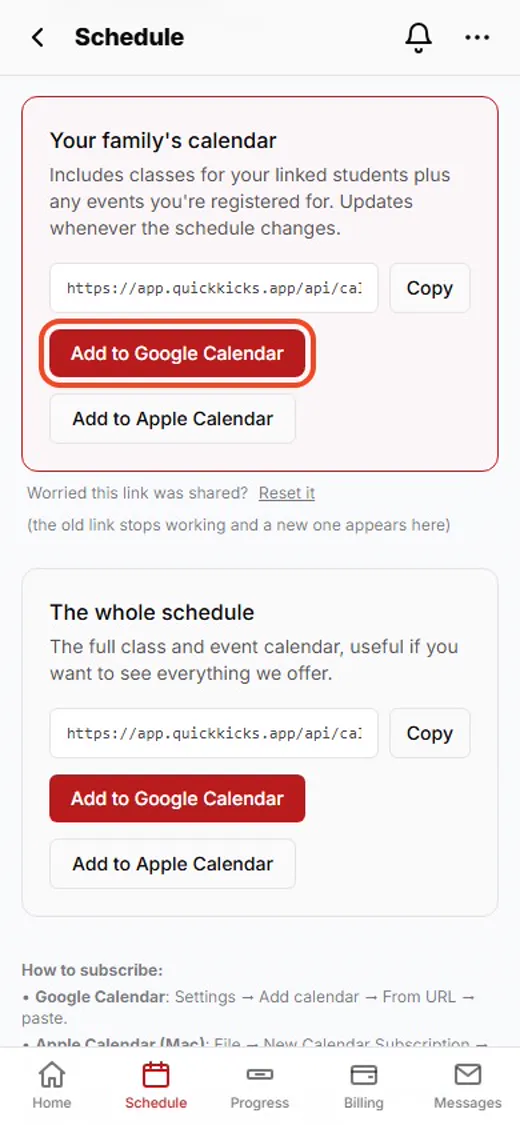
4Put it in your phone’s calendar
Tap Add to Google Calendar or Add to Apple Calendar. Your classes show up in your phone’s calendar and stay up to date.
Shown with Apex Martial Arts, a demo school. Your school’s pages may look a little different.
What happens next
- 1
It stays up to date
Once it’s in your calendar, new classes and cancellations show up there on their own.
- 2
A class is cancelled?
You’ll see it on the schedule, and in your calendar if you added it.
Good to know
- Why don’t I see a class?
- The schedule shows the classes each child can attend, by age and belt. Ask the front desk if one is missing.
- Using an iPhone?
- Tap Add to Apple Calendar. Or copy the link and add it in Settings, Calendar, Accounts, Add Subscribed Calendar.
- Worried the link was shared?
- Tap Reset it. The old link stops working and you get a new one.
Stuck?
Ask the front desk at your school. They can tell you which classes suit your child.