
For families · Getting started
Signing your waiver
Sign your school’s waiver on your phone in about two minutes.
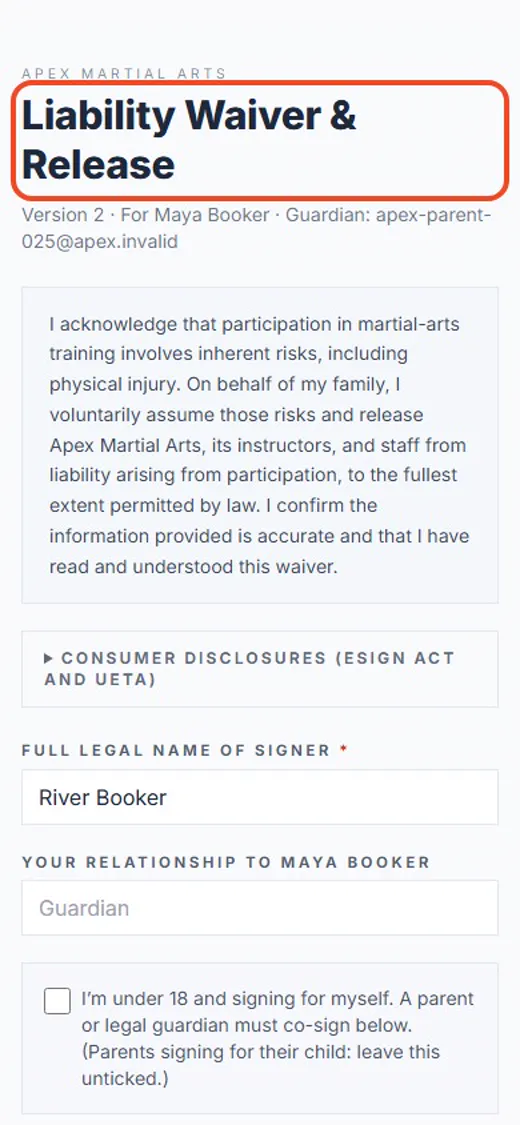 1
1Open the link in your email
Your school emails you a link. Tap it to open the waiver.
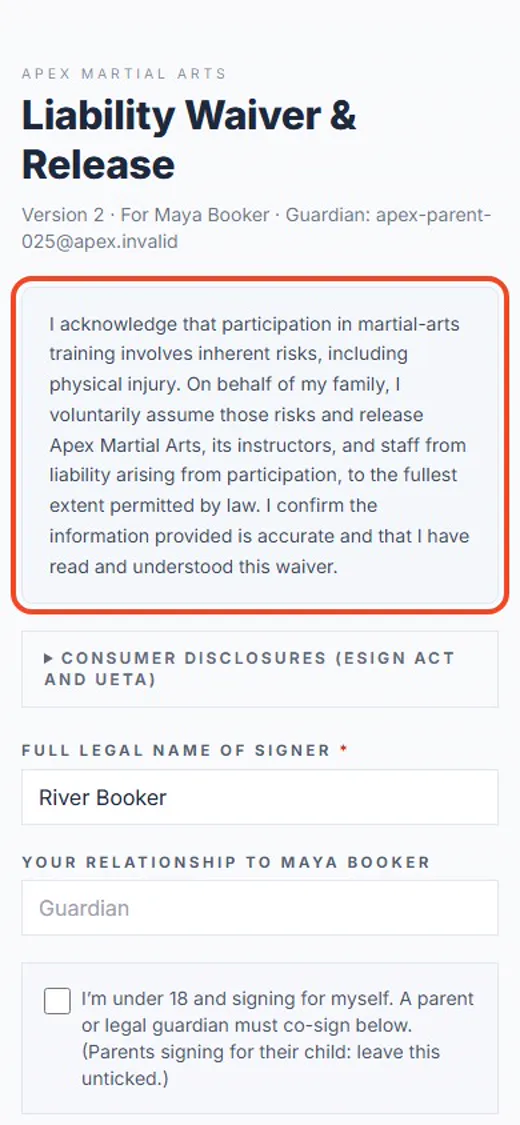 2
2Read the waiver
Read it through. It explains the risks of training and what you’re agreeing to.
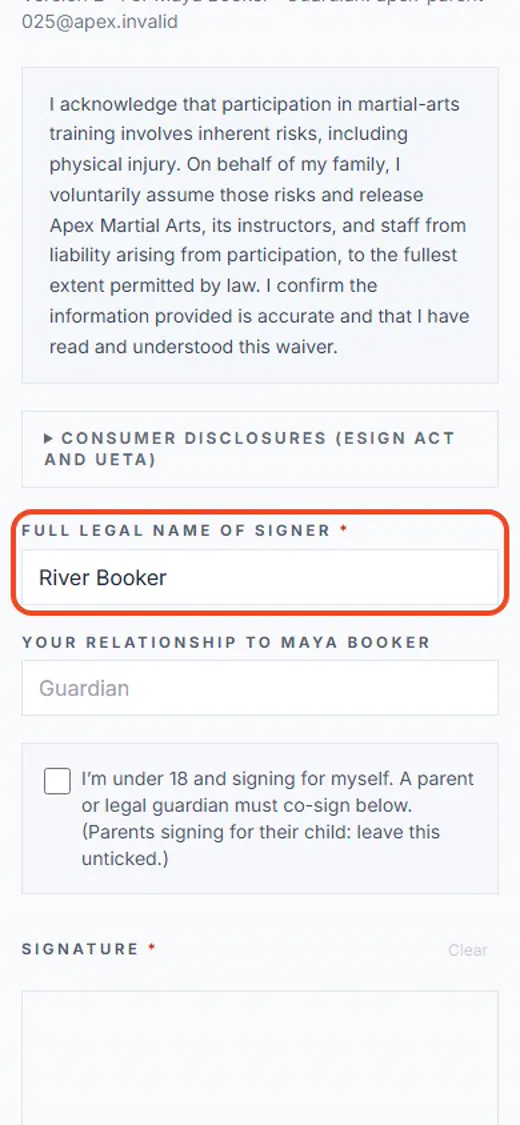 3
3Check your name
Your name is filled in for you. Make sure it’s your full legal name.
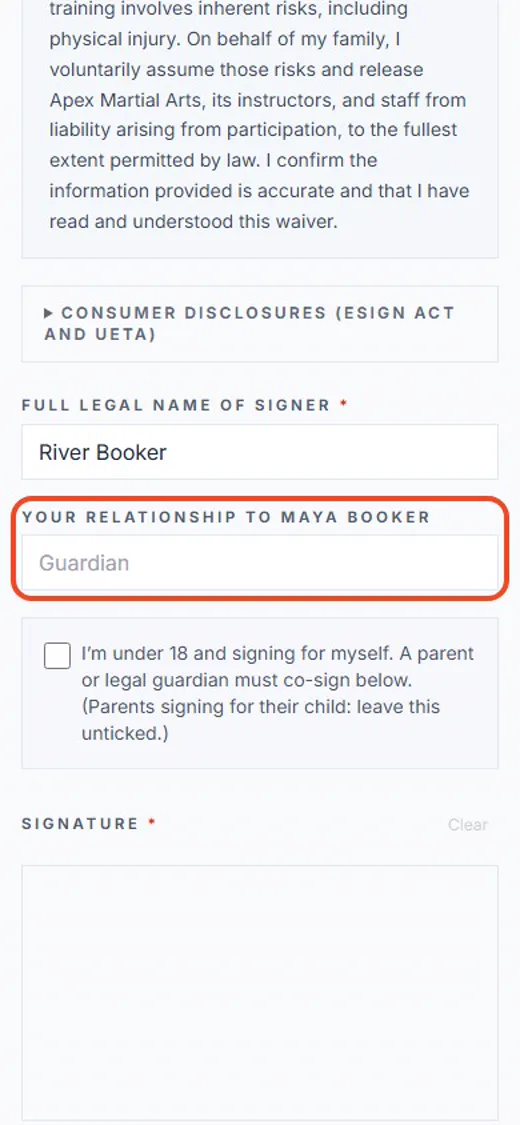 4
4How you’re related
Type how you’re related to your child: mother, father or guardian.
 5
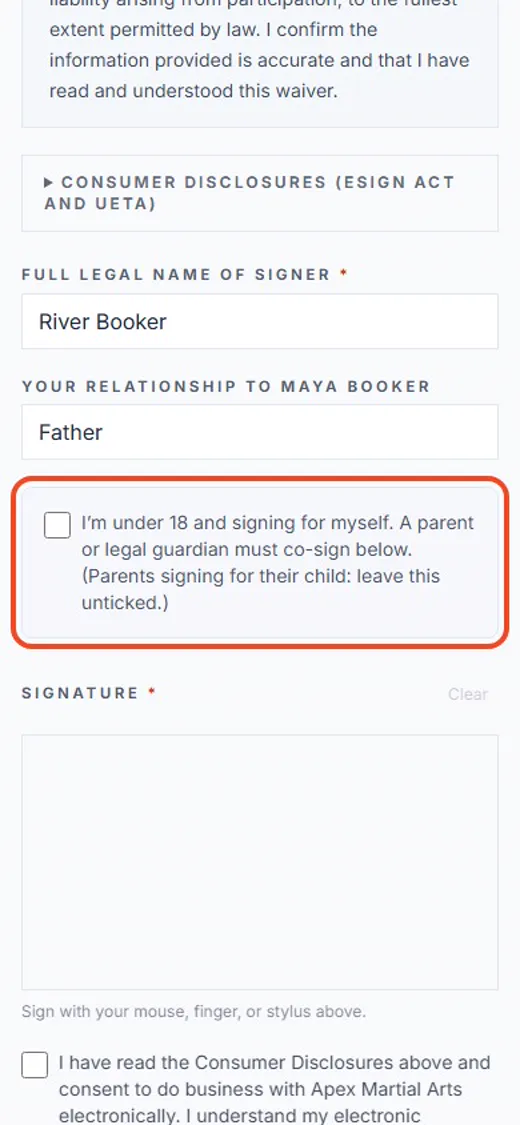
5Signing as the parent? Leave this empty
This box is for a teenager signing for themselves. If you’re the parent, leave it empty.
 6
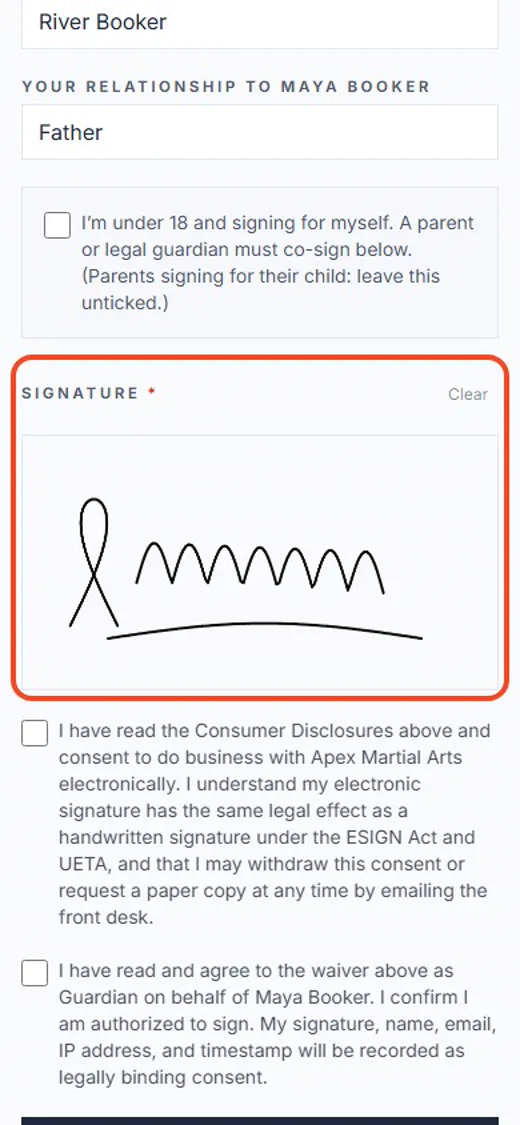
6Sign with your finger
Sign in the box with your finger. Tap Clear to start over.
 7
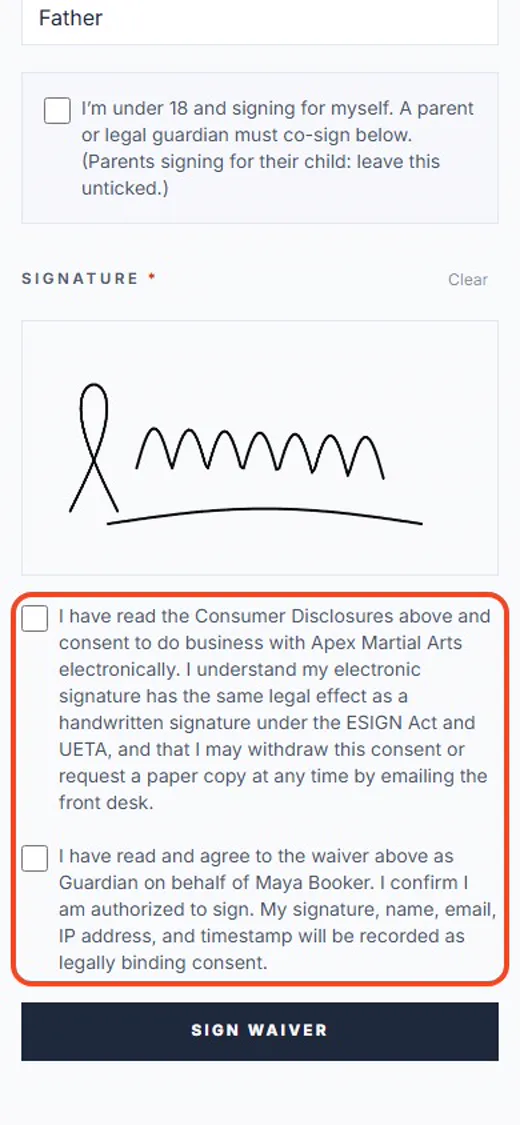
7Tick both boxes
Tick both boxes: one to sign online, one to agree to the waiver.
 8
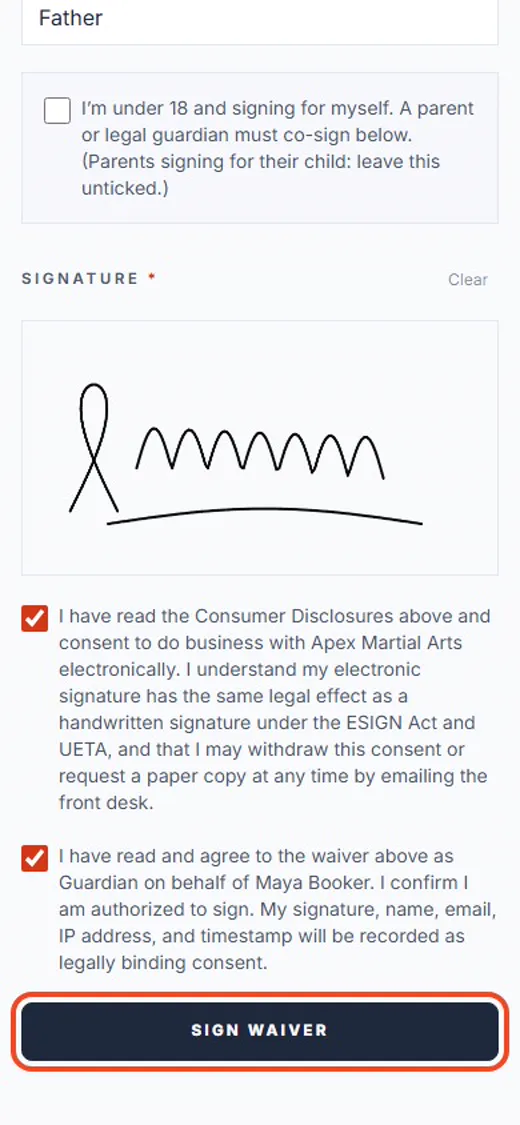
8Tap Sign waiver
Tap Sign waiver. That’s it.
Shown with Apex Martial Arts, a demo school. Your school’s pages may look a little different.
What happens next
- 1
Keep your copy
After you sign, the page offers a copy of what you signed. Your school keeps one too.
- 2
When it runs out
Many schools ask for a new waiver every year. You’ll get an email reminder a month before yours runs out.
- 3
Add a card
If your school takes payments online, see the guide Adding a card.
Good to know
- Where is the link?
- In an email from your school about the waiver. You can also sign it in the app, under Waivers.
- Two parents?
- If your school asks for a second parent, they get their own link by email.
- Made a mistake?
- Before you tap Sign waiver, tap Clear to redo your signature. After that, ask the front desk.
Stuck?
Ask the front desk at your school. They can resend the link, or let you sign on a tablet at the desk.