
For families · Getting started
Finishing your sign-up from the link
Your school sends one link to finish everything: the waiver, autopay and your login.
 1
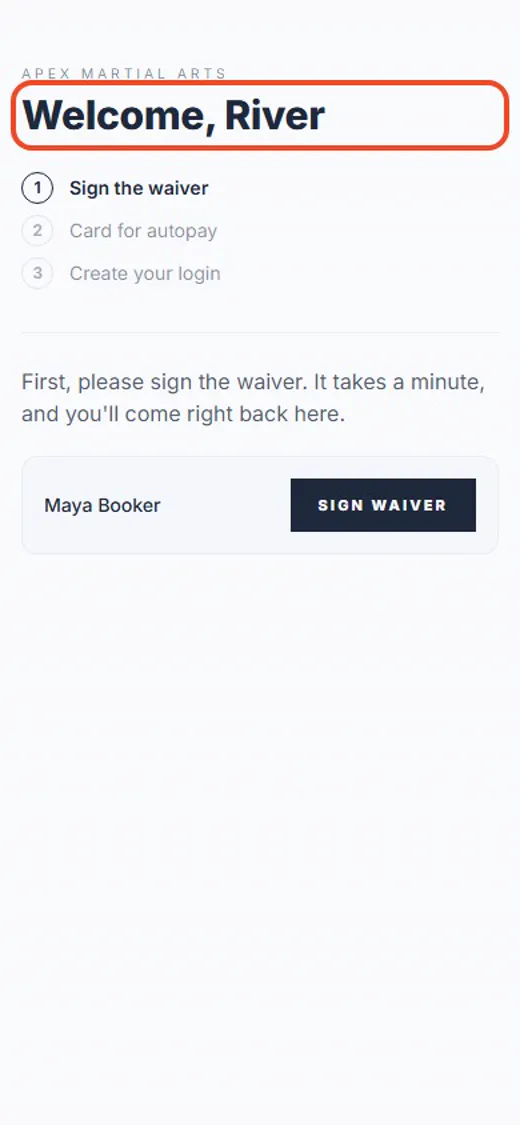
1Open the link in your email
Your school emails you one link. It opens a page with every step in order.
 2
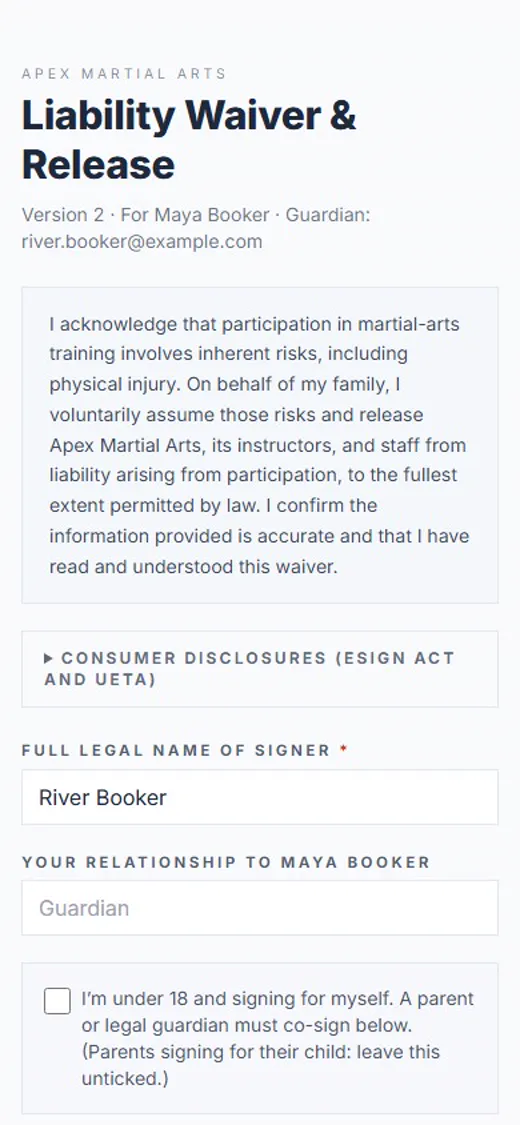
2Tap Sign waiver
First the waiver: tap Sign waiver.
 3
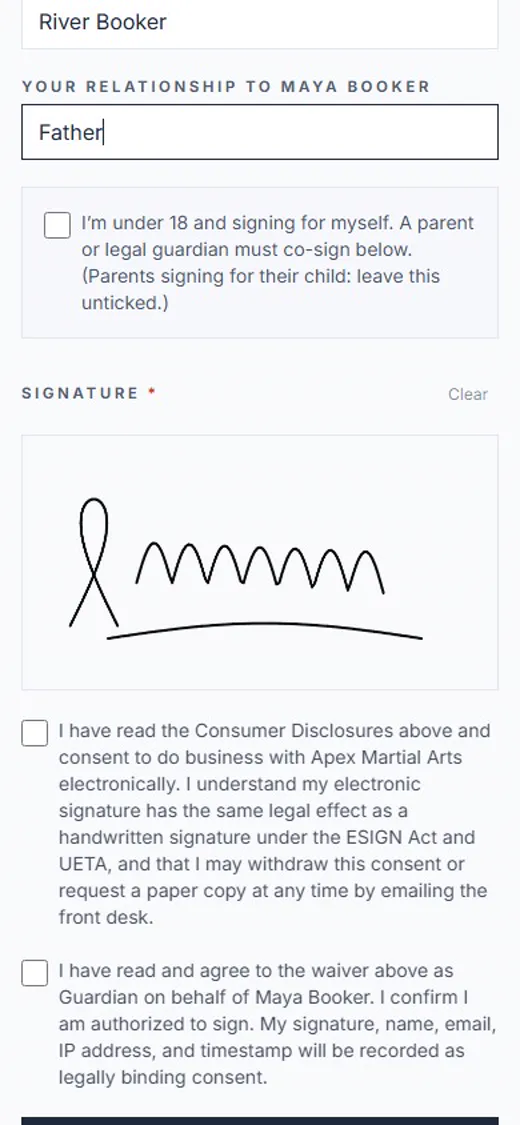
3Sign with your finger
Read it, type how you’re related, and sign in the box with your finger.
 4
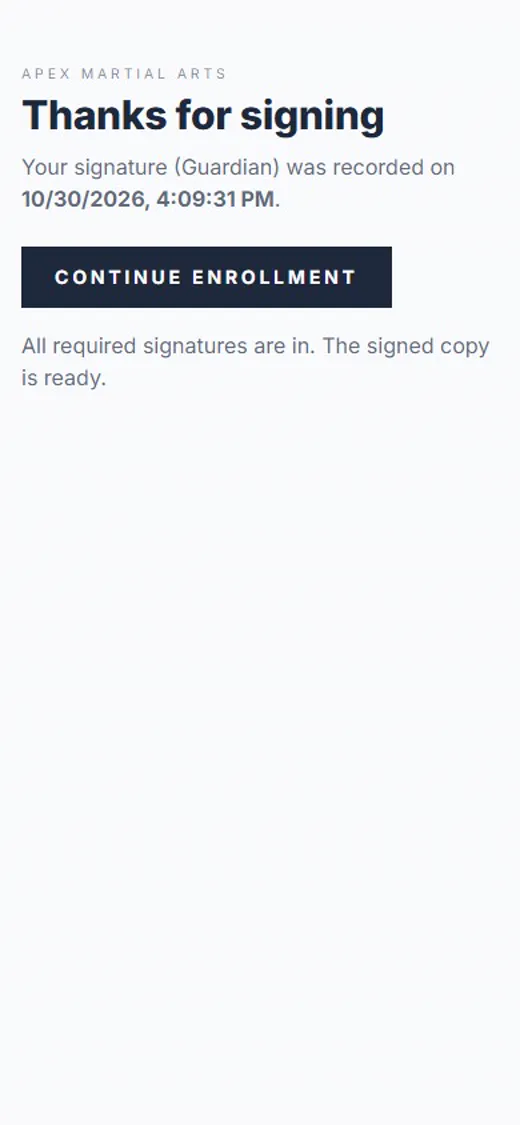
4Tick both boxes, tap Sign waiver
Tick both boxes and tap Sign waiver.
 5
5Tap Continue enrollment
Tap Continue enrollment to go back to your steps.
 6
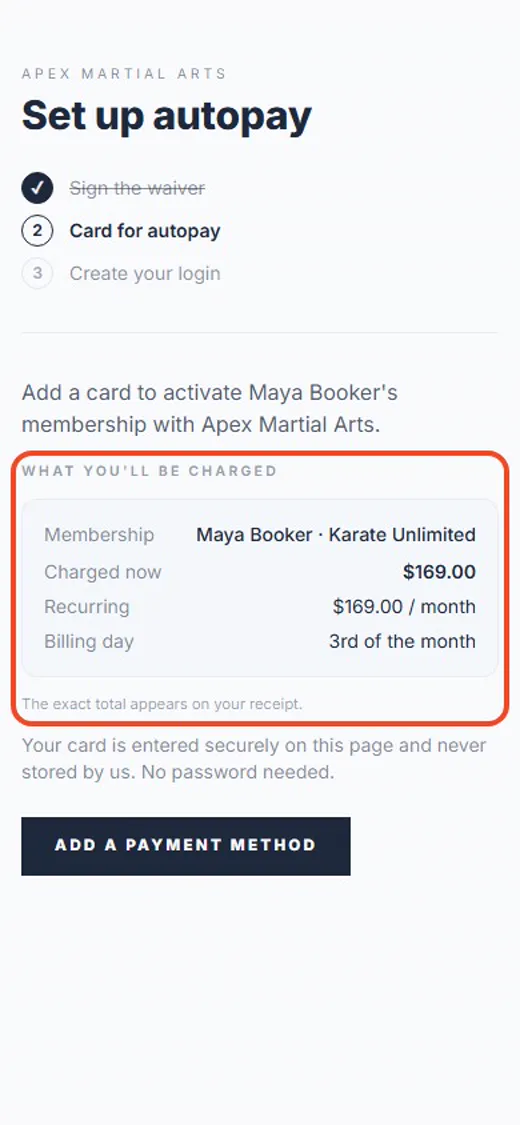
6See what you’ll pay
What you’ll be charged shows the amounts and dates before you add a card.
 7
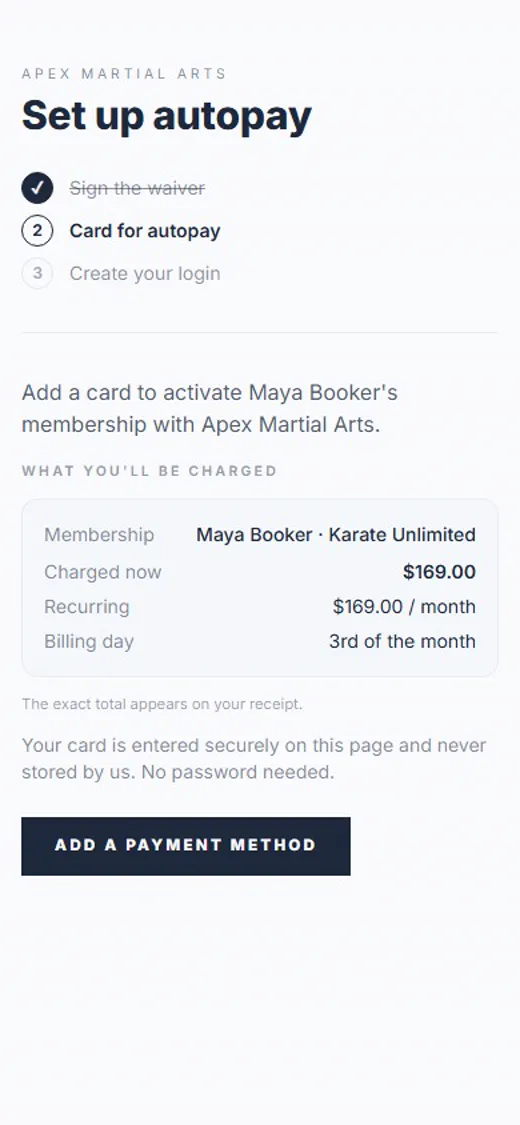
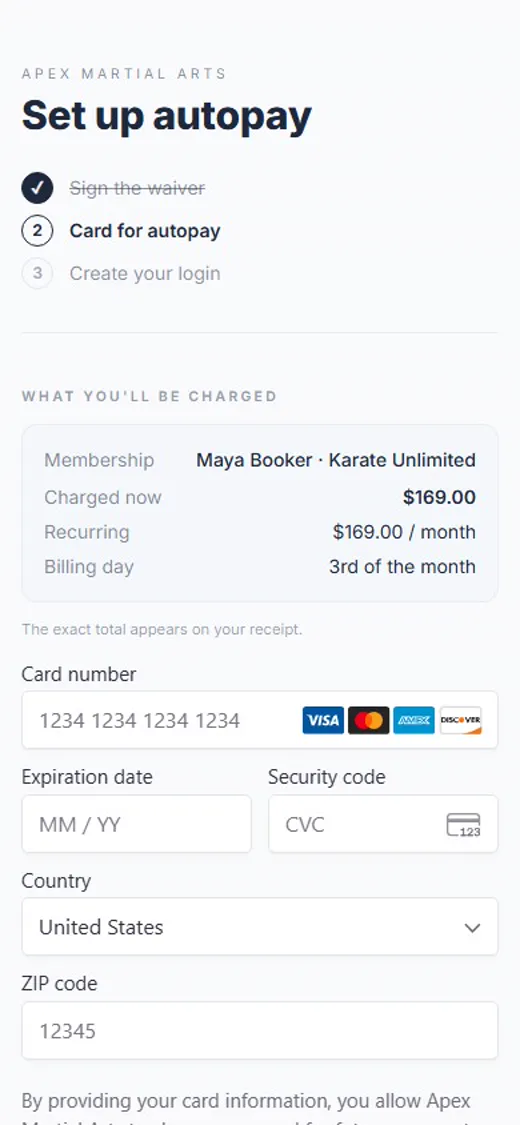
7Tap Add a payment method
Tap Add a payment method.
 8
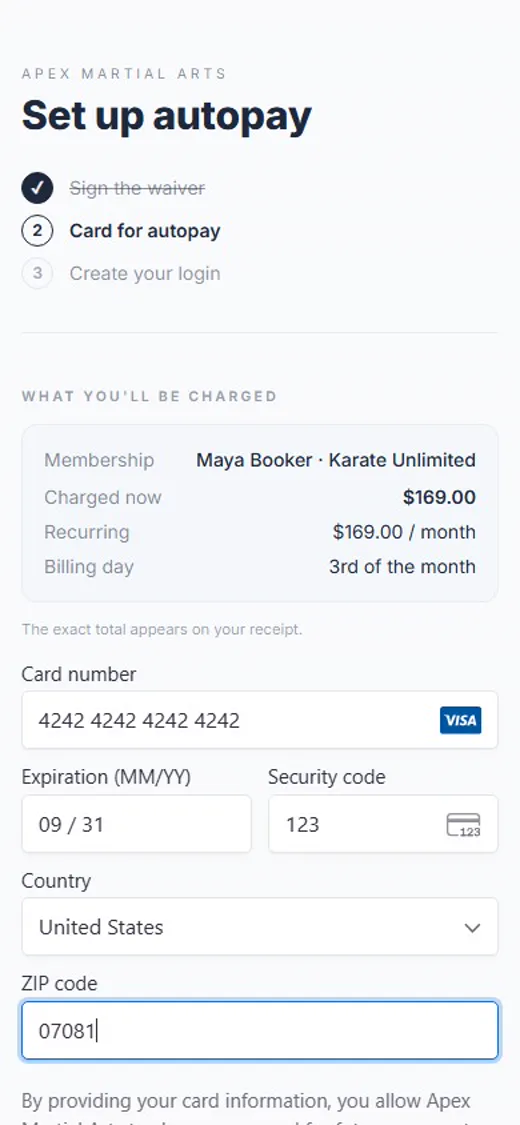
8Your card details
Your card number, expiry date, the 3-digit security code and your ZIP code.
 9
9Tap Save card
Tap Save card, then Continue.
 10
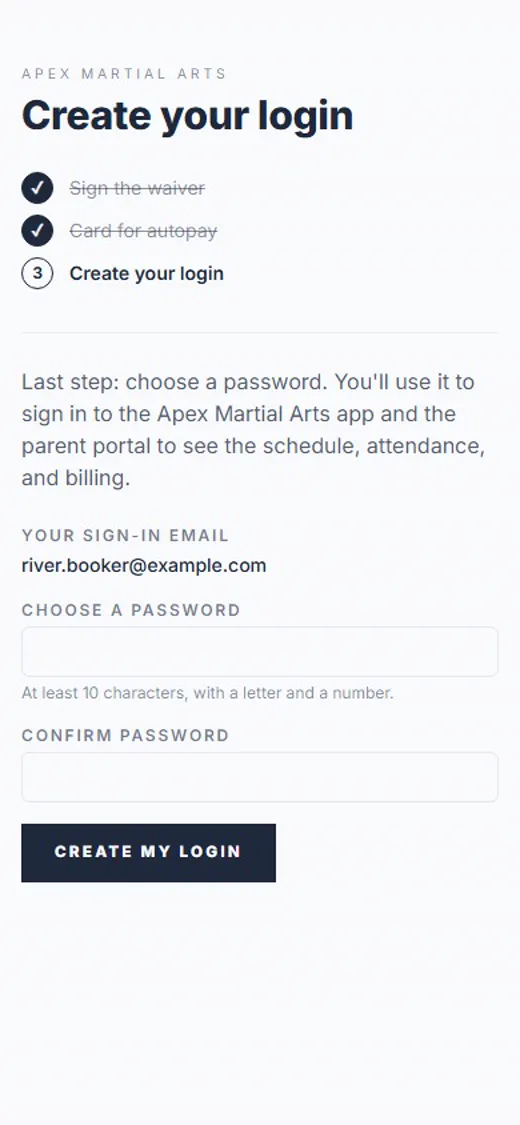
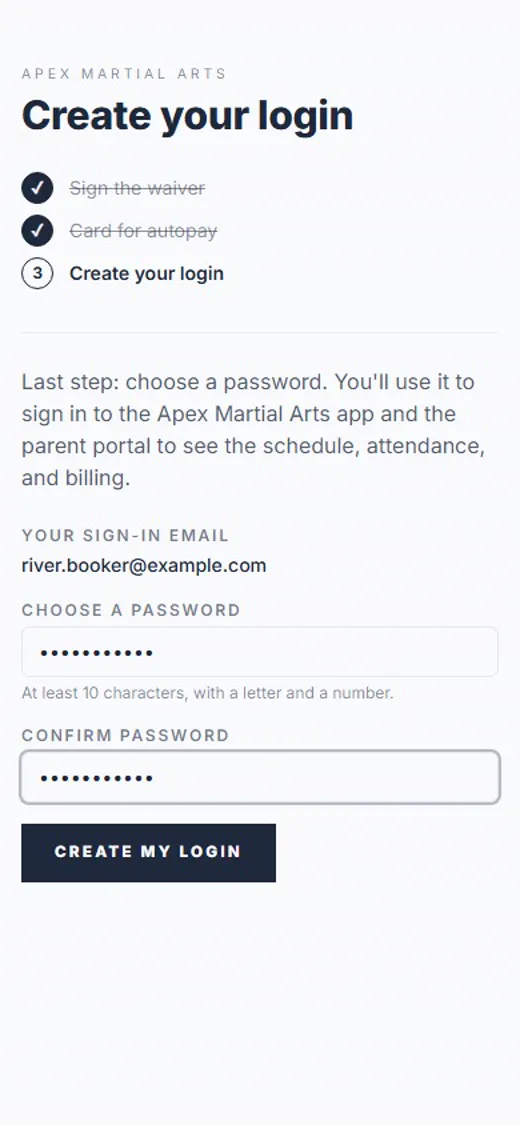
10Choose a password
Choose a password (at least 10 characters, with a letter and a number), and type it again.
 11
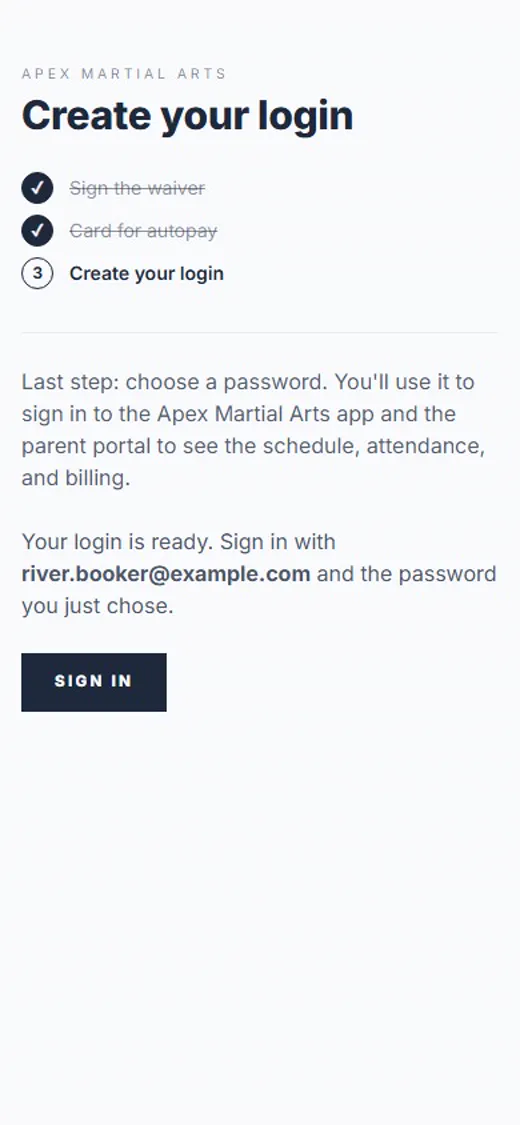
11Tap Create my login
Tap Create my login.
Shown with Apex Martial Arts, a demo school. Your school’s pages may look a little different.
What happens next
- 1
Sign in
Use your email and the password you chose, in the app or the family portal.
- 2
Your first class
See the guide Your class schedule to find your classes and add them to your phone’s calendar.
Good to know
- Where is the link?
- In an email from your school, sent when they signed you up. It works for a few days; the front desk can send a fresh one.
- Can I stop halfway?
- Yes. Open the same link again and it picks up where you left off.
- Will I be charged right away?
- The page shows What you’ll be charged before you save your card, including anything charged today.
Stuck?
Ask the front desk at your school. They can resend the link or help you finish at the desk.